
Frequently Asked Question
How to set up a secondary account on Chrome?
Last Updated a year ago
- Open the Google Chrome browser window
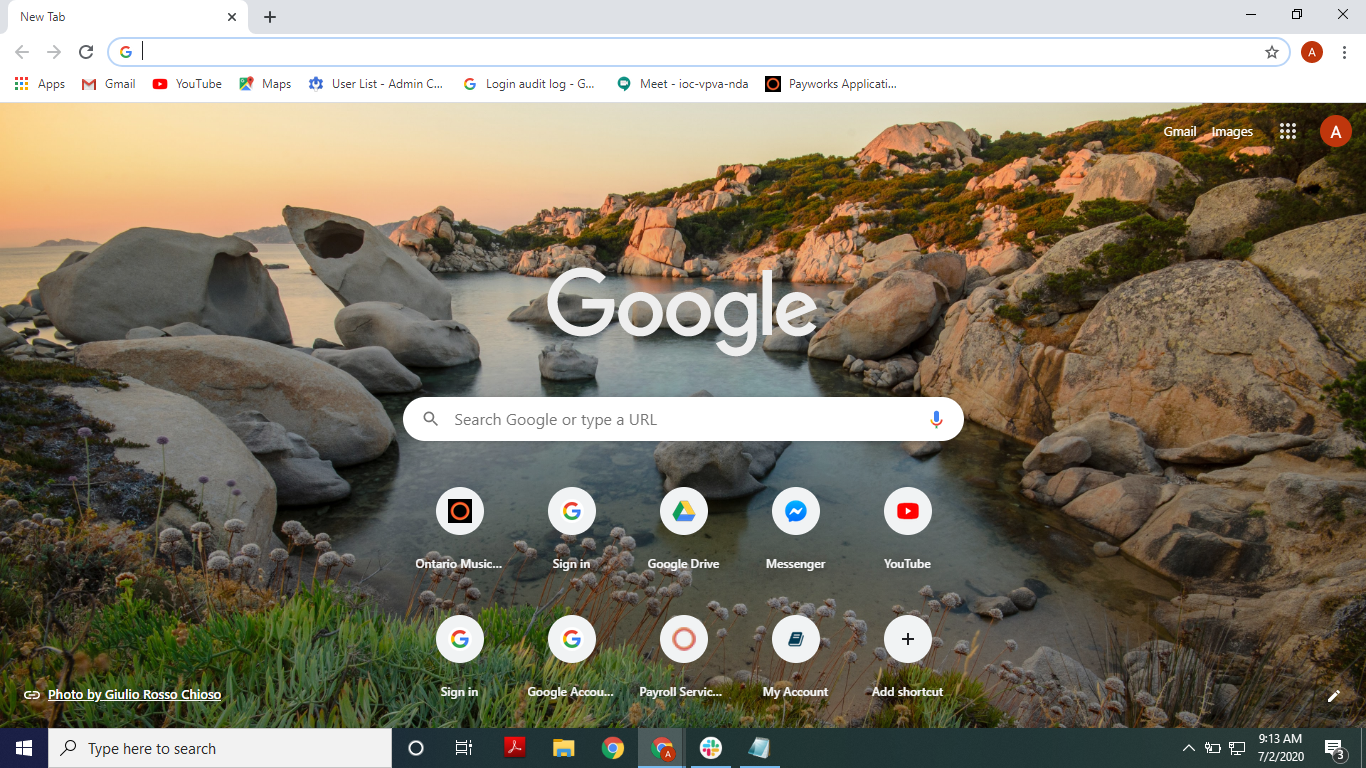
- Click the circle icon beside the address bar (outlined by the red box in the screenshot)
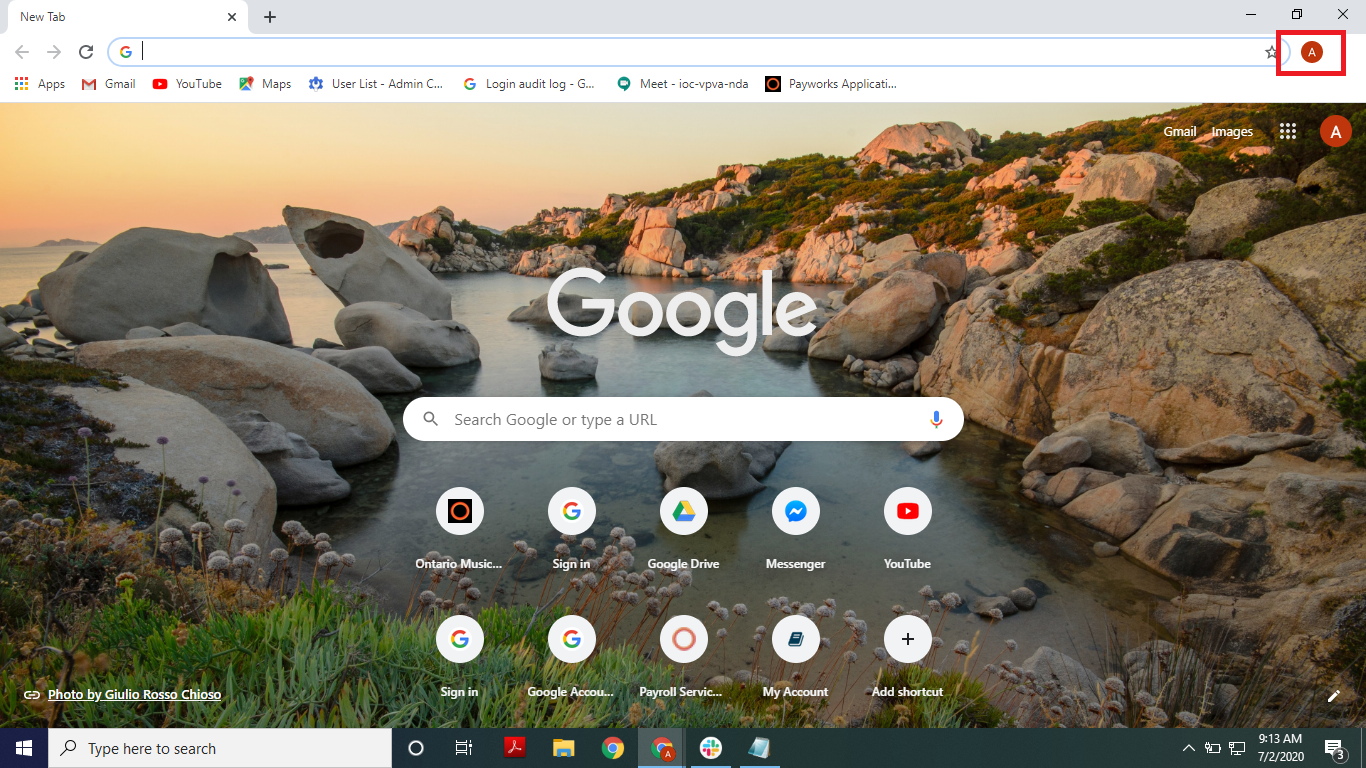
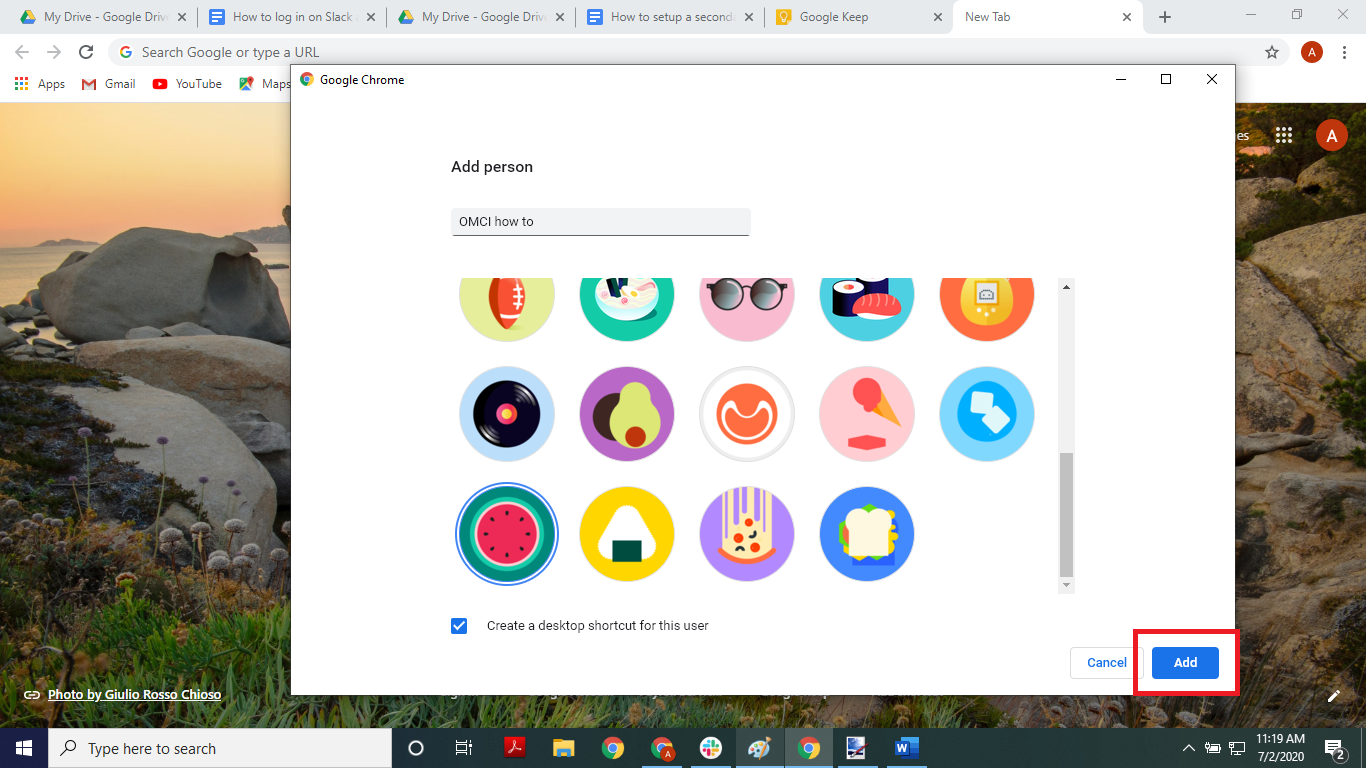
- Click the “Add” button (outlined by the red box in the screenshot)
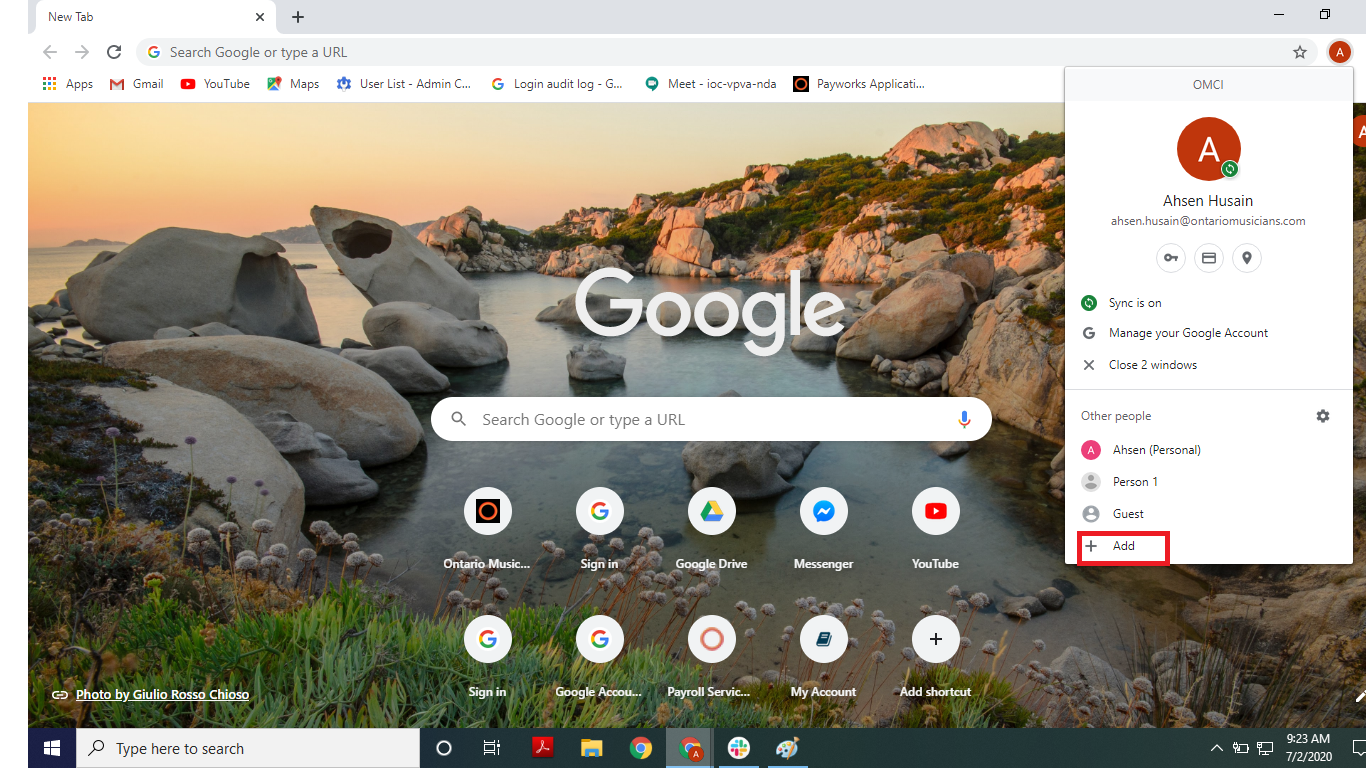
- Enter a name for the OMCI account then pick an icon(watermelooon!)
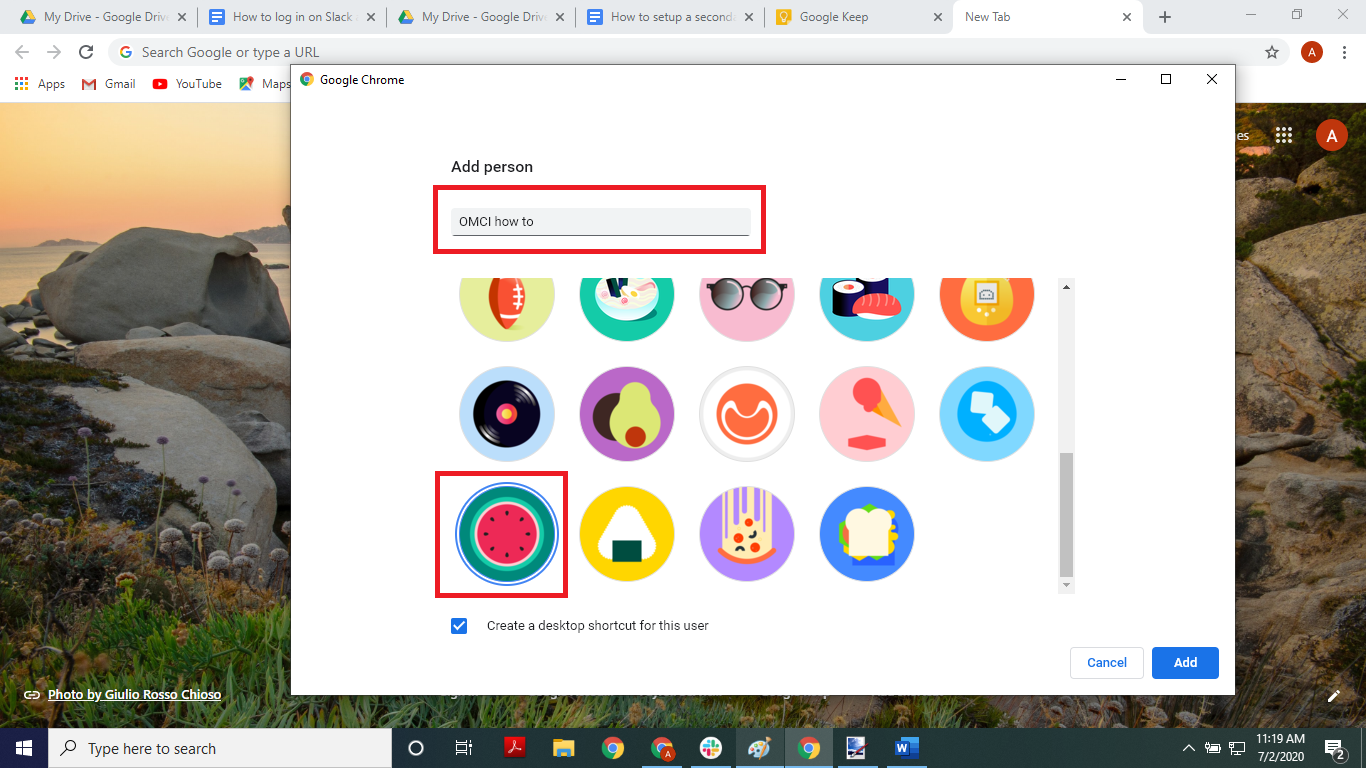
- Click the “Add” button
- You will be redirected to a new page that looks like this
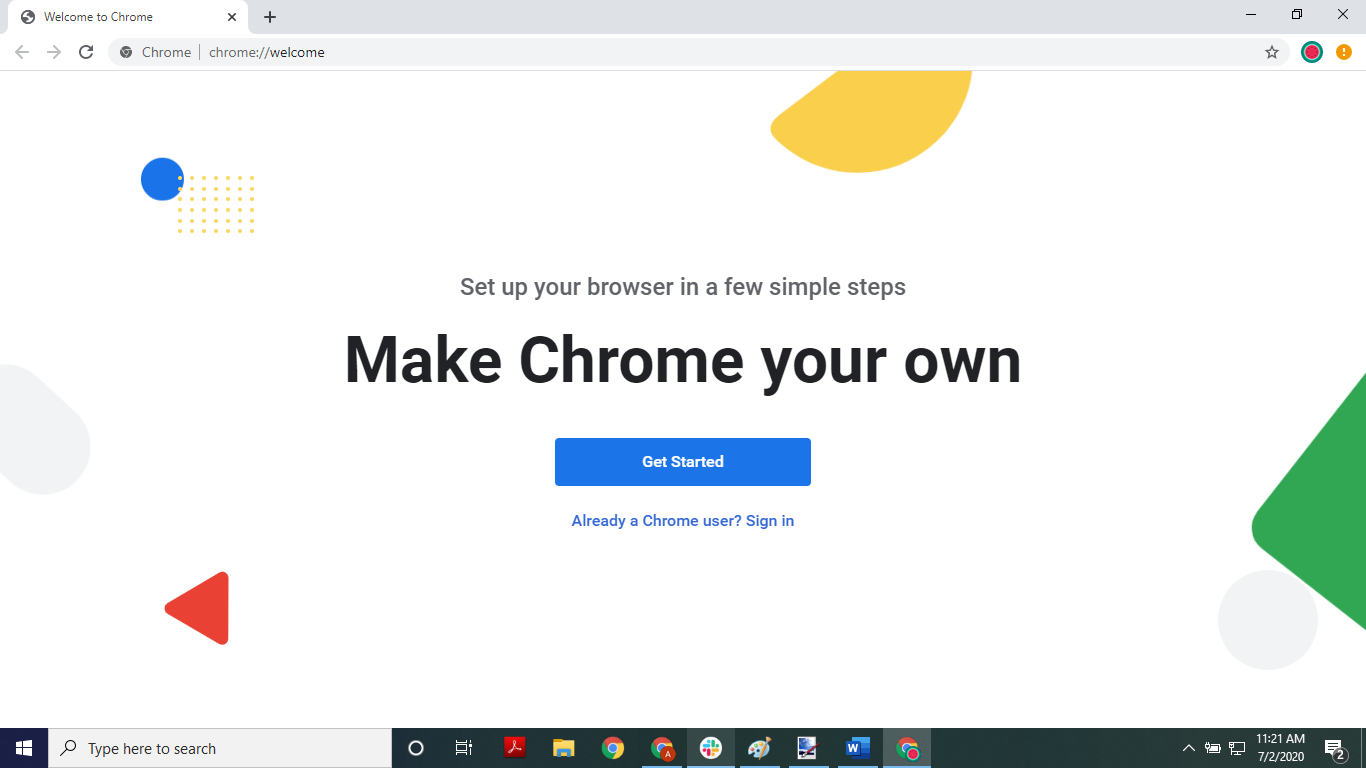
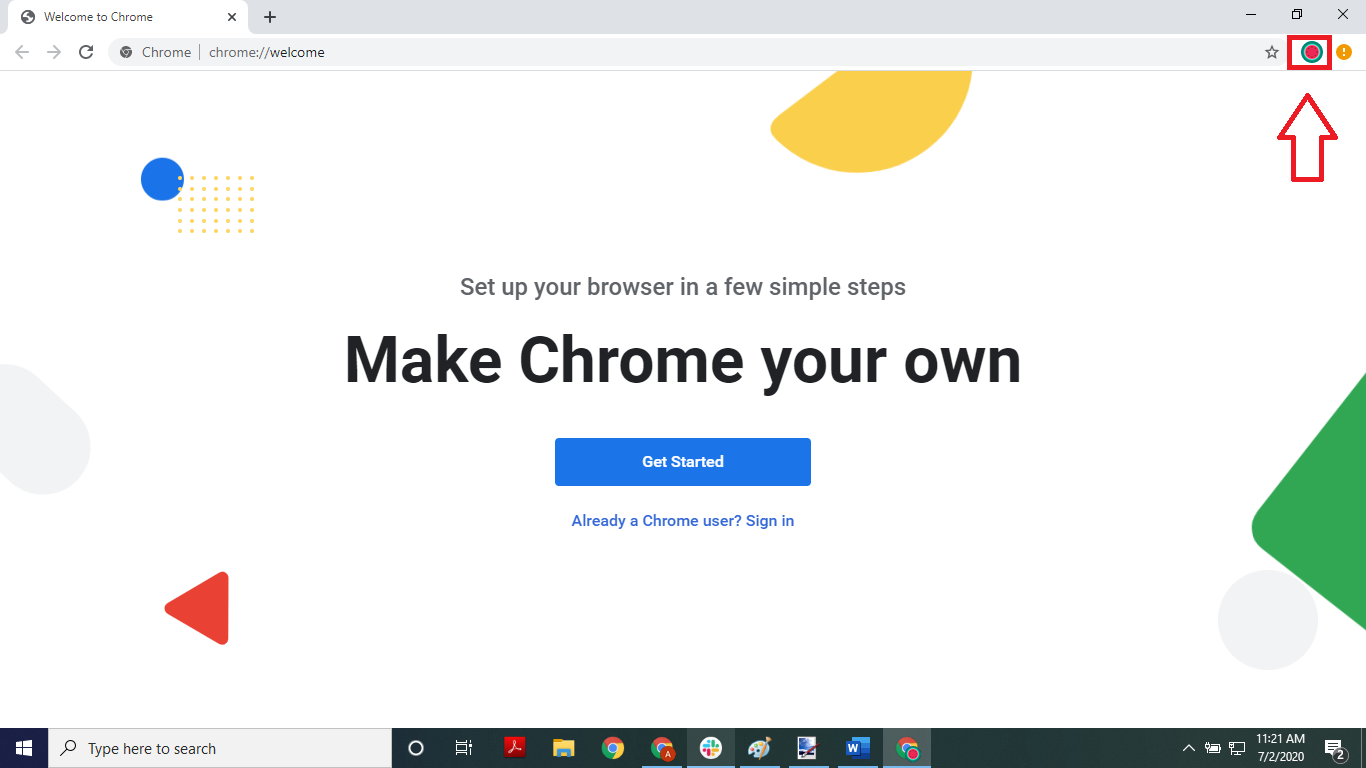
- Click on the icon to the right of the address bar
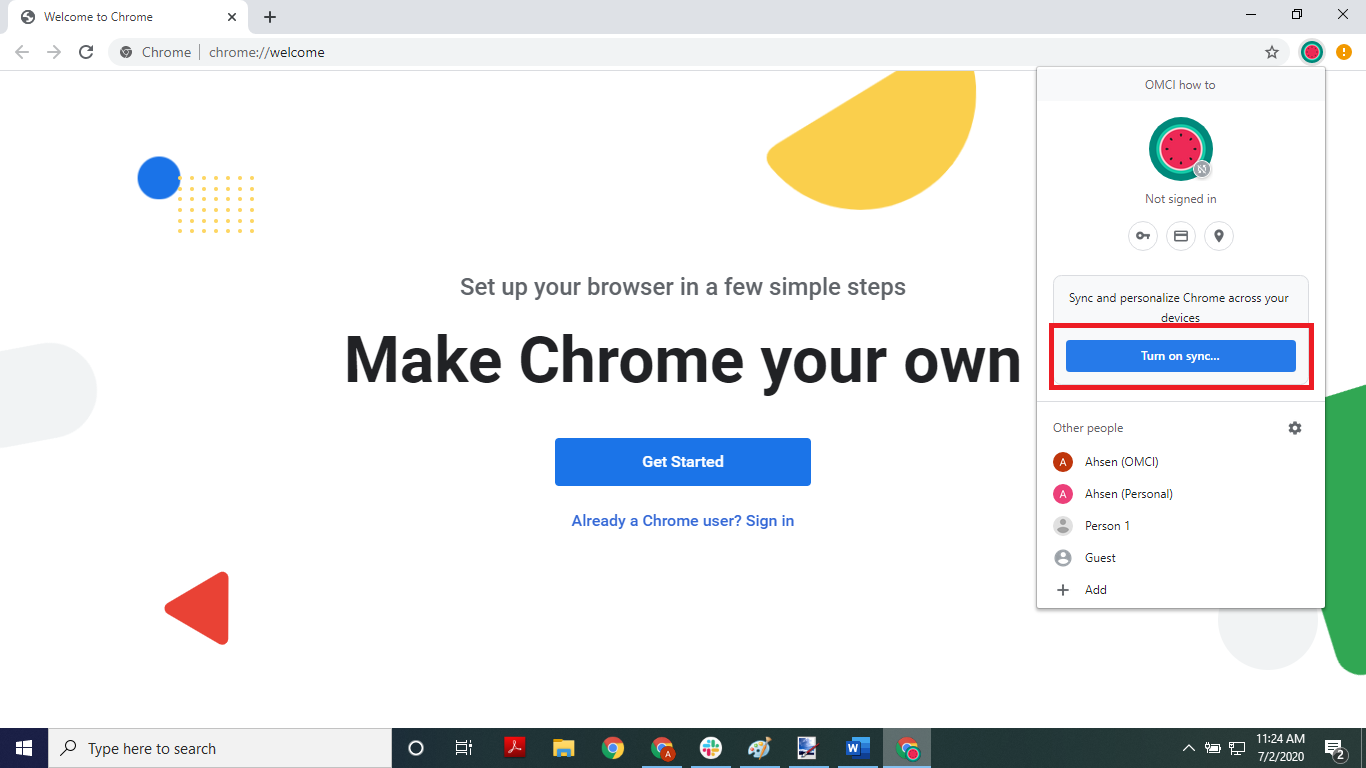
- Click on the “Turn on sync” button
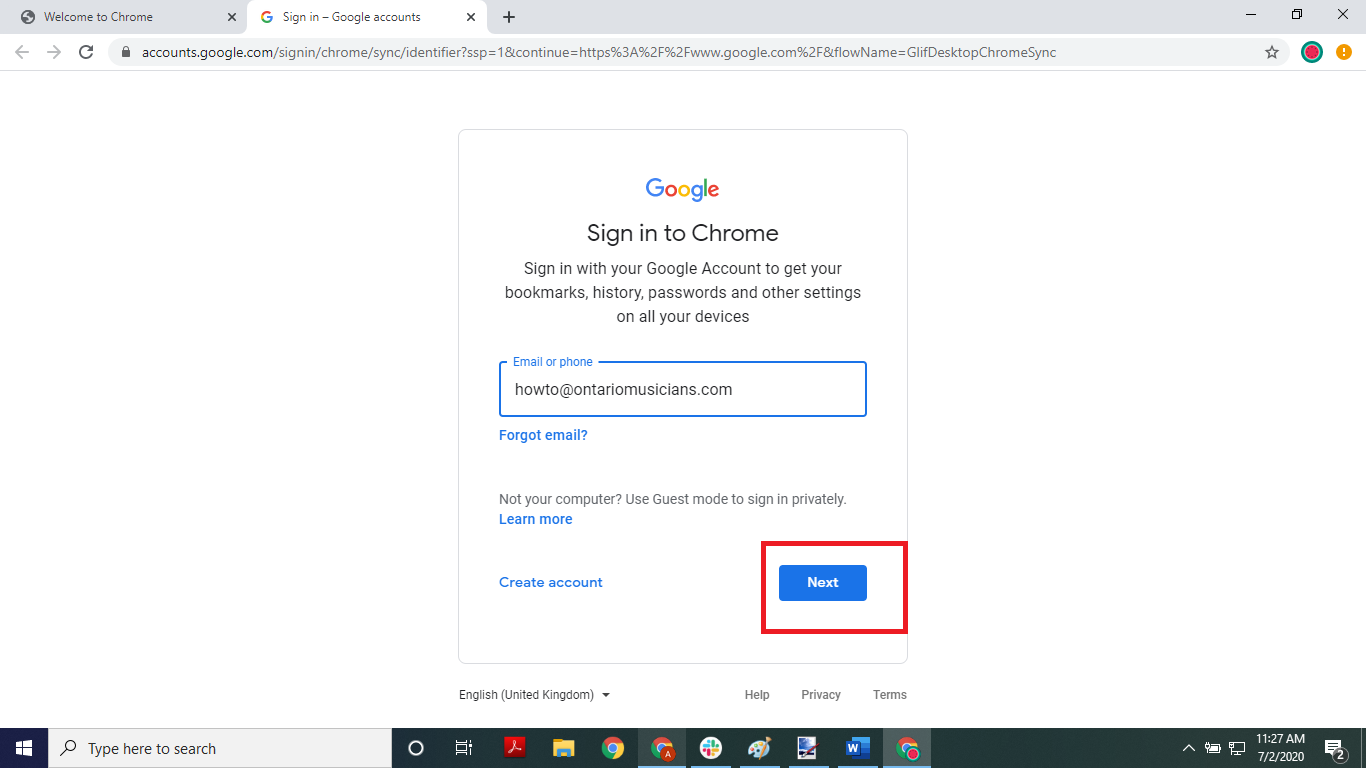
- Enter your OMCI email then click the “Next” button
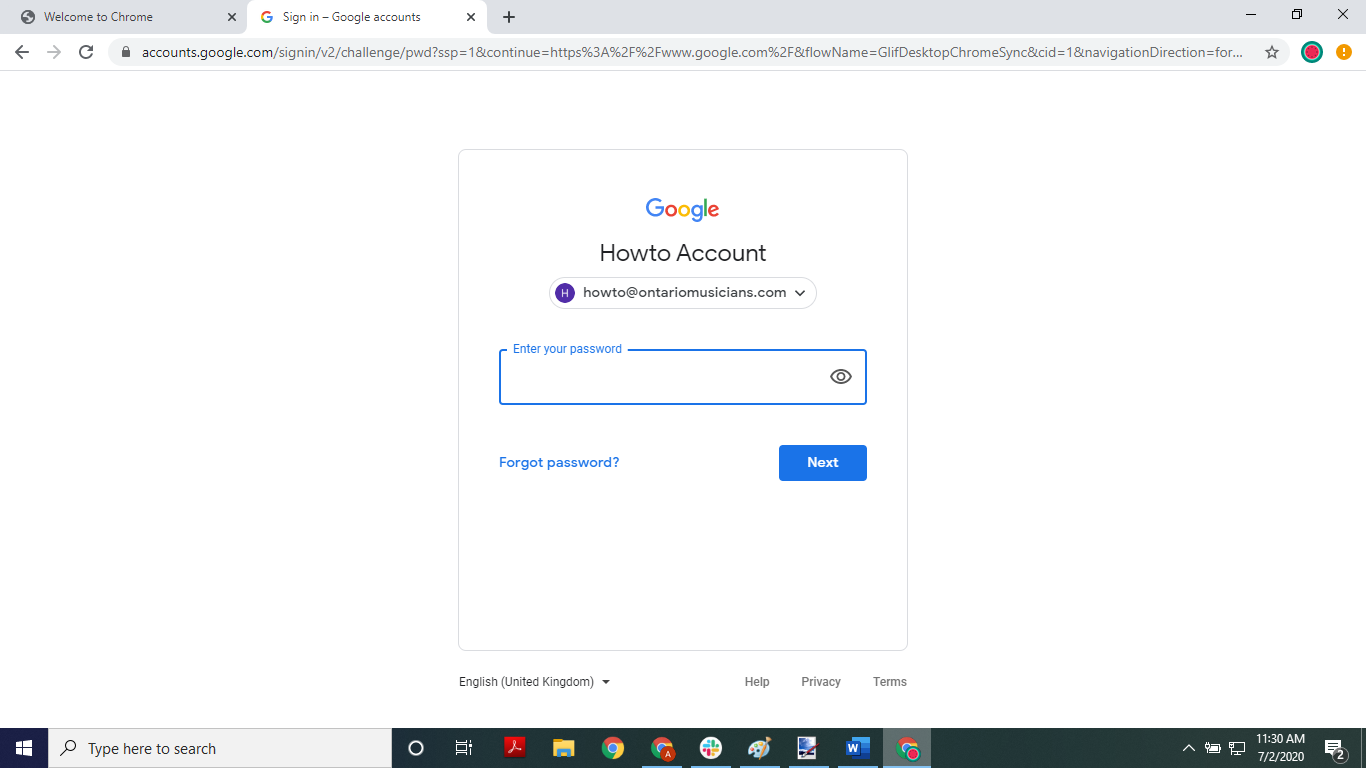
- Enter your password then click the “Next” button
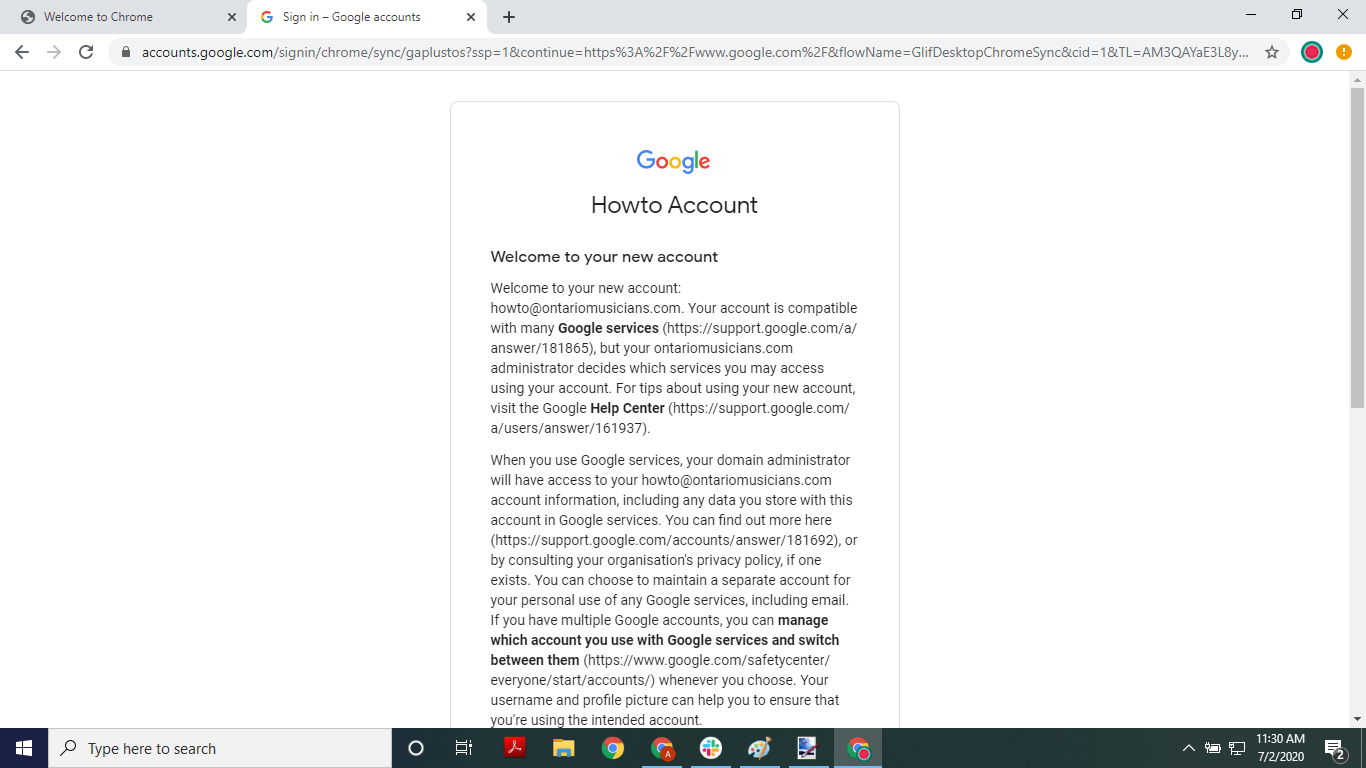
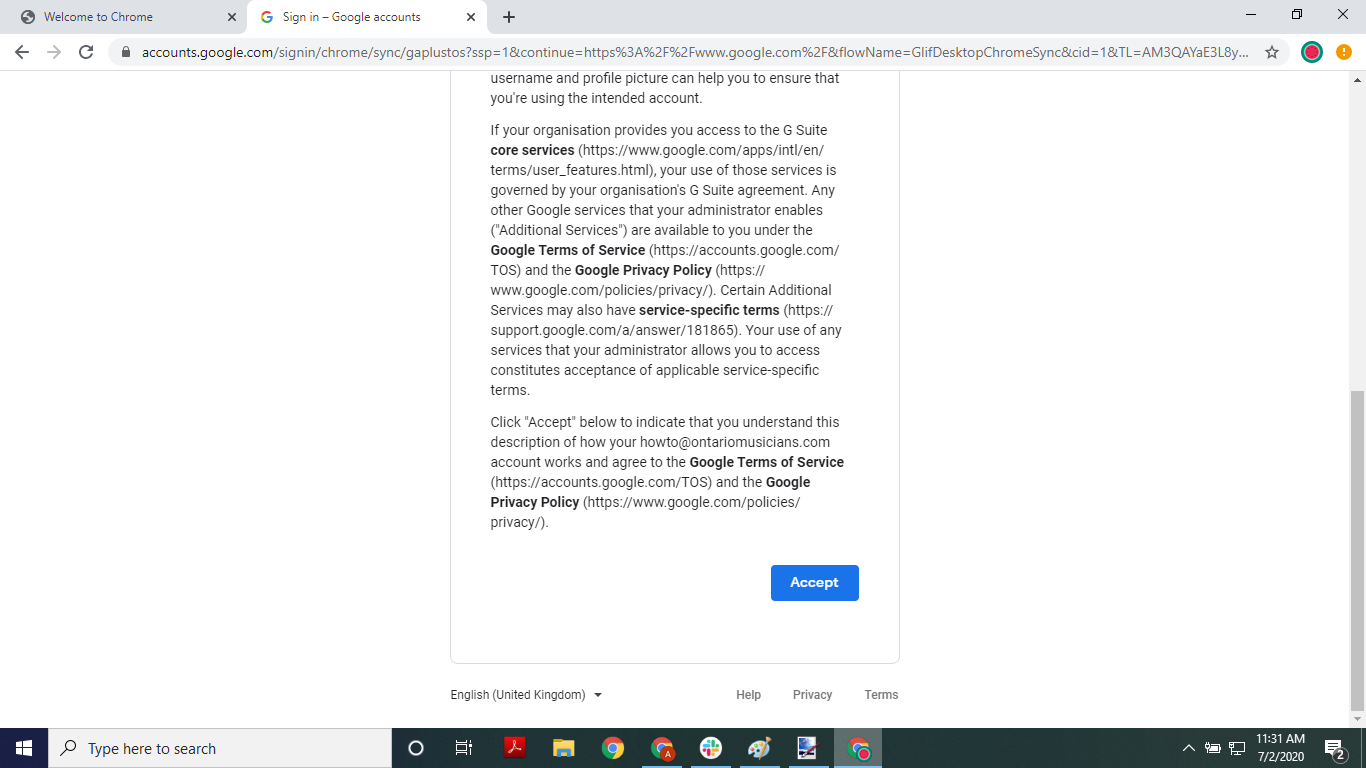
- You will see a welcome message, scroll down, read, then click the “Accept” button
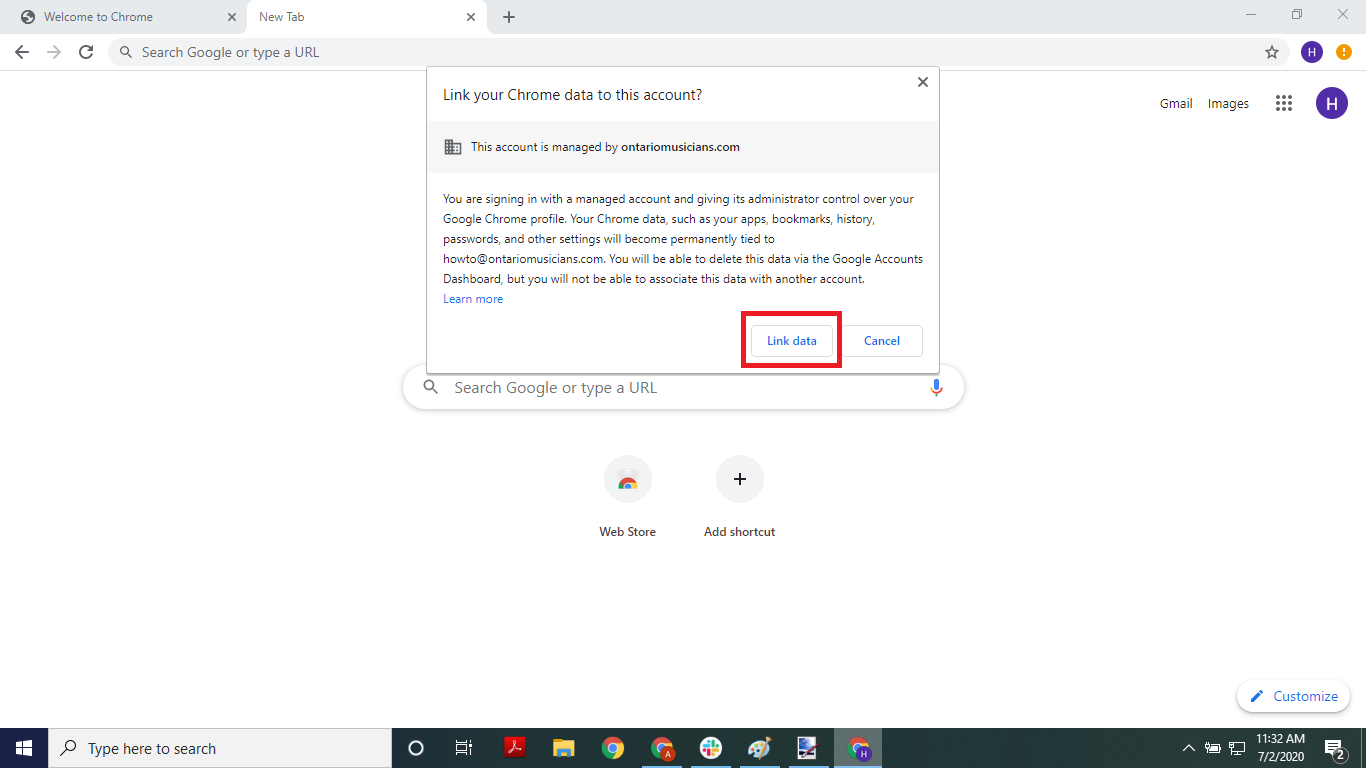
- Click the “Link data” button
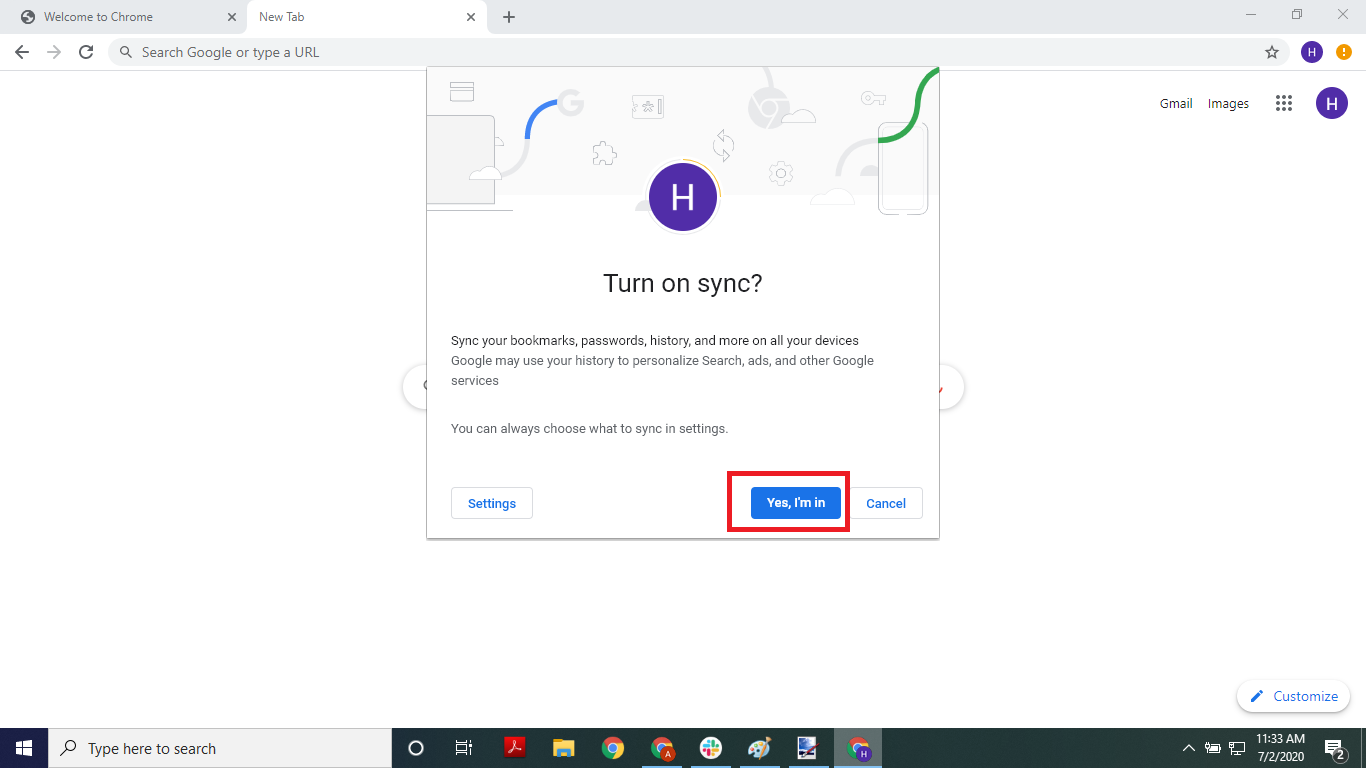
- You will be asked to turn on sync. Click the “Yes, I’m in” button
You’ve set up your secondary account on Chrome!