
Frequently Asked Question
How to log in to Google on a browser
1. Open the Chrome browser
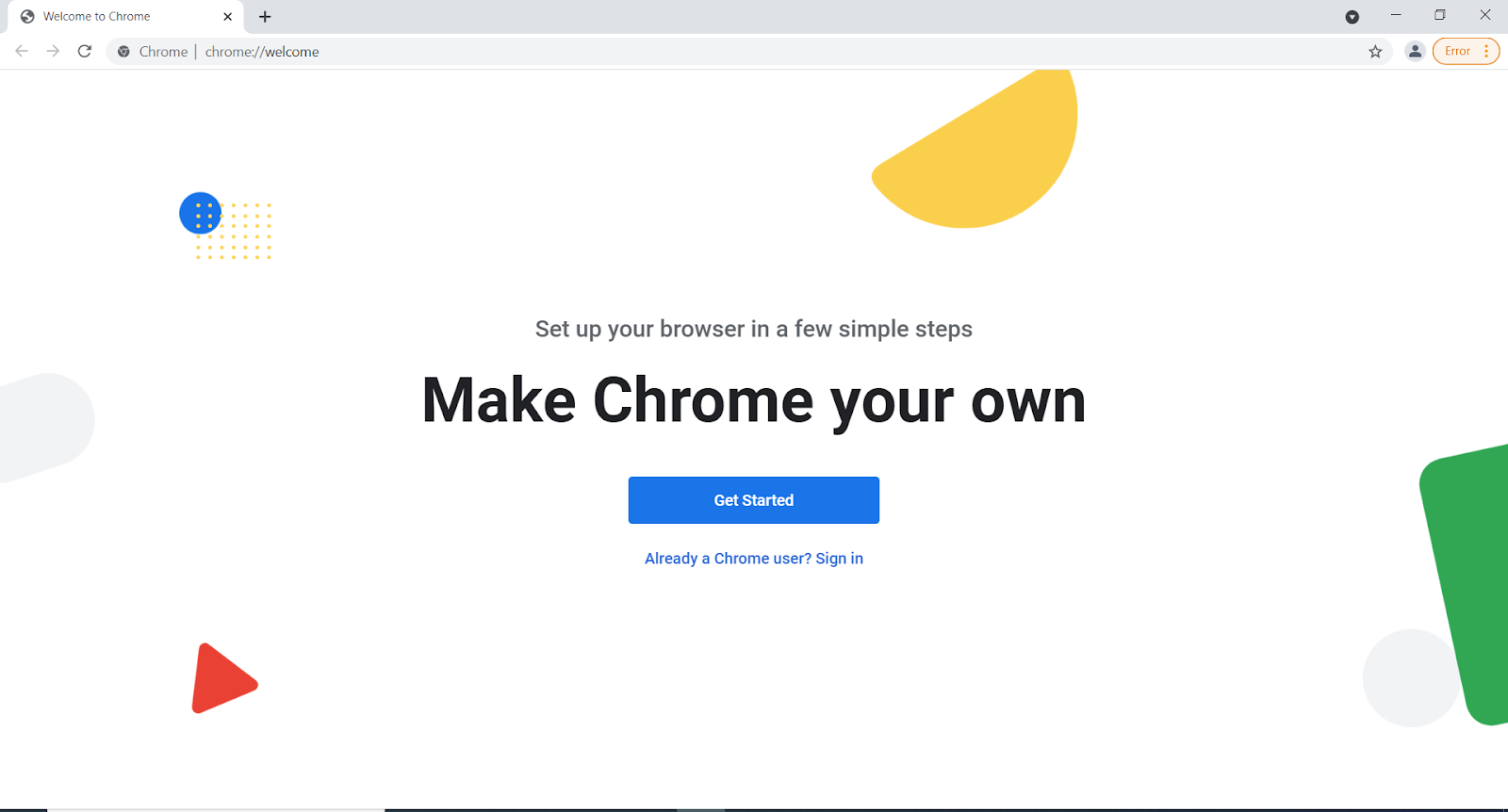
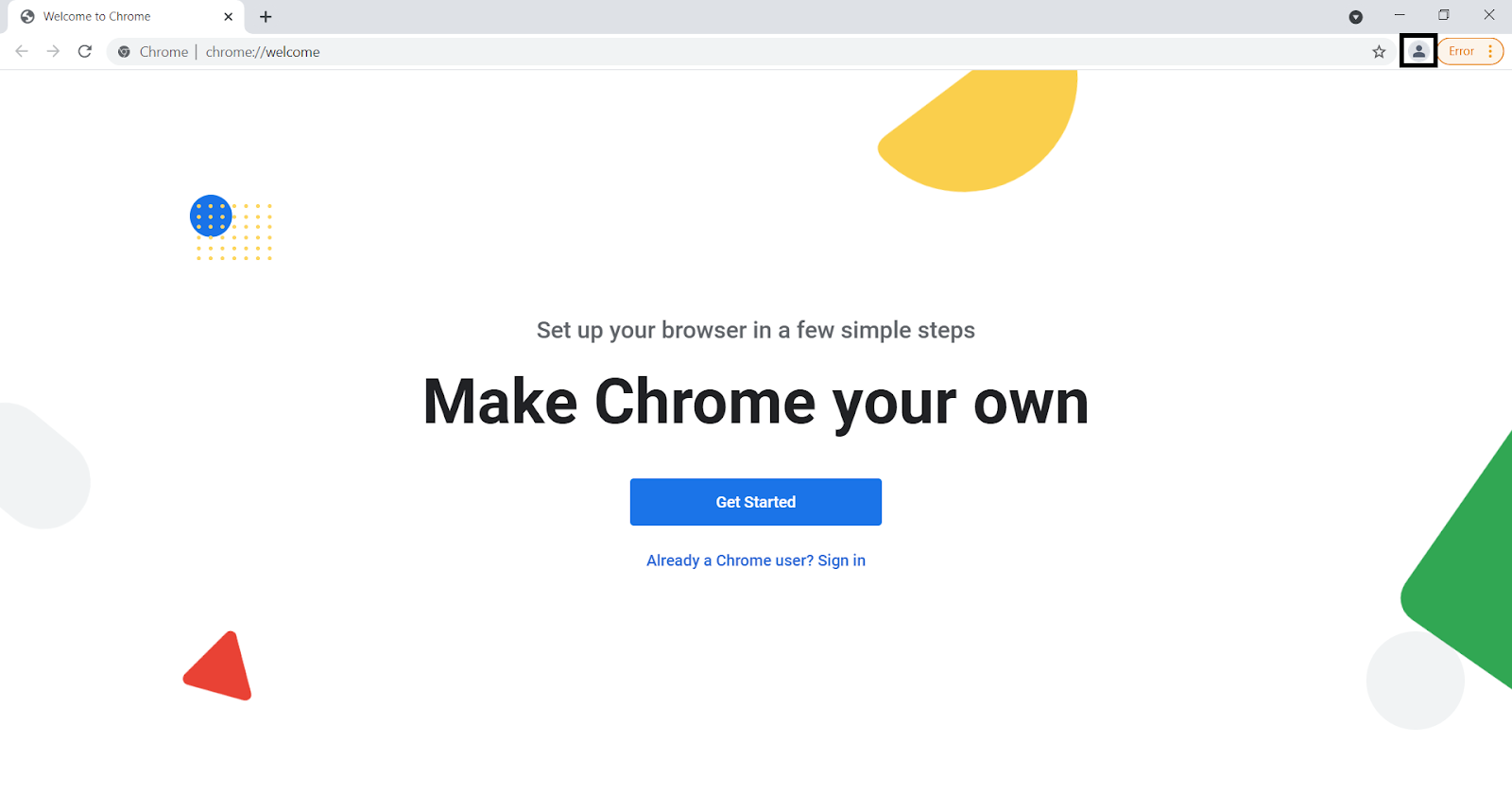
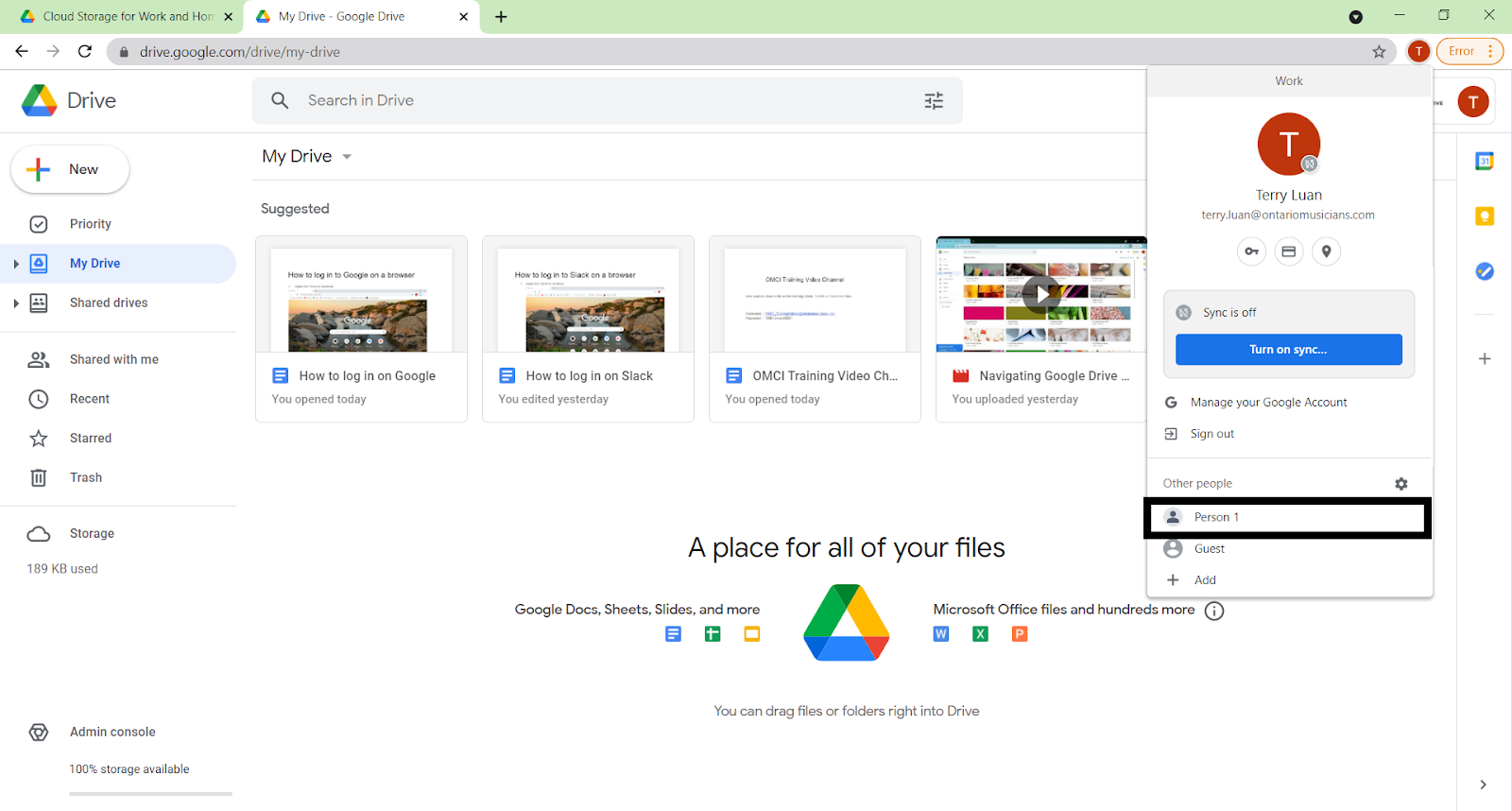
2. Click on the button beside the address bar
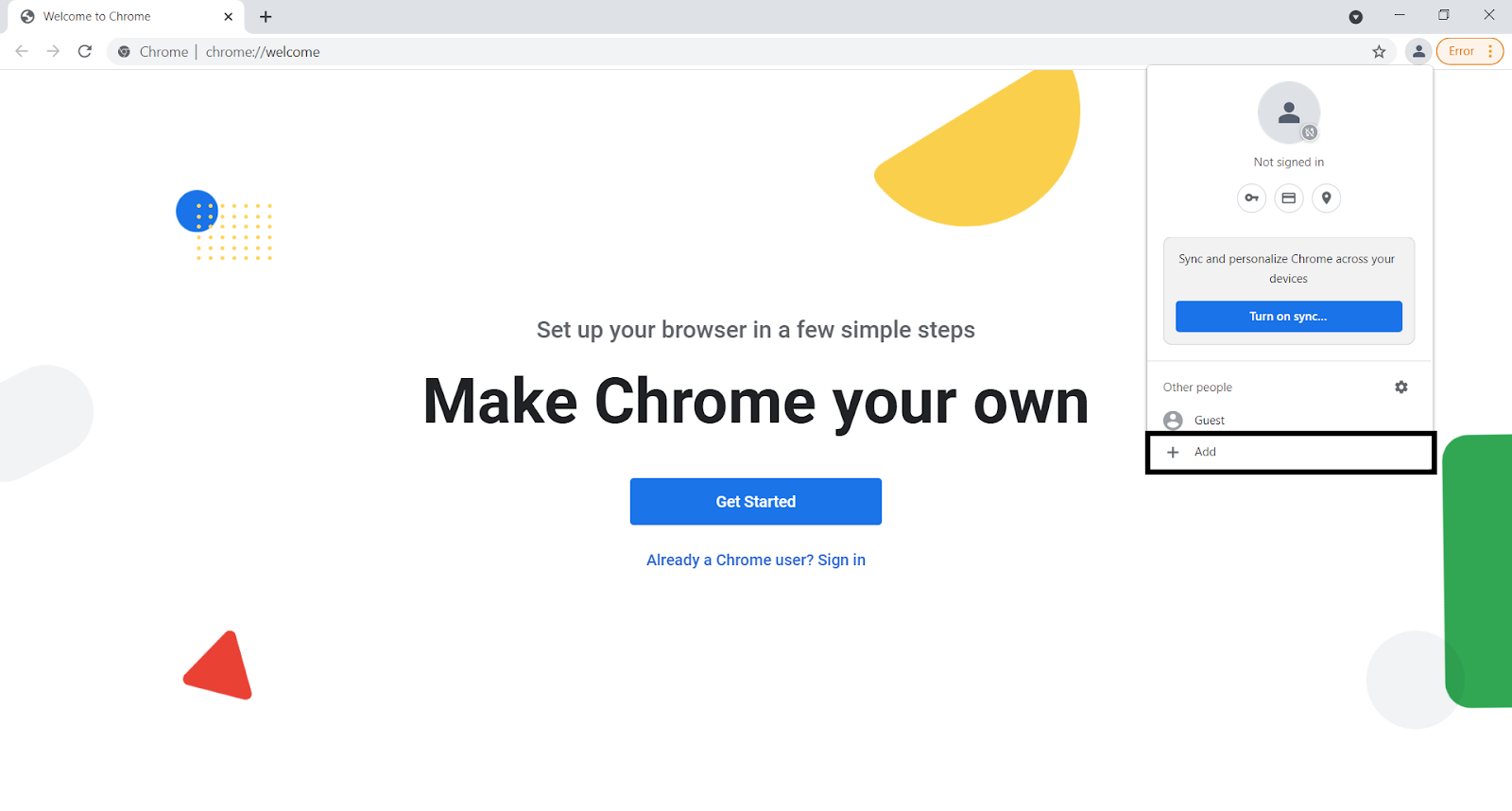
3. Click on the “Add” button
4. Customize the new profile to your liking
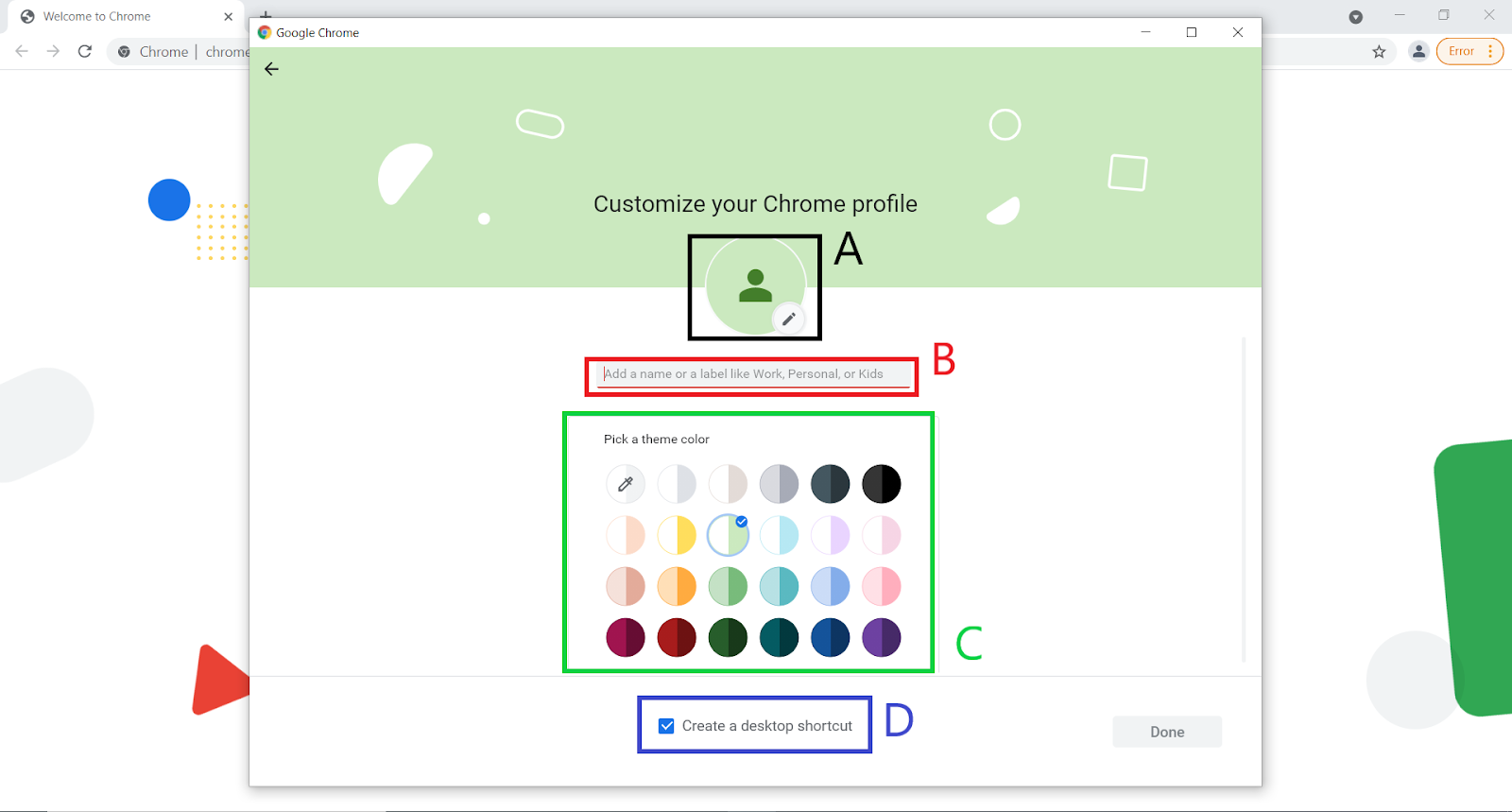
You can change your profile picture (A), the colour of your theme (C), and choose whether a shortcut on your desktop should be created (D). A name must be chosen for your profile(B). For the purpose of this example, Work will be the name of the profile.
5. Go to the google product of your choice and log in
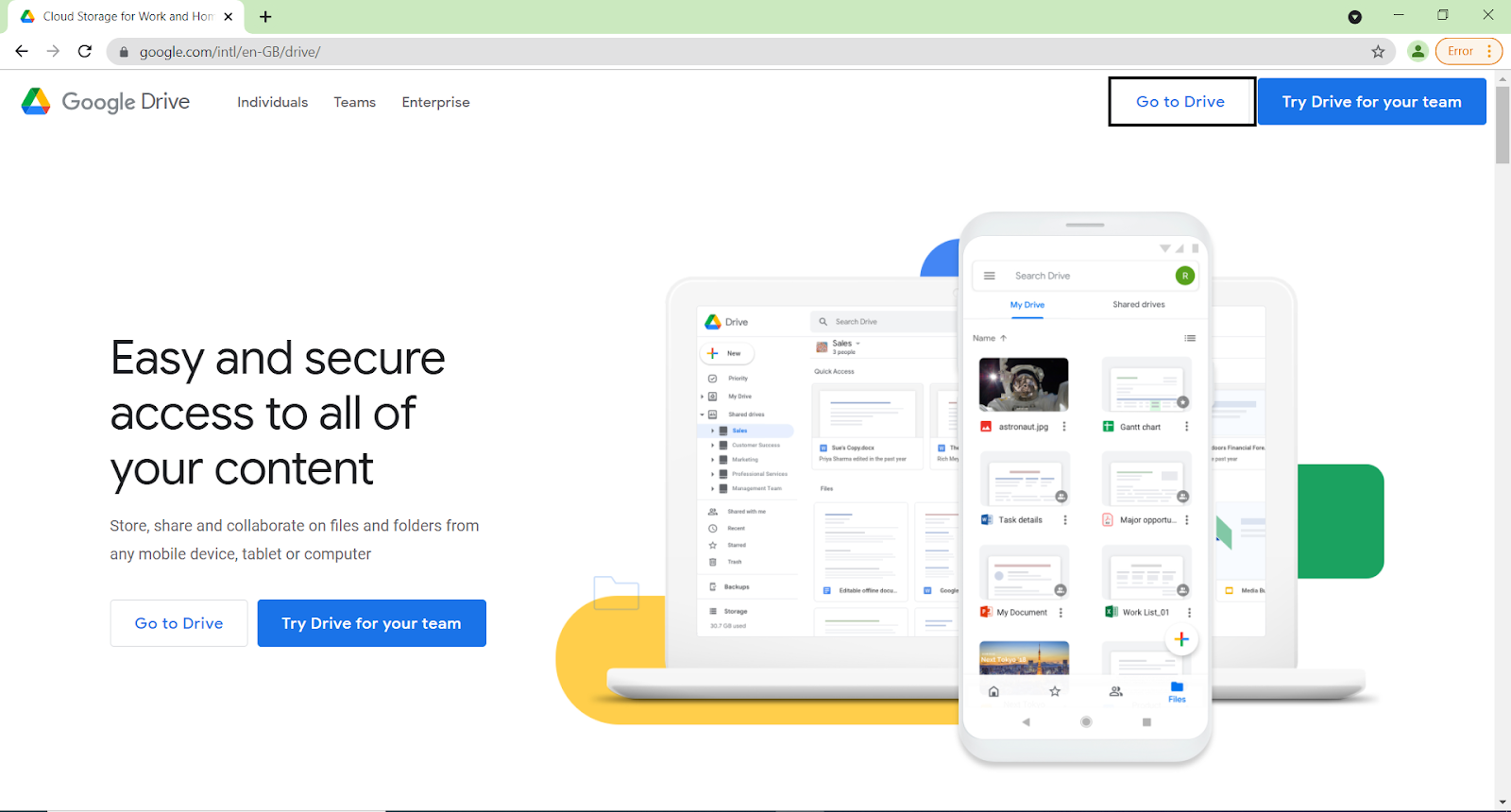
Google Drive, Gmail, Google Docs/sheets/slides, or Google Store can all be used to log into
6. You have now successfully connected your CMC profile with your Google Profile. You can switch between your personal profile and your CMC profile, with ease, with the top right hand corner button.
How to log in to Gmail on an Android smartphone
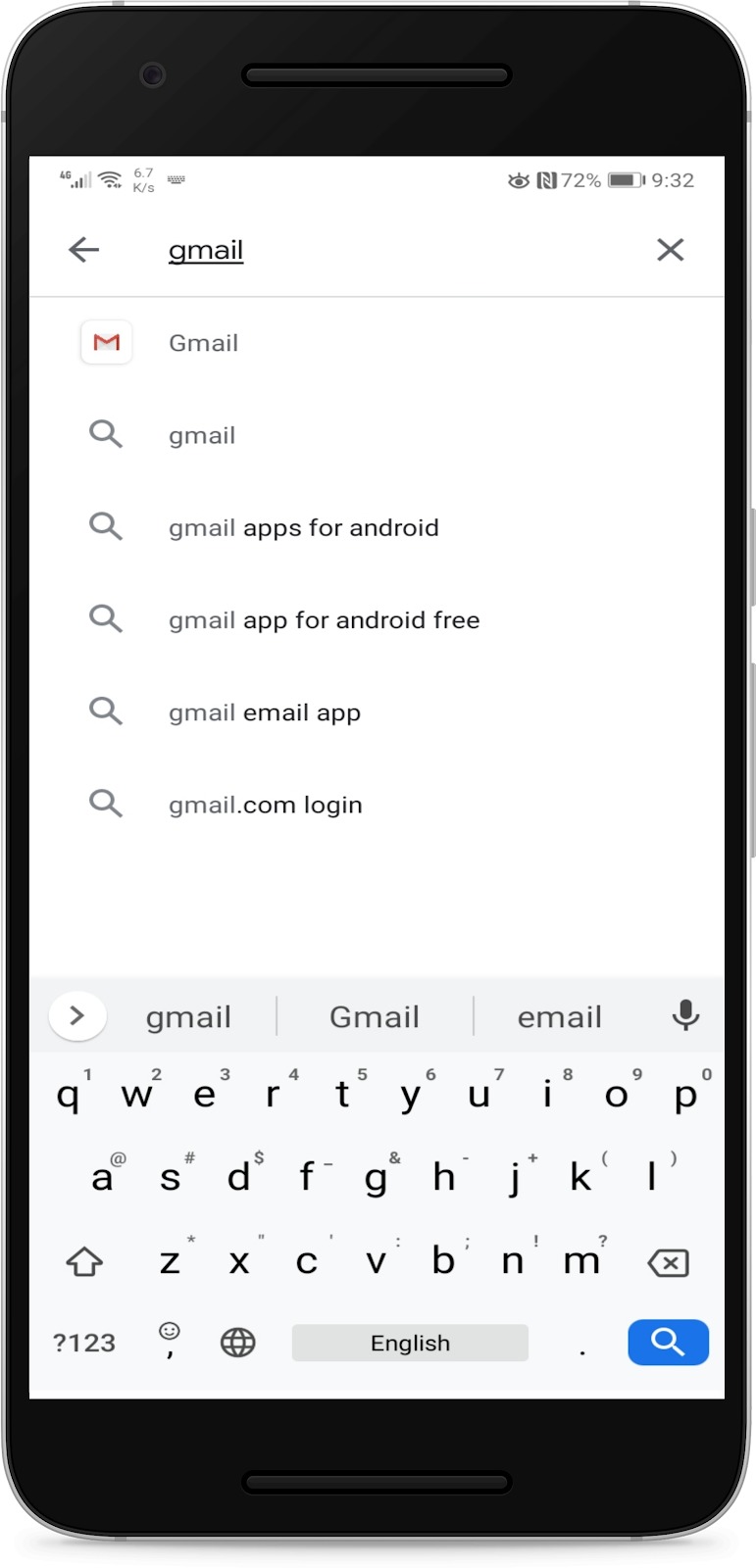
Open your app store/play store, Type Gmail in your search bar, and install Gmail if you haven’t already got it on your phone
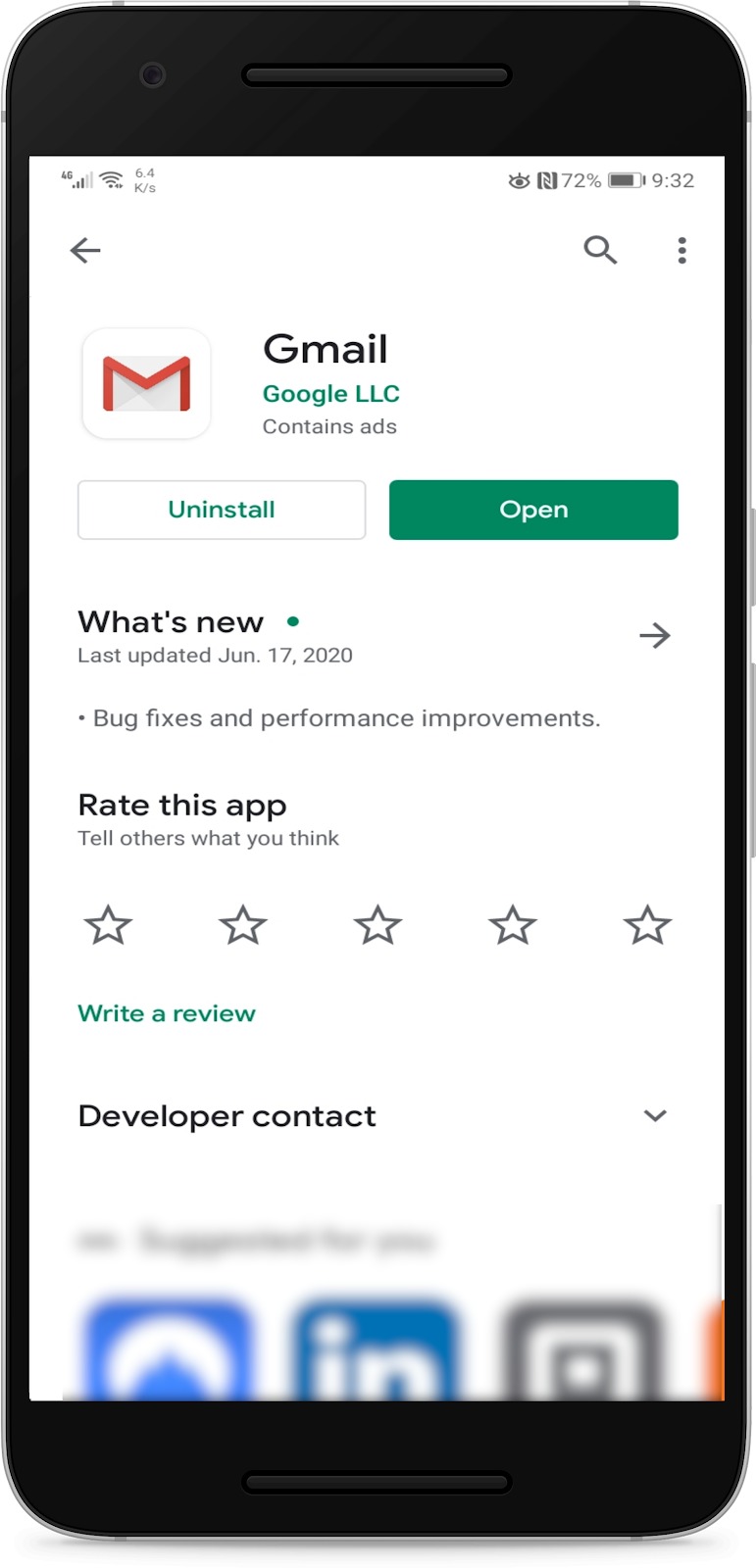
1.5. Open the Gmail app on your phone
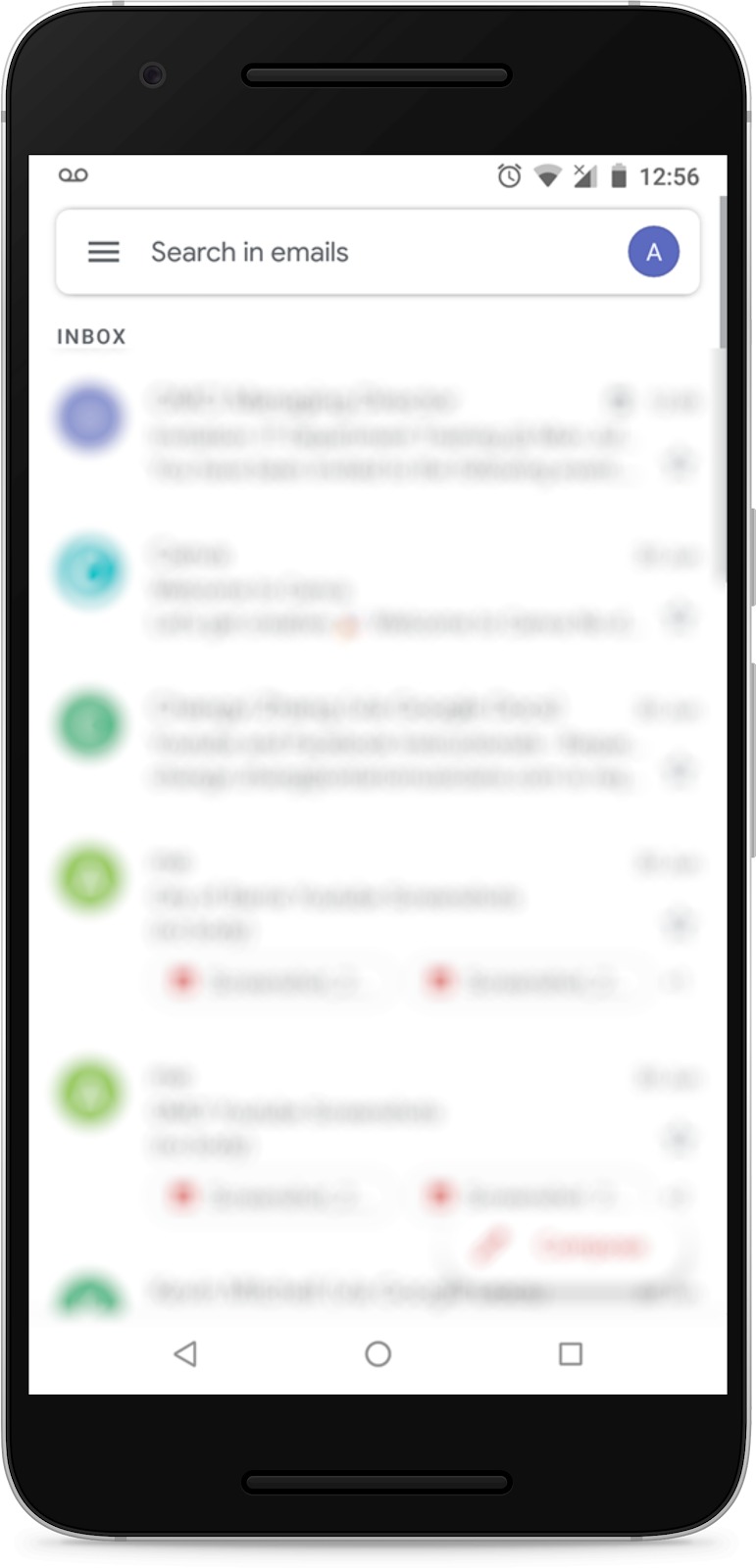
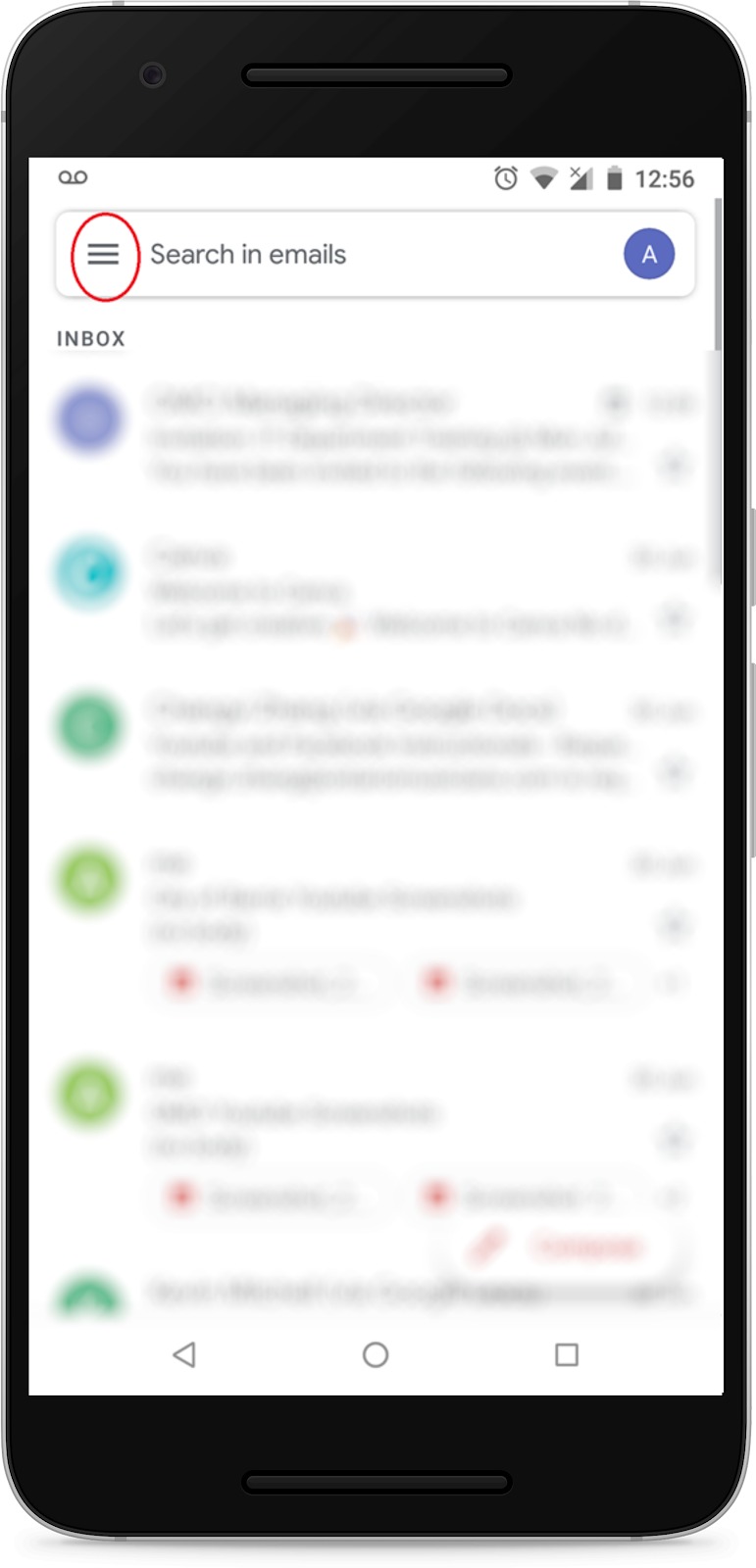
- Tap the icon to the left of the search bar
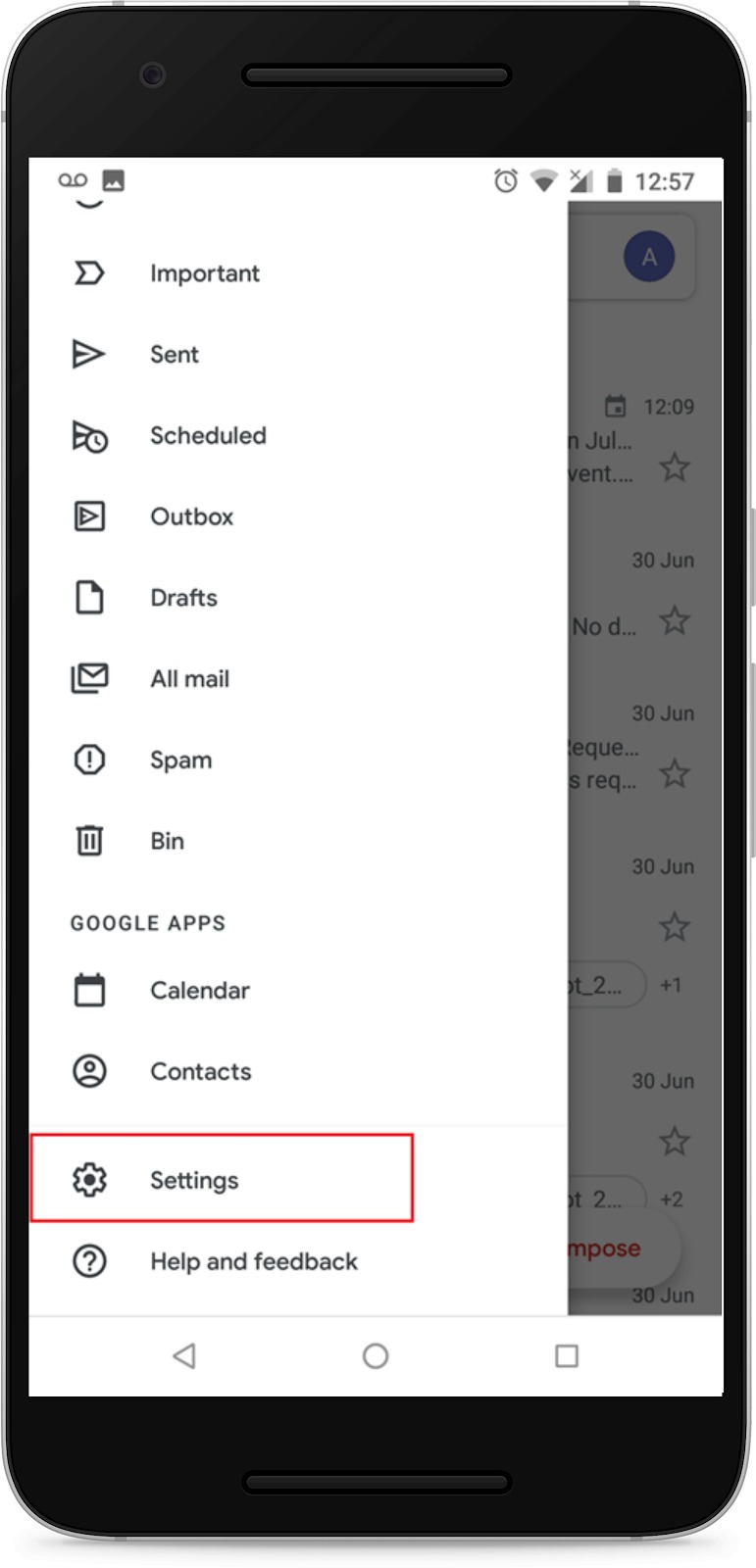
- Scroll down and tap Settings
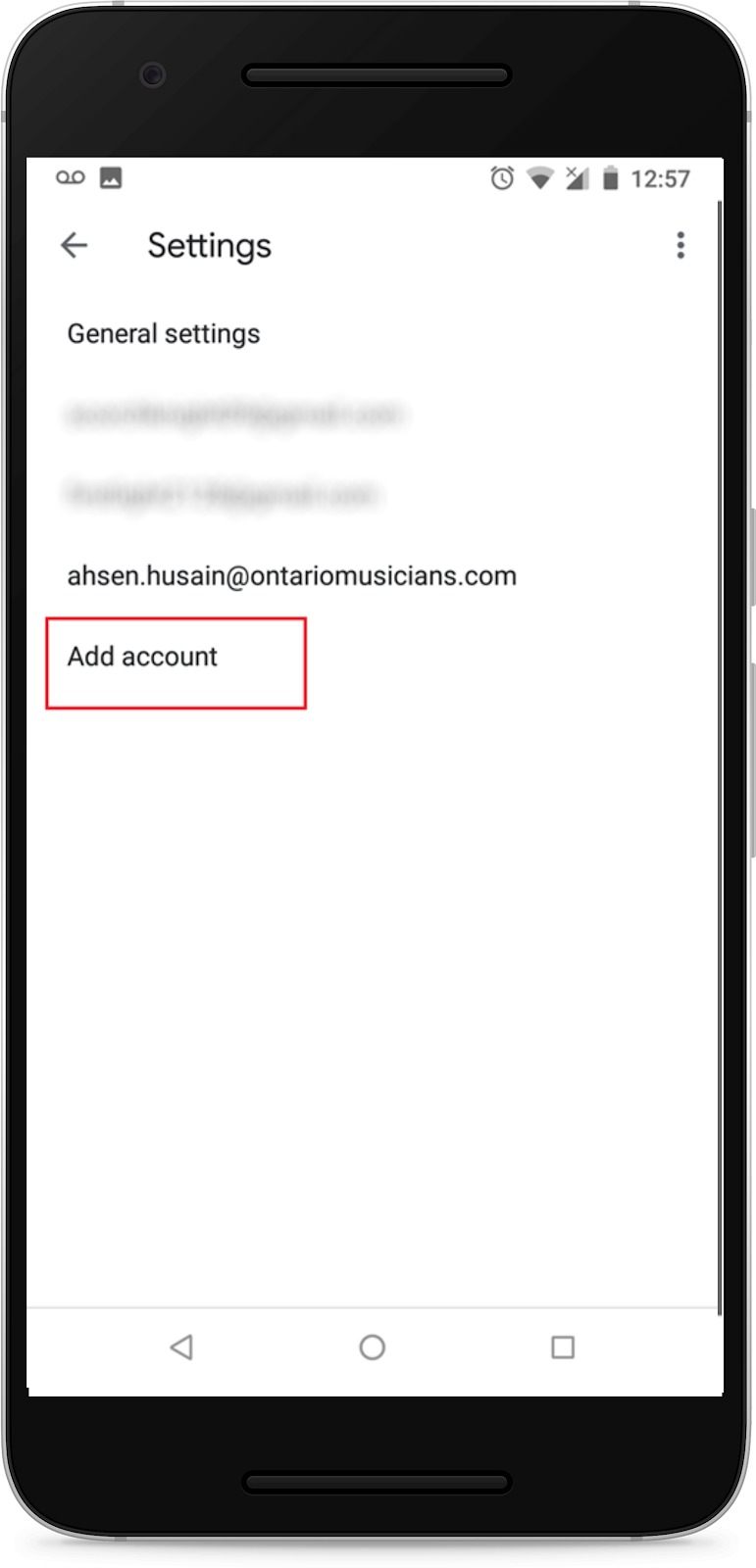
- Tap “Add account”
- Tap the “Google” option
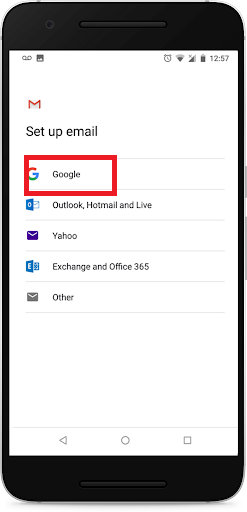
Enter your phone security pin
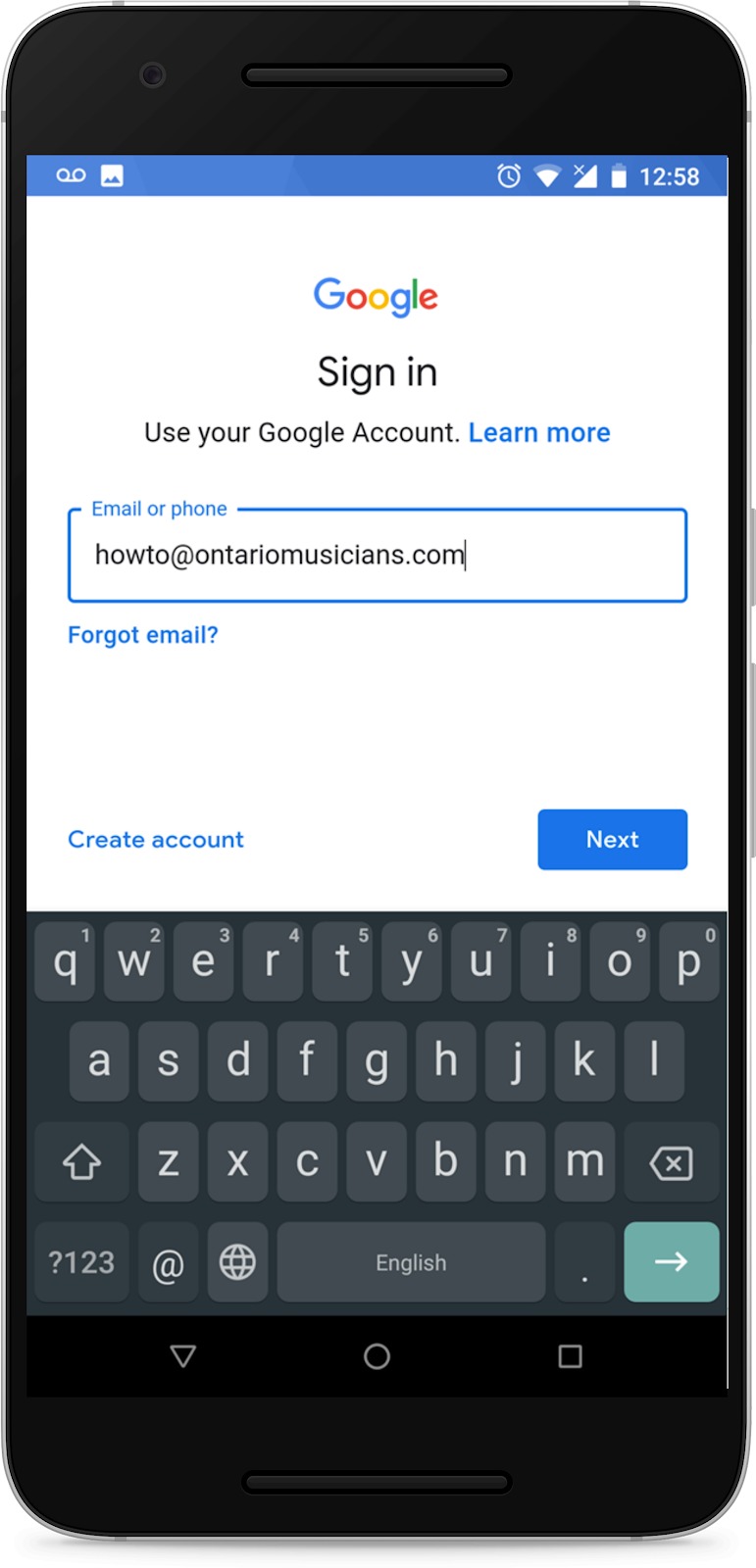
- Enter your OMCI email then tap next
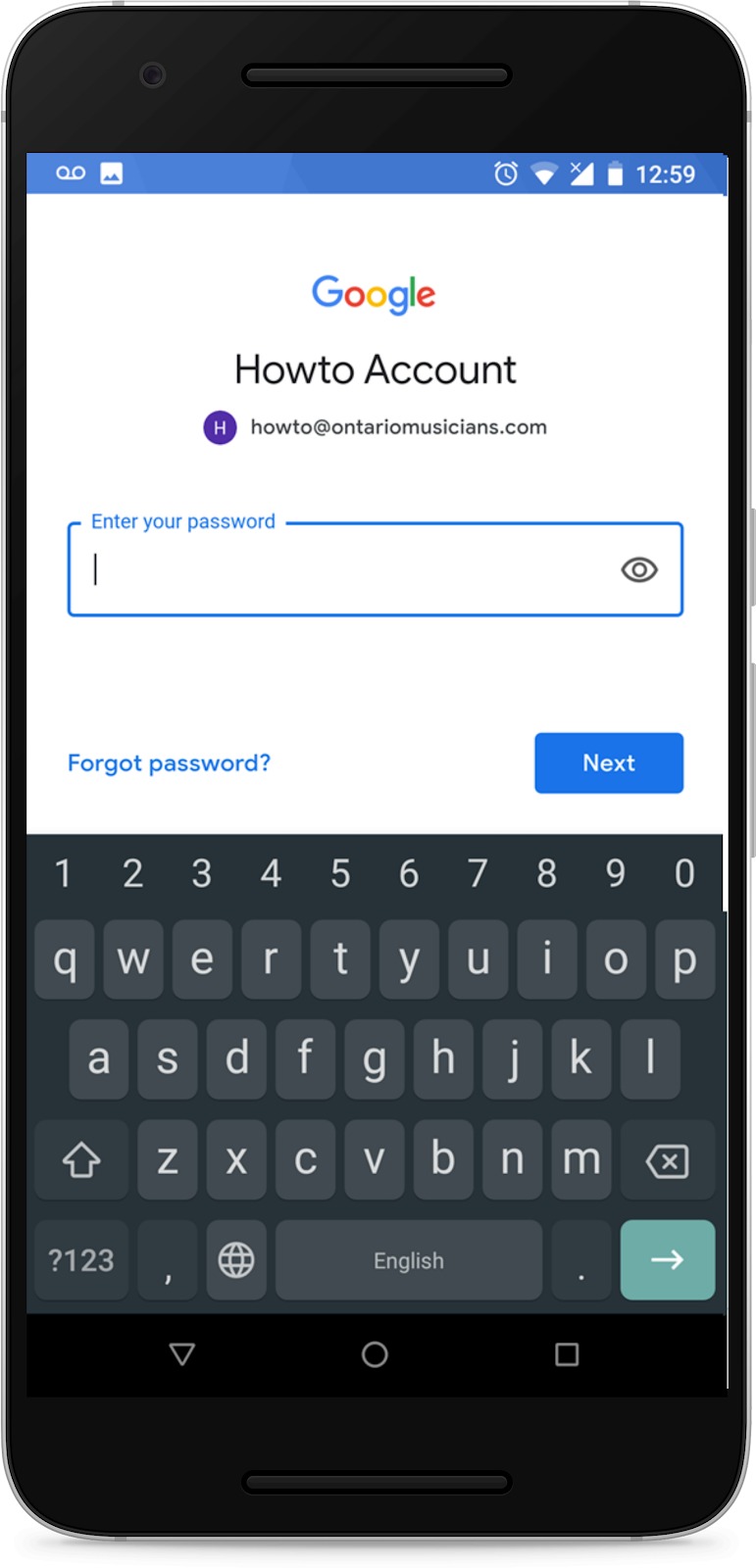
- Enter your password then tap next
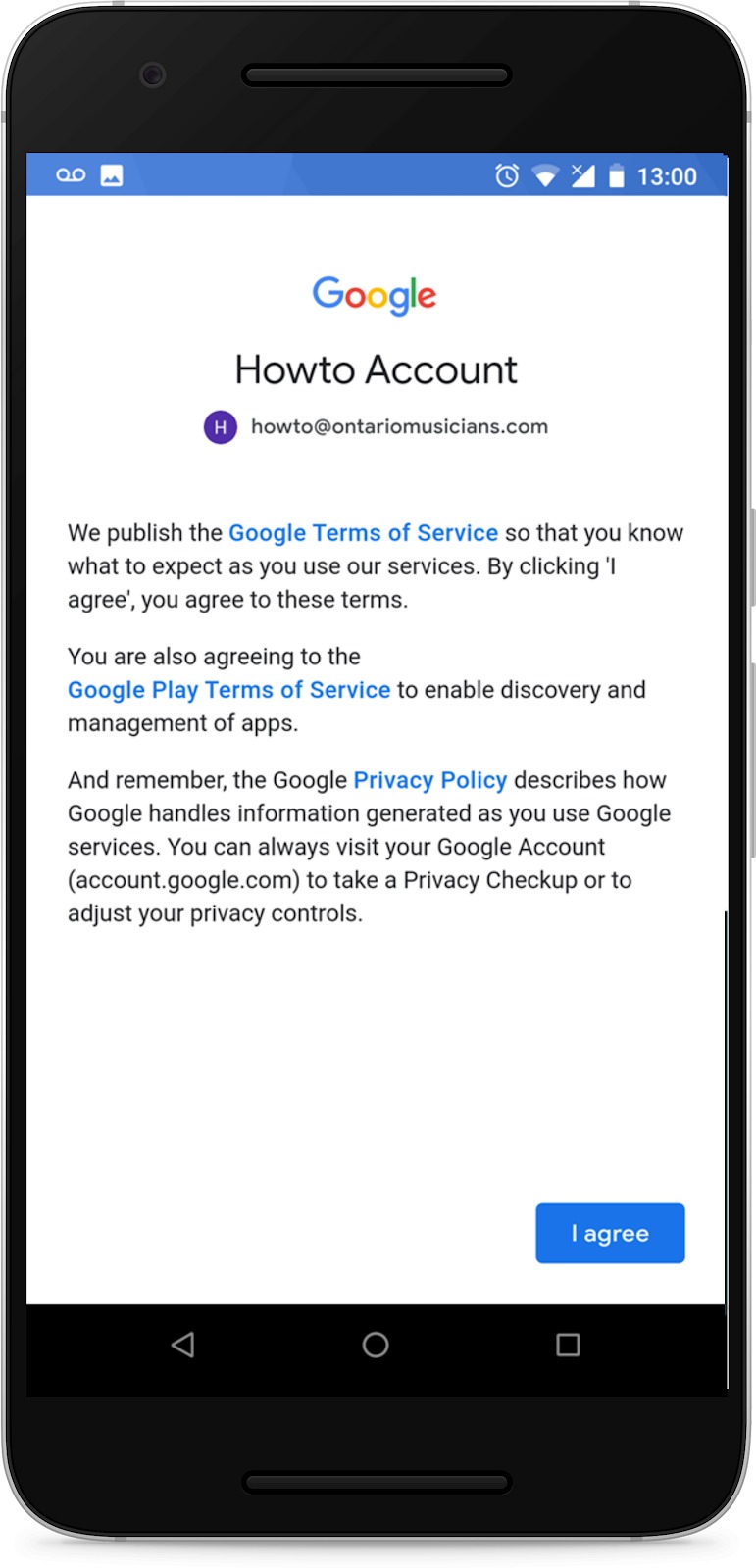
- Read the “Terms of Service” then tap the “I agree” button
- You will now see your OMCI email added under settings
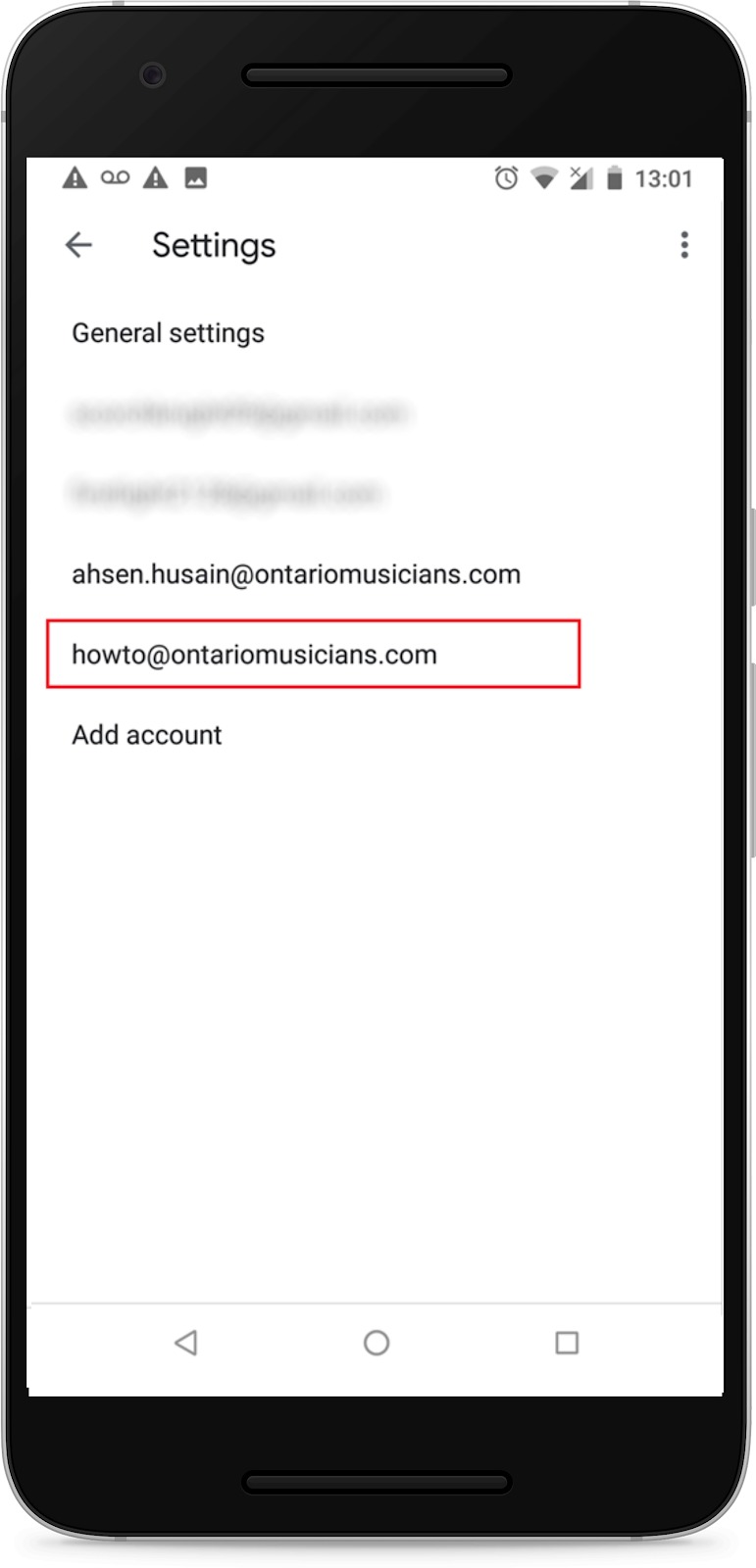
You’ve added the OMCI email to your phone!