
Frequently Asked Question
How to download and log in to virtual studios AWS DaaS?
Last Updated a year ago
Downloading and installing the client
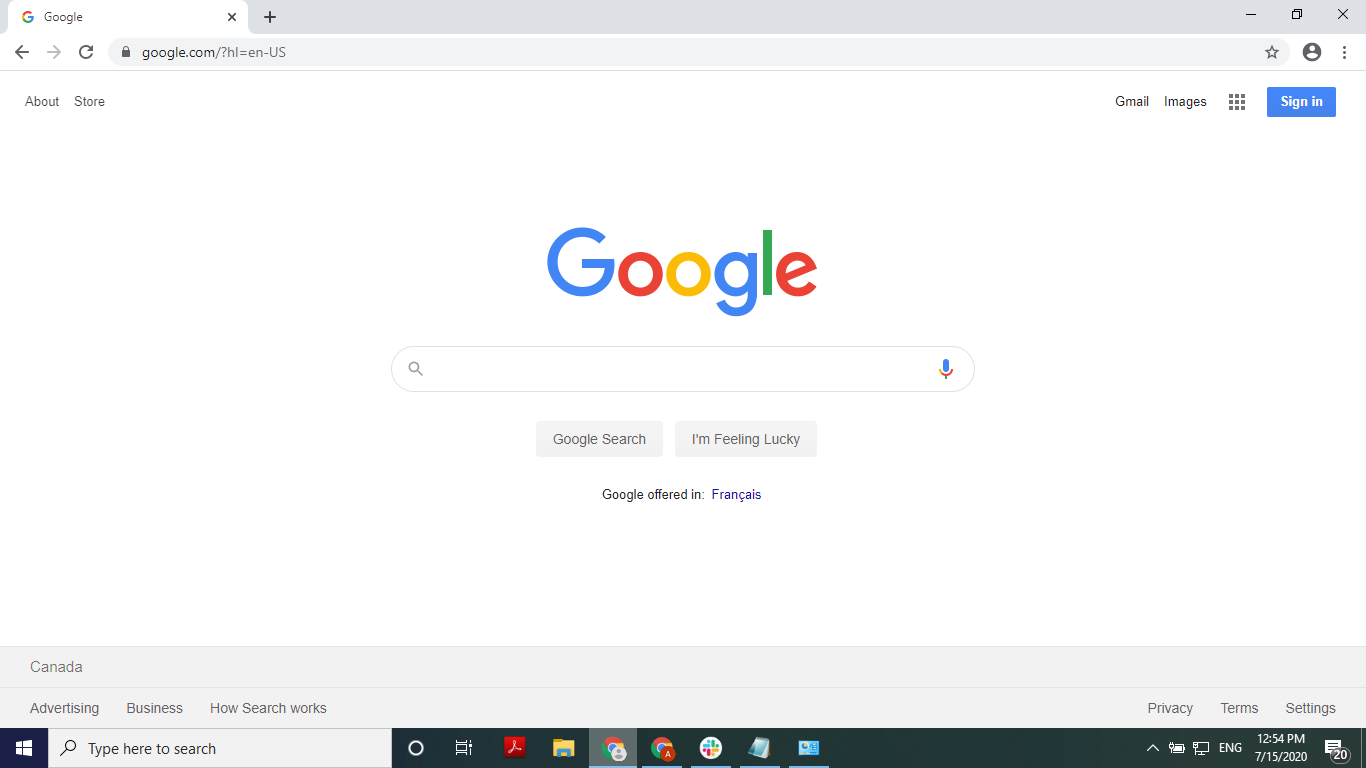
- Open the Google Chrome browser
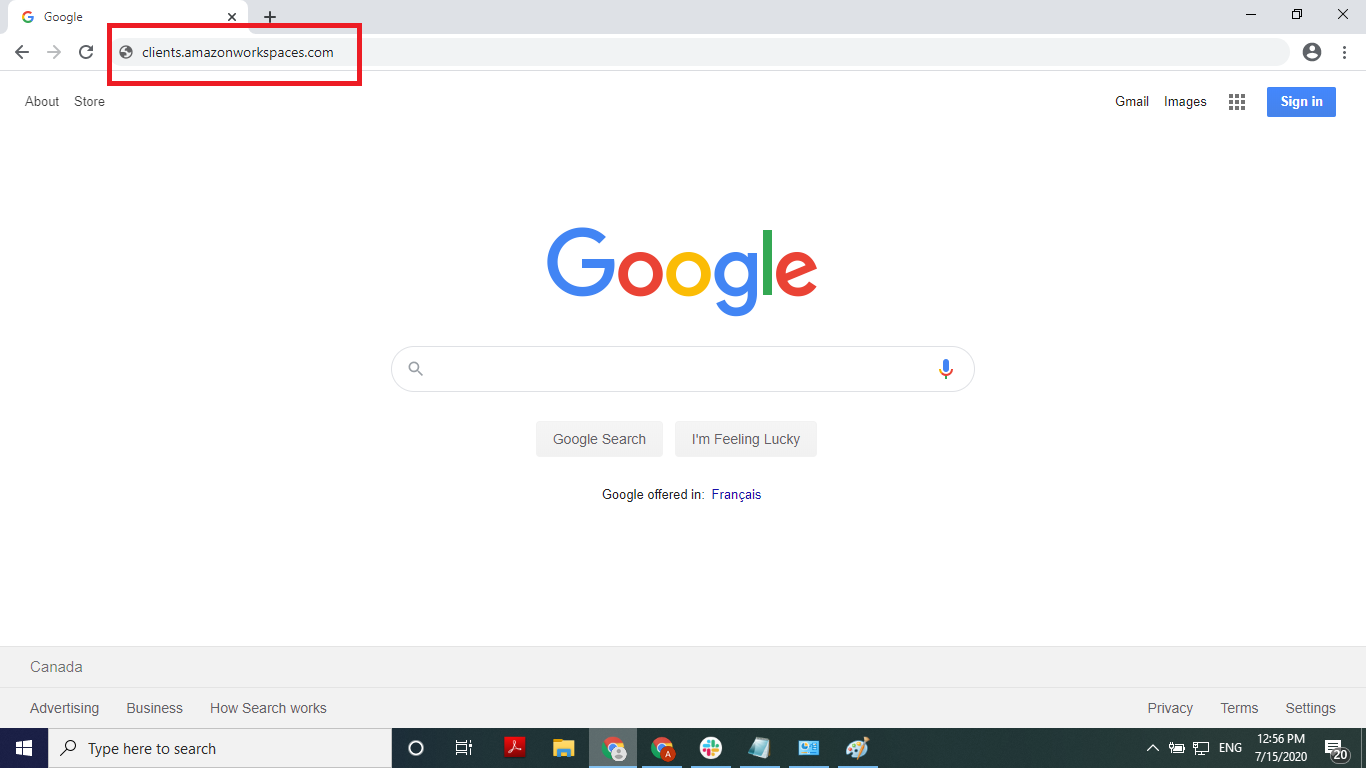
- Type in “clients.amazonworkspaces.com” into the address bar
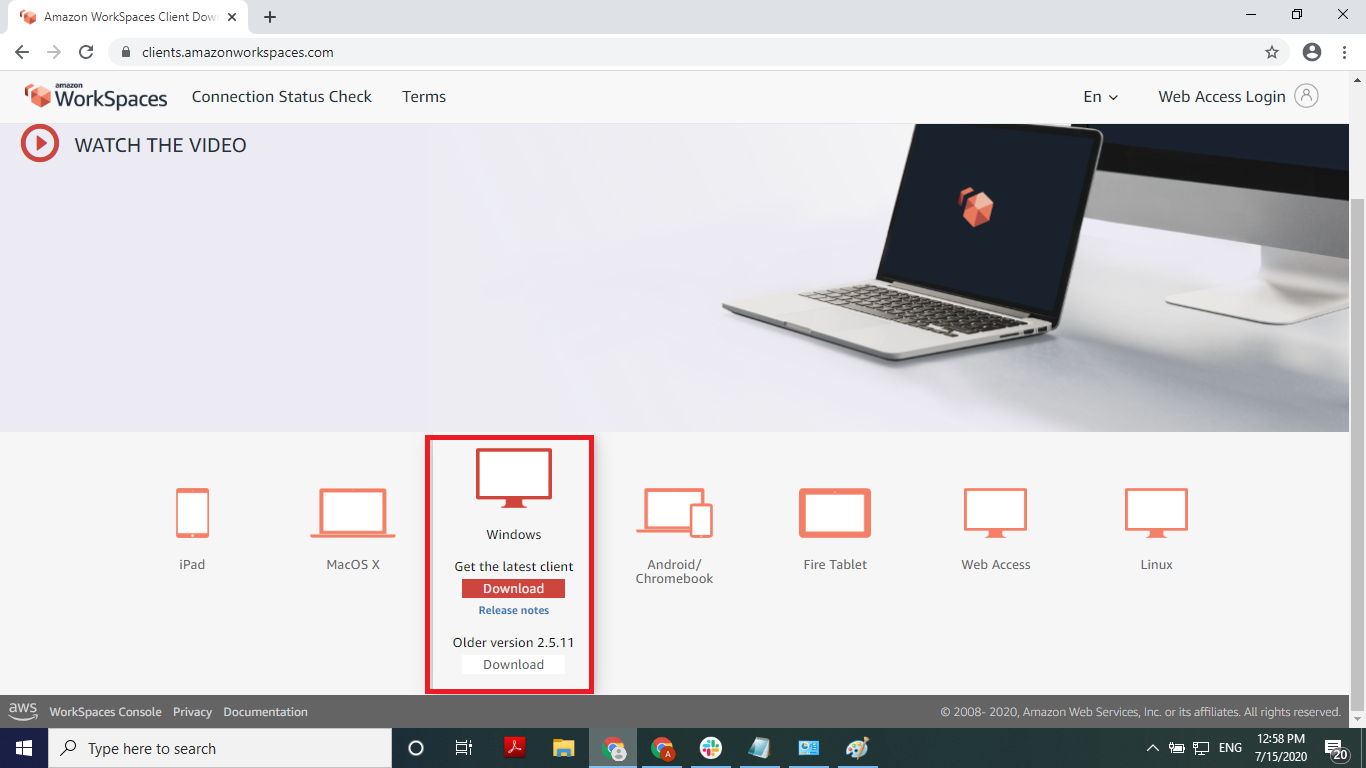
- Click on the appropriate operating system then click the download button
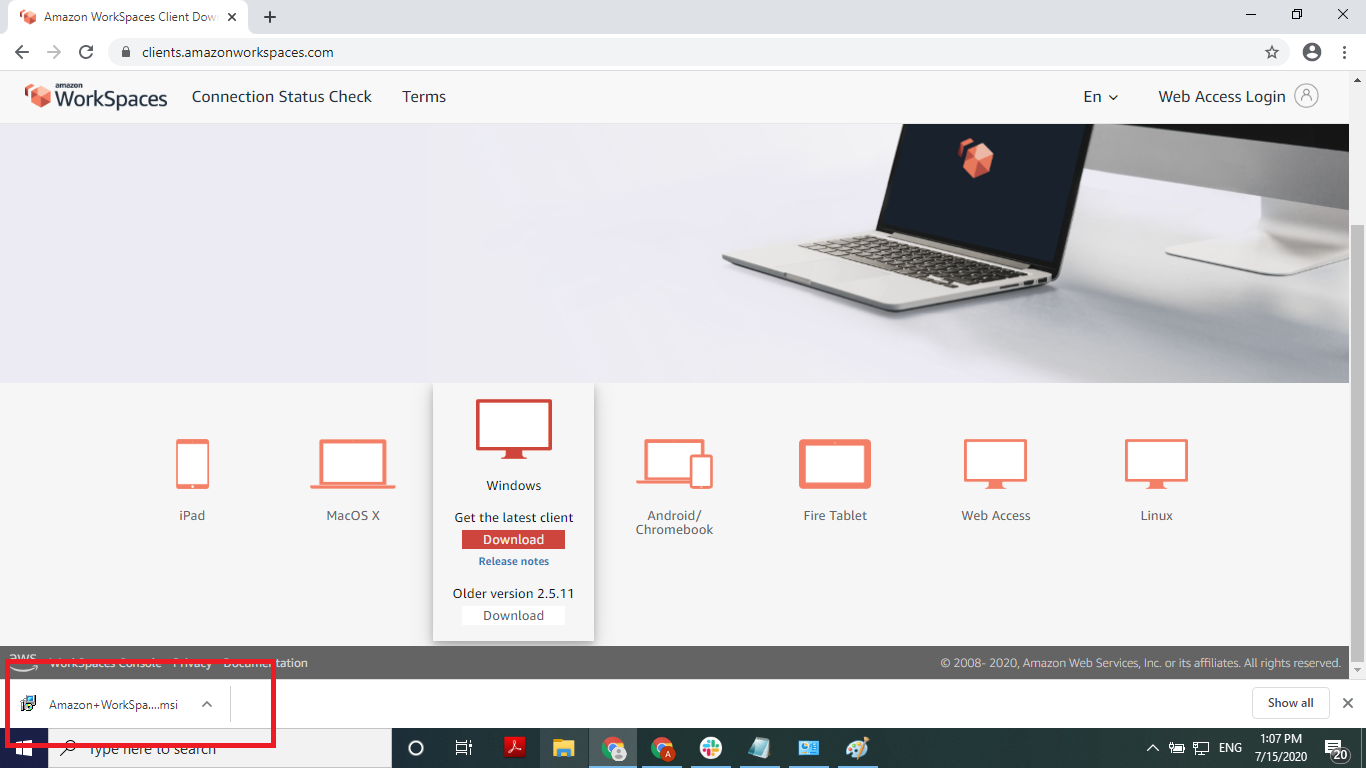
- Click on the downloaded file
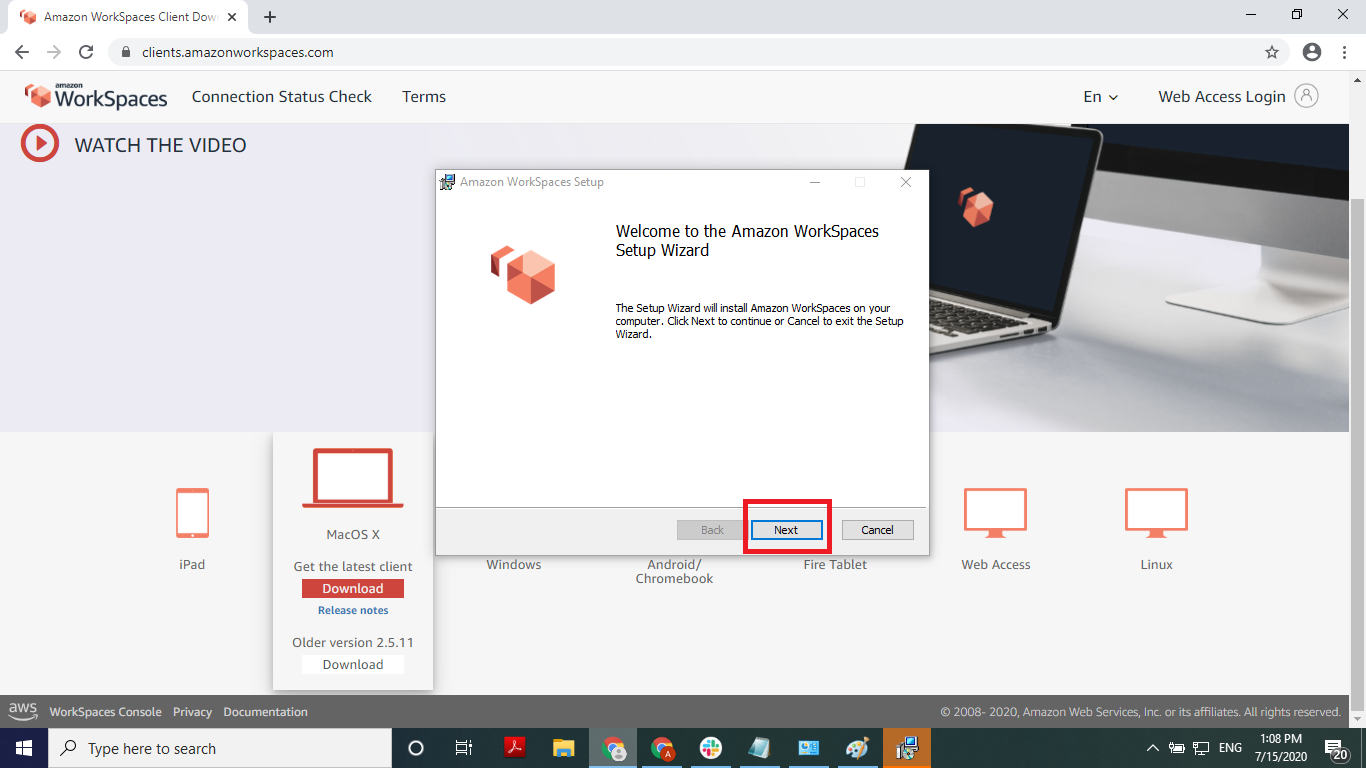
- The installer will show on the screen, click next
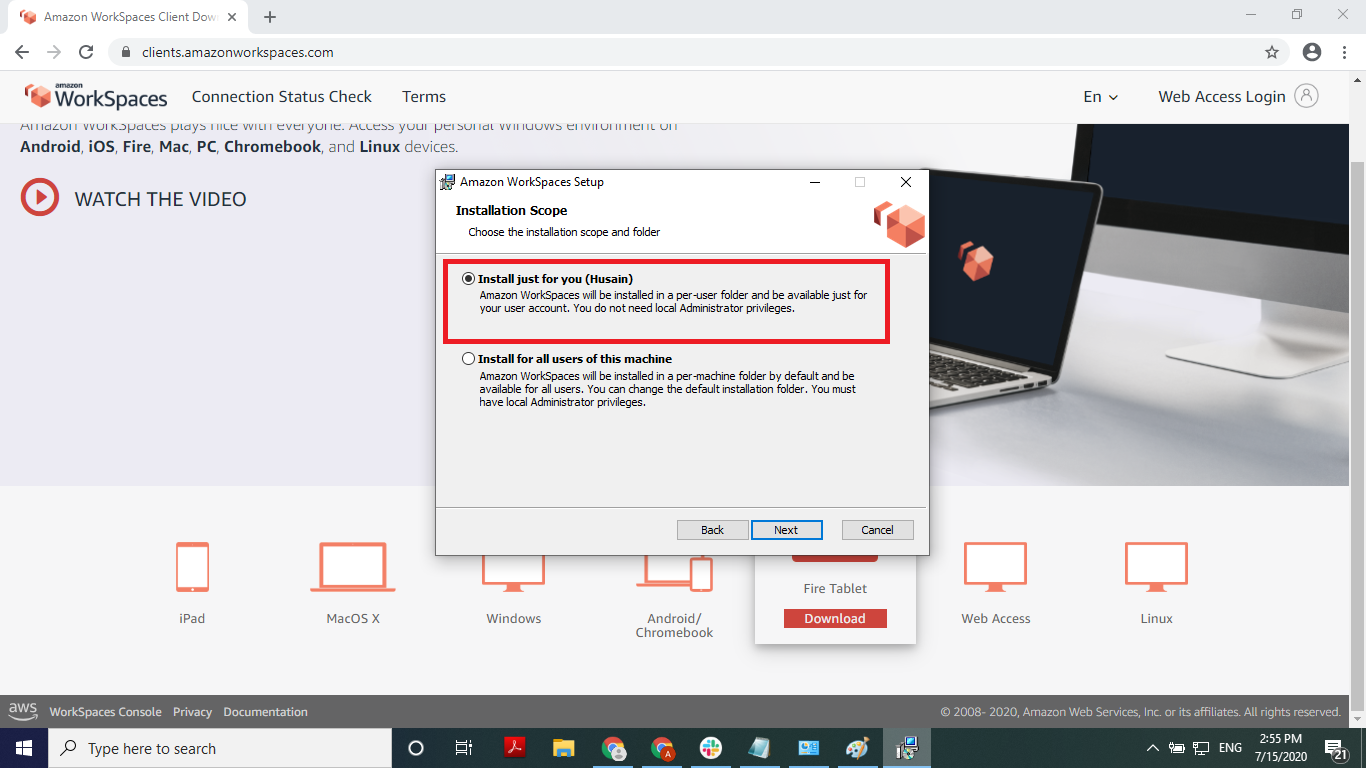
- Click the “Install just for you” option then click next
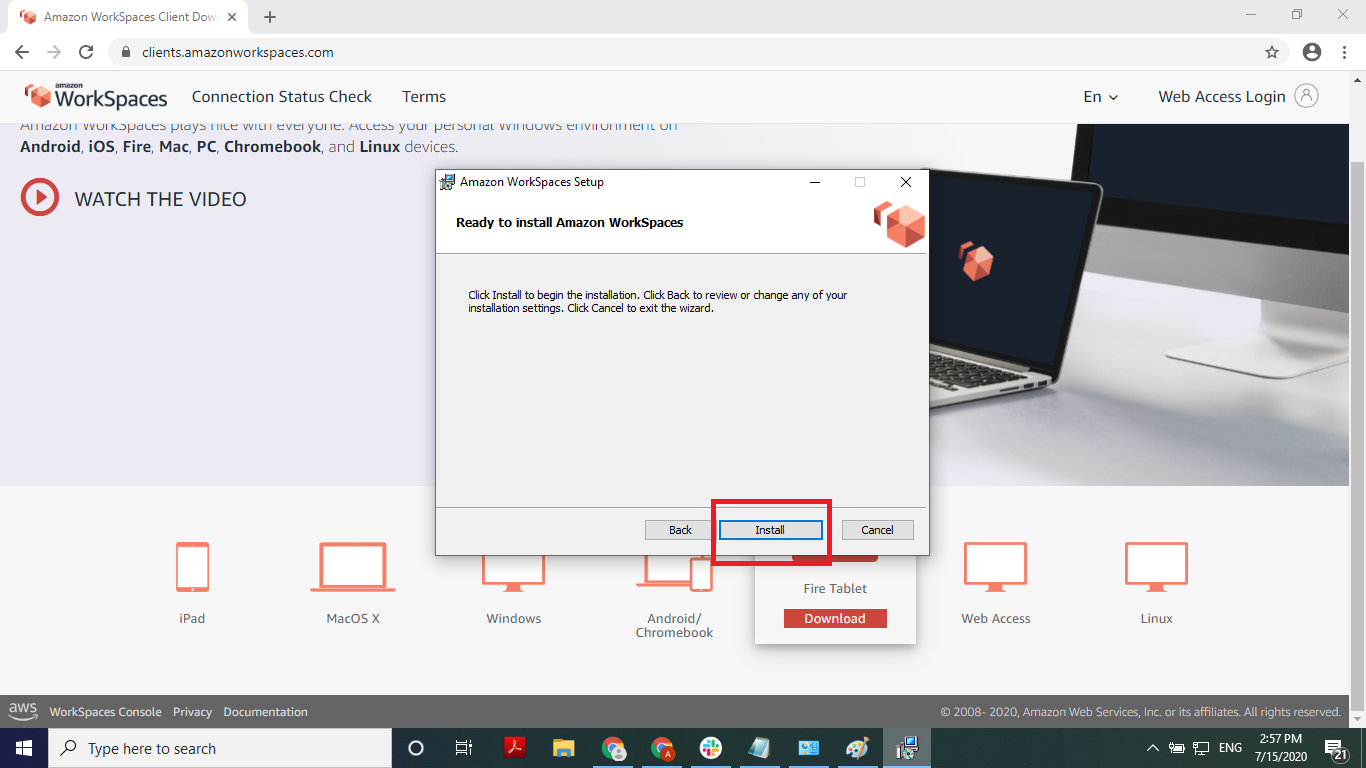
- Click the install button
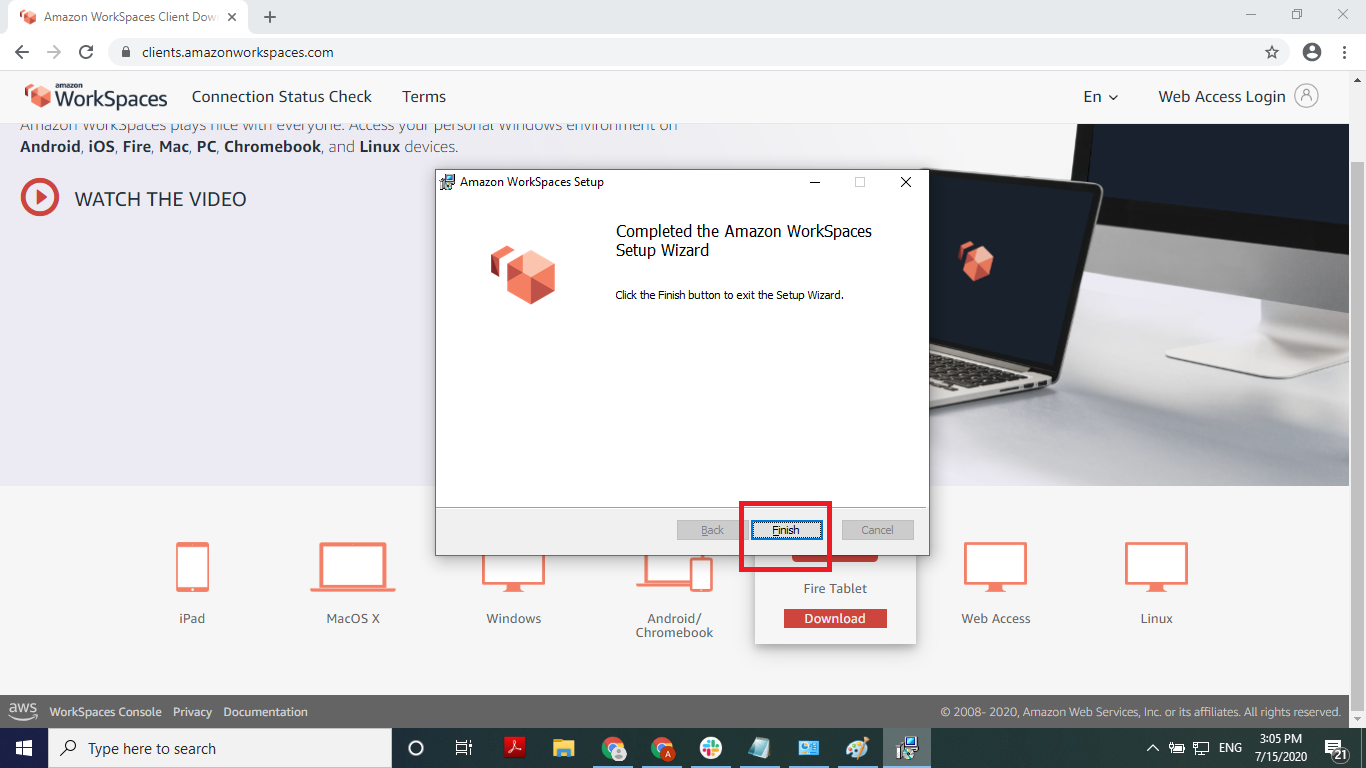
- Wait for the installer to complete, then click finish
Logging in
You will need the virtual studio username, password and registration code. This section will cover virtual studio one using the following credentials:
Username - virtualStudioOne
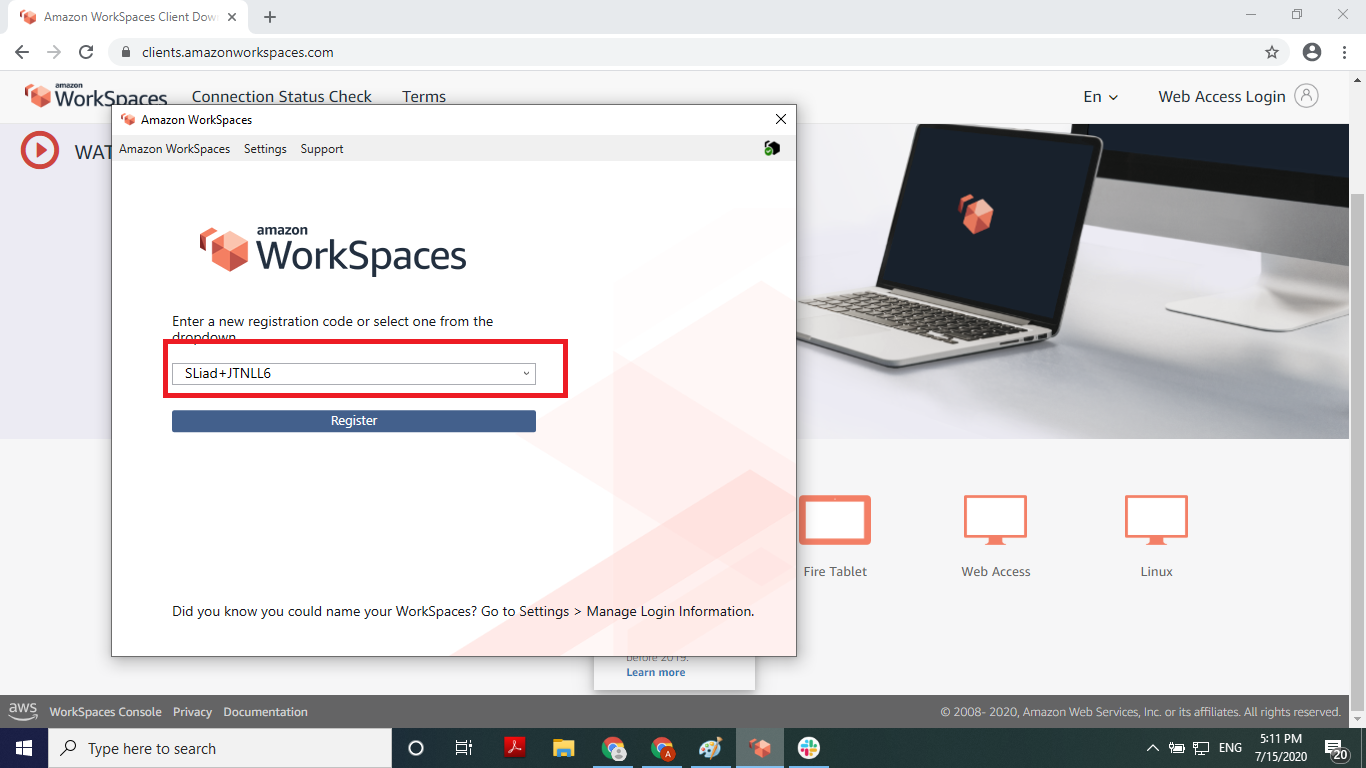
Registration Code - SLiad+JTNLL6
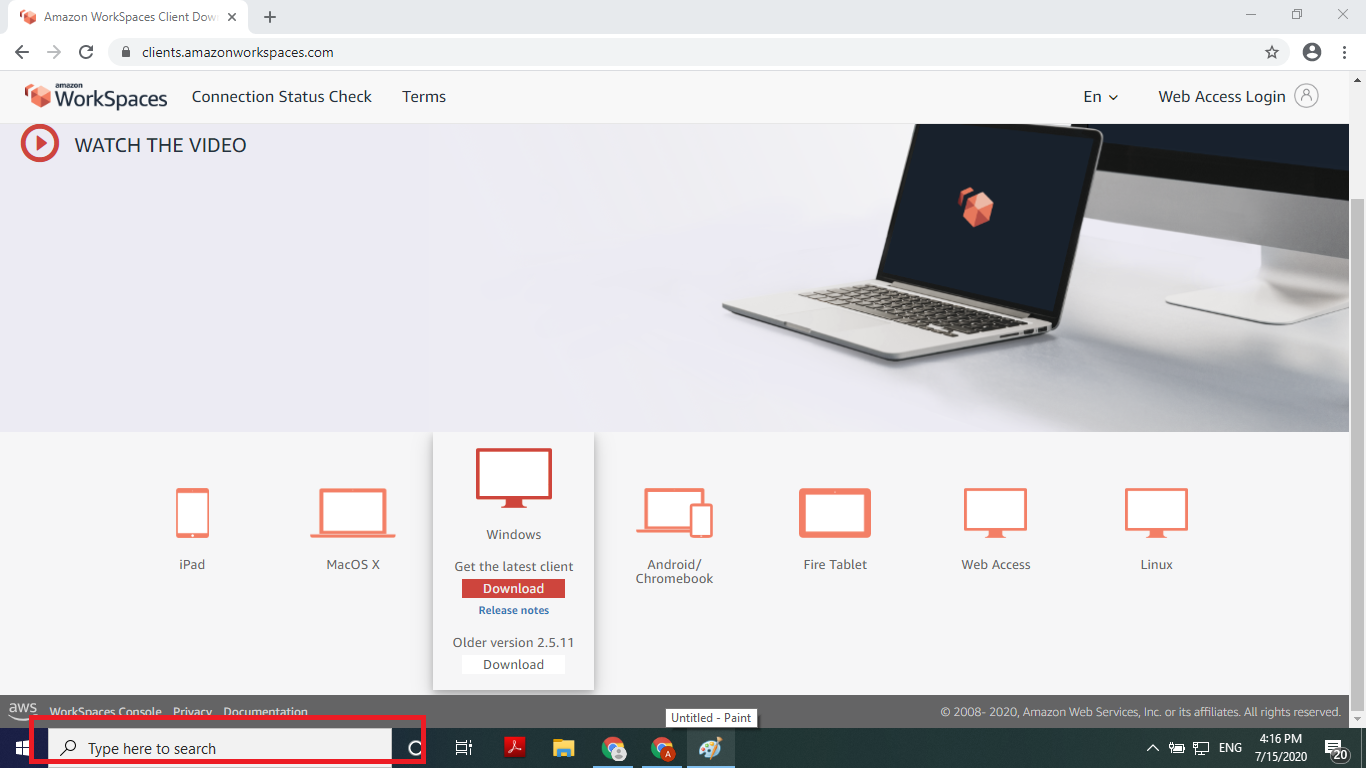
- Click the Windows search bar
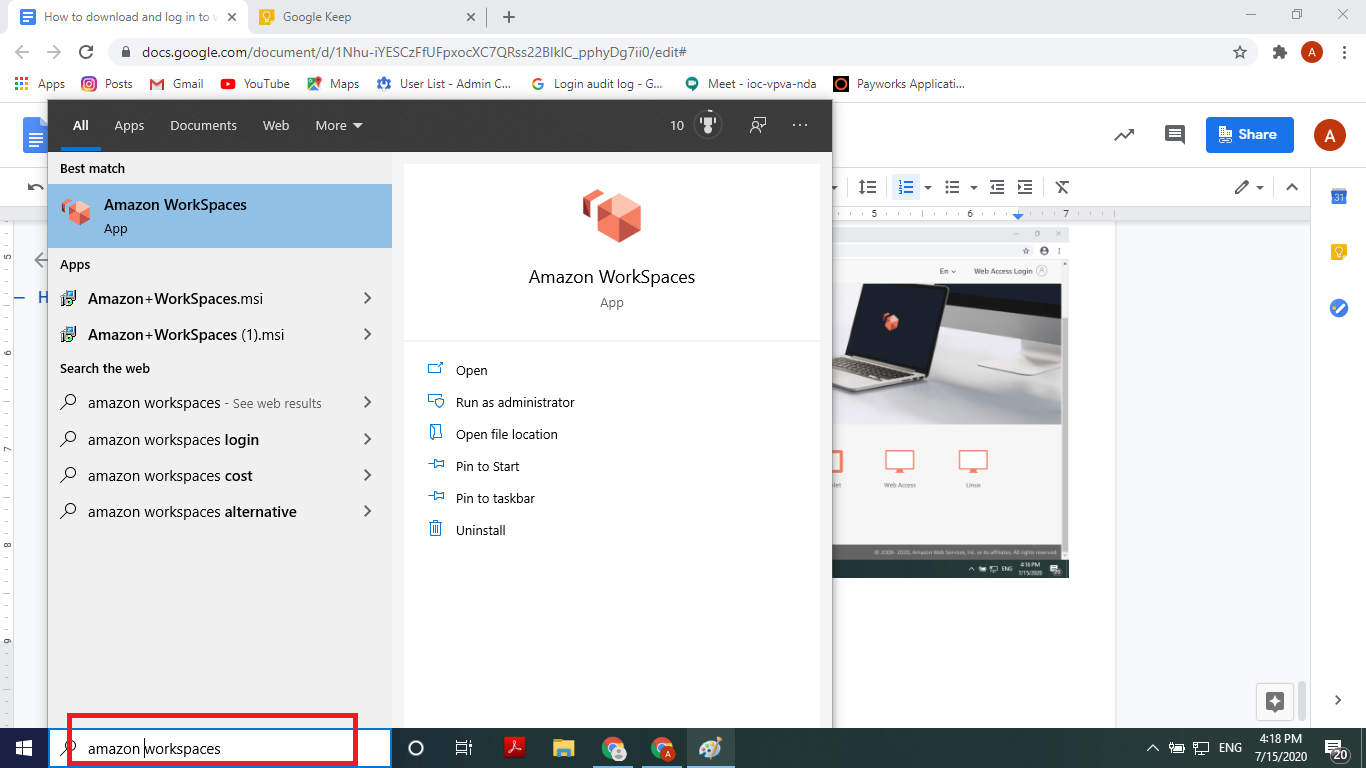
- Type “amazon workspaces”
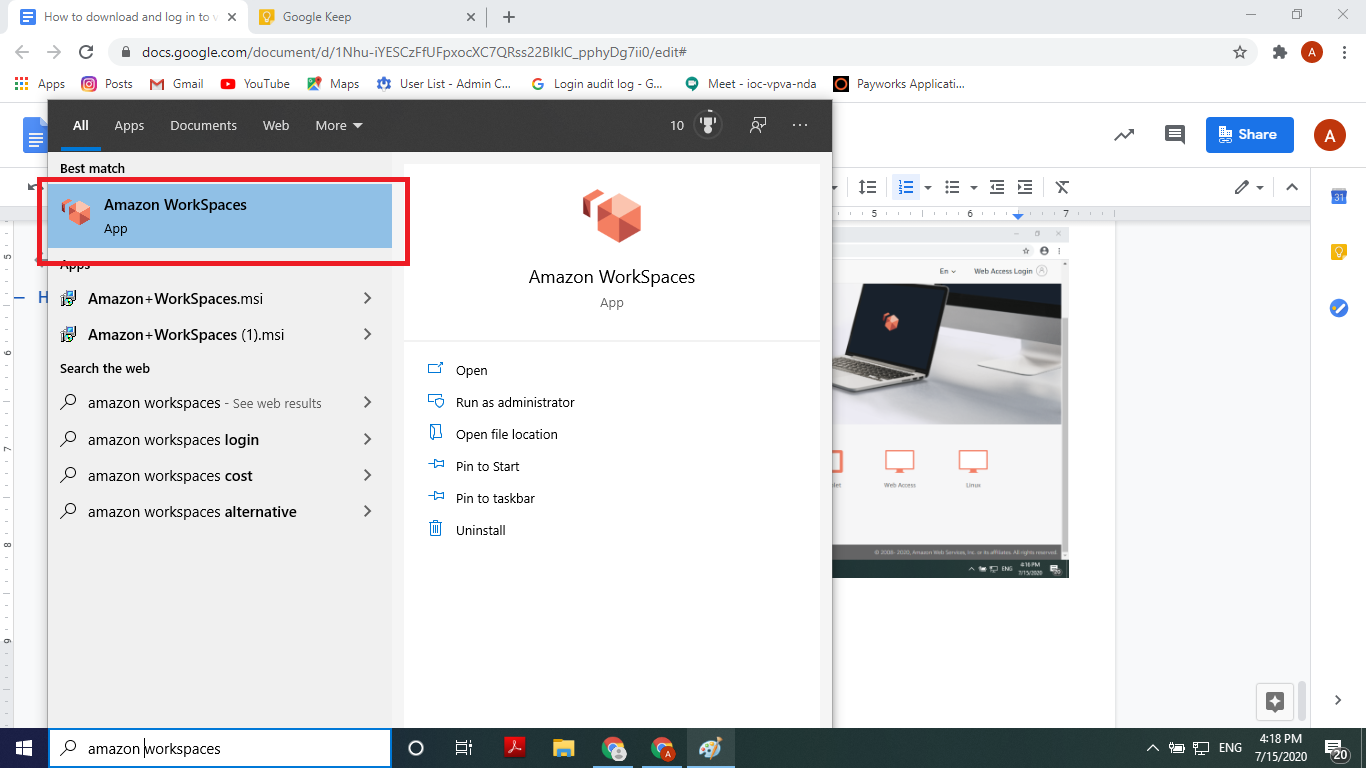
- Click on the Amazon WorkSpaces search result
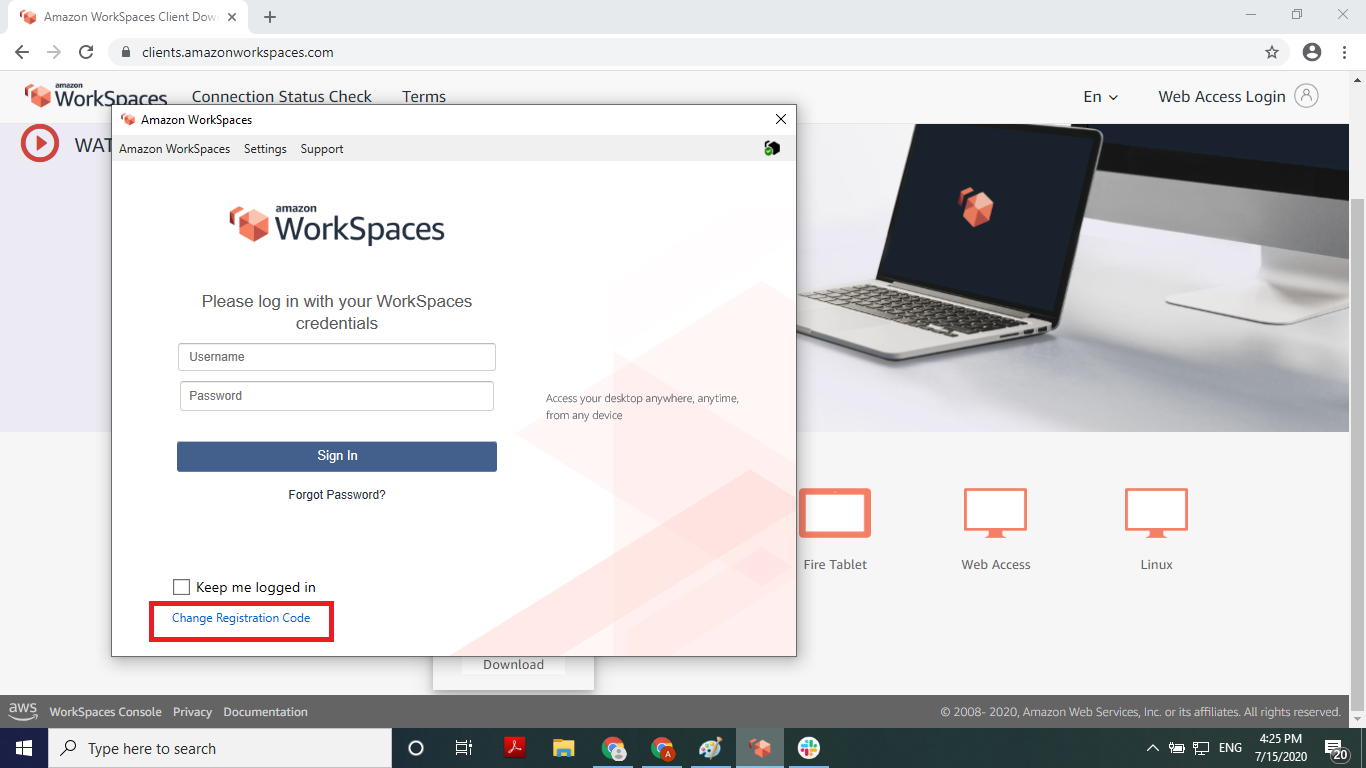
- Click the “Change Registration Code” link
- Click on the registration code box
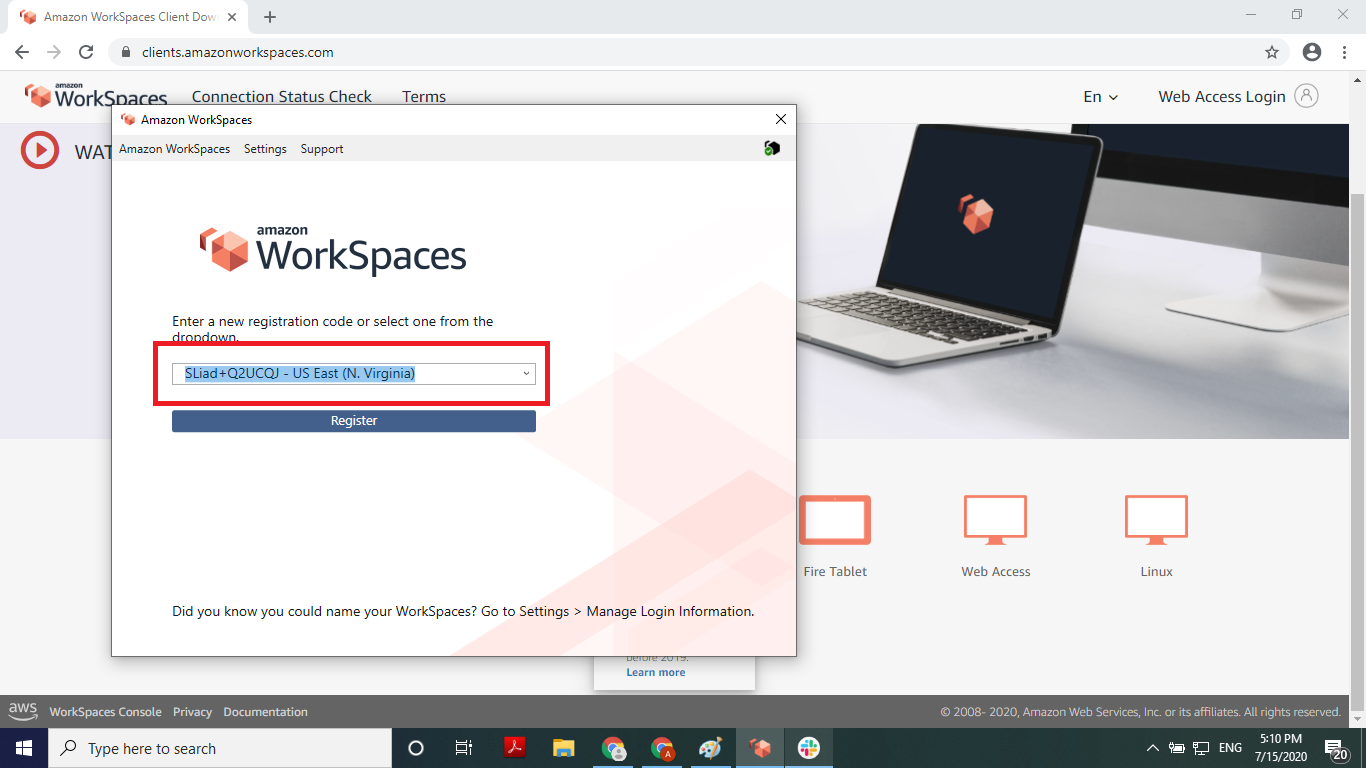
- Copy and paste the registration code (for virtual studio one the code is SLiad+JTNLL6)
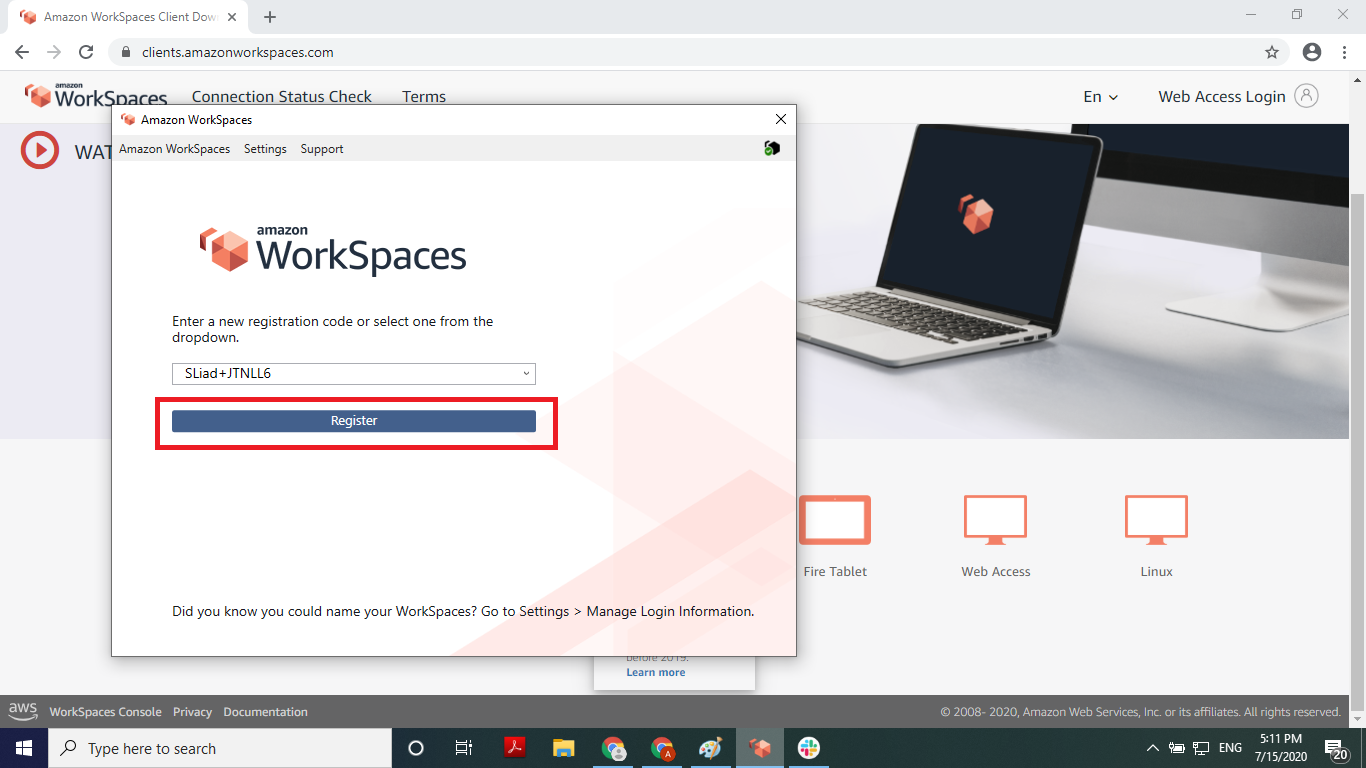
- Click the register button
- Click the username box then type “virtualStudioOne”
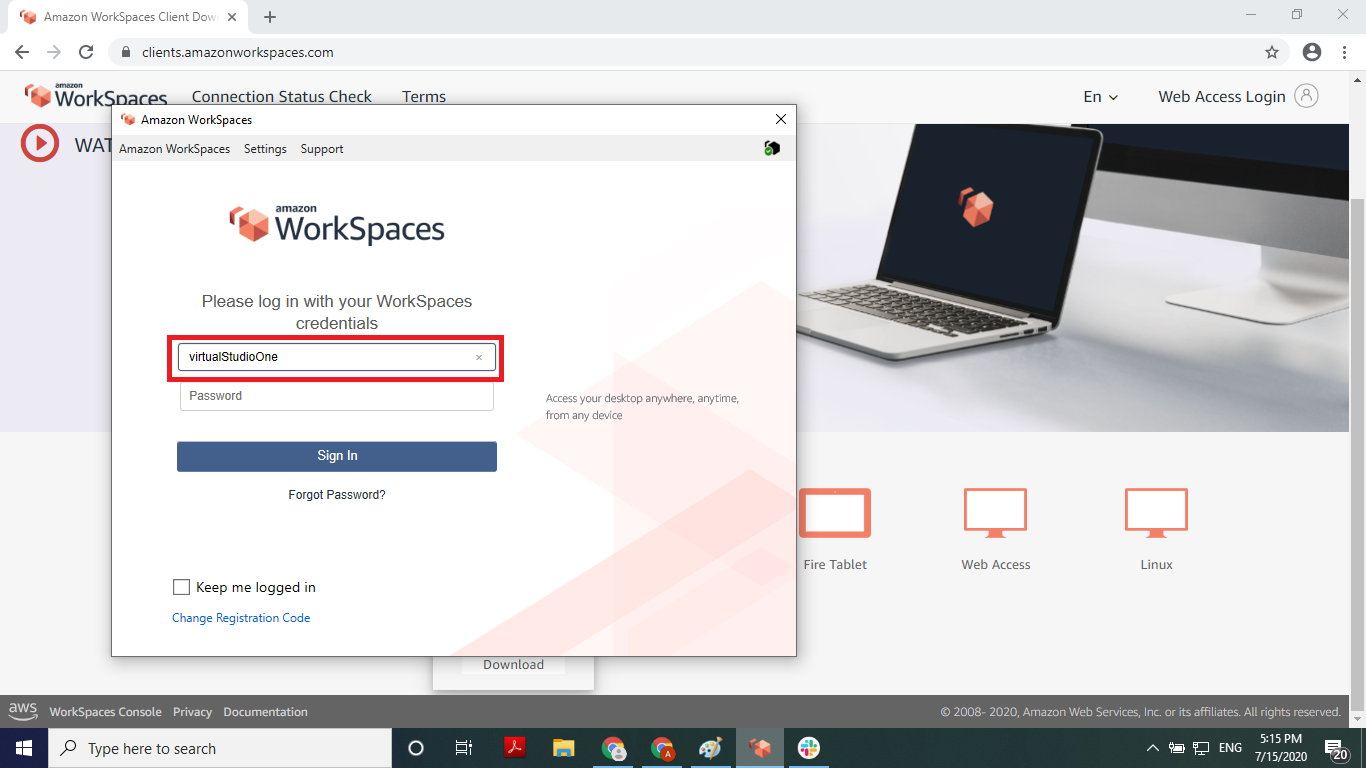
- Click the password box then type in the password
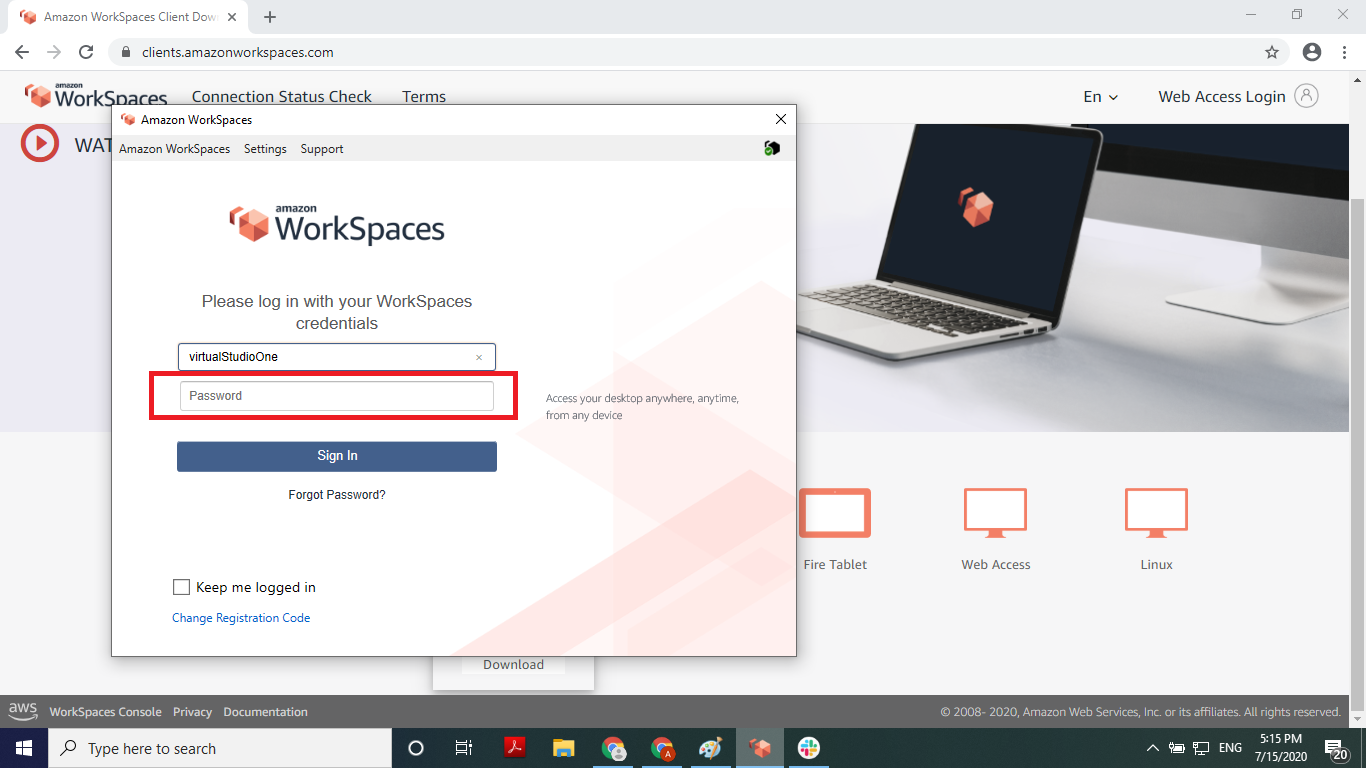
- Click the sign in button, once logged in the screen will look like this
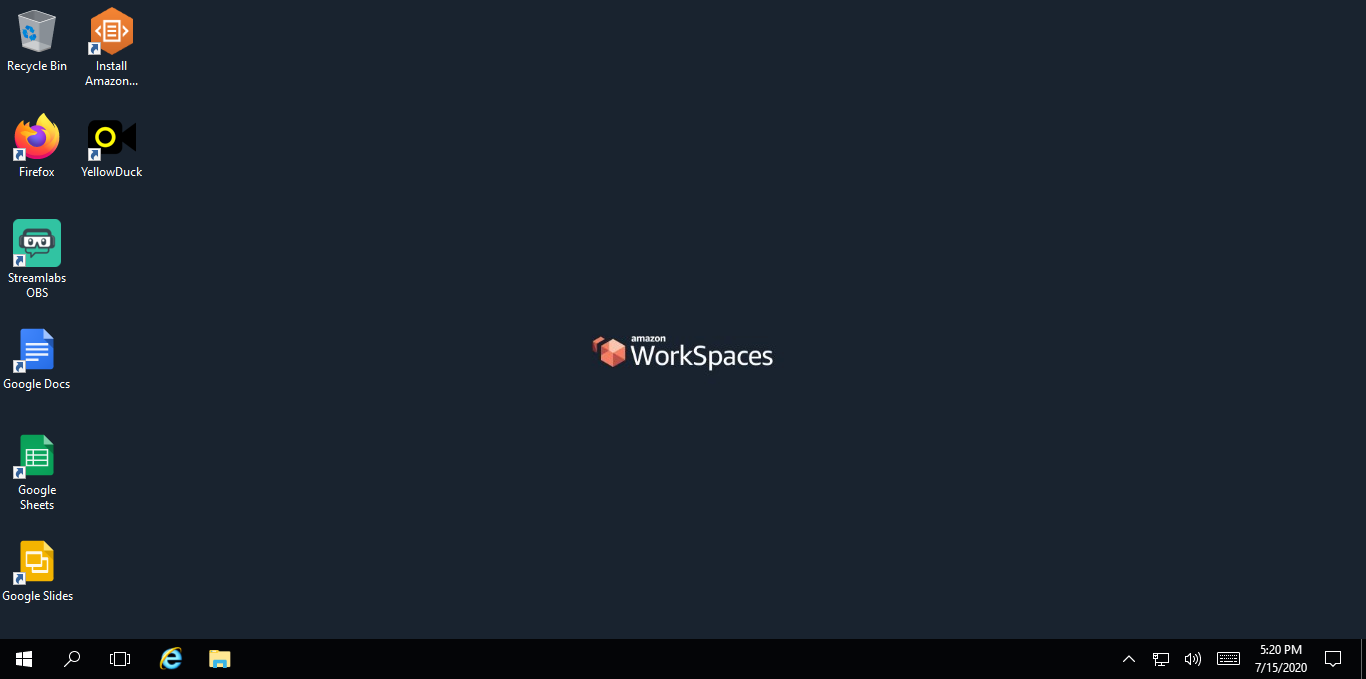
You’ve now signed in to the virtual studio!
Display on Multiple Screens
Press Ctrl+Alt+Enter