
Frequently Asked Question
Context:
Who can see your calendar and what can they see?
People in your organization as well as people who you have explicitly added can see your calendar and the events on your calendar
By default, organizations have set every user’s calendar visiblity so that anyone in the org can see all of another person’s event details
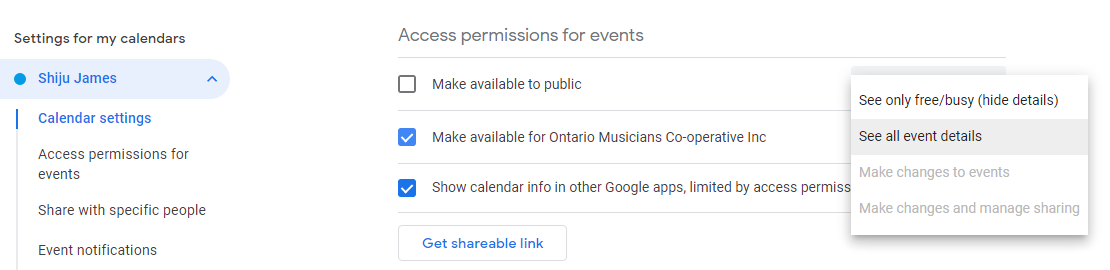
You can set it so that everyone will only see free/busy by default without actually seeing what the event details are
And then you can share your calendar with specific people with a different level of access (see Sharing Calendars section below)
When someone invites you to an event and you accept it, that event is now copied/added to your calendar , so whoever can see your calendar, can see that event
You could go into the actual event that you accepted and change the visibility to “private” if you just want to show a “busy” event block without any details
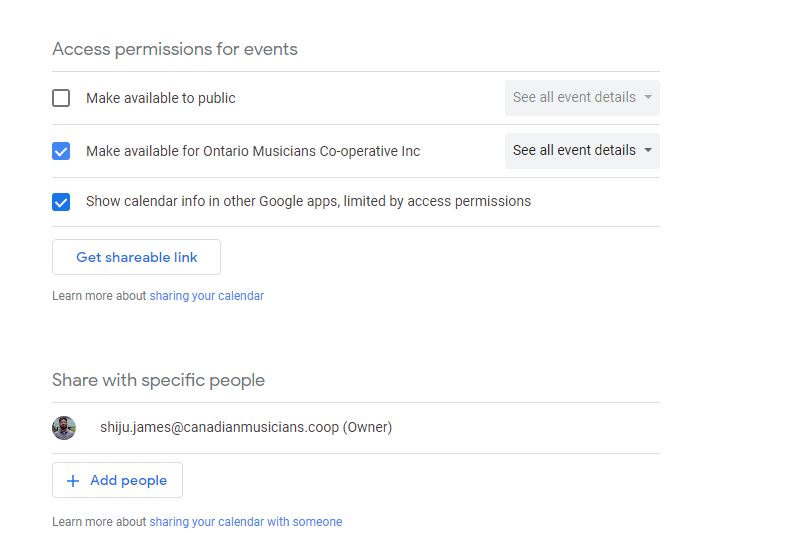
Sharing Calendars / Events:
Sharing your calendar to another account (sharing visibility)
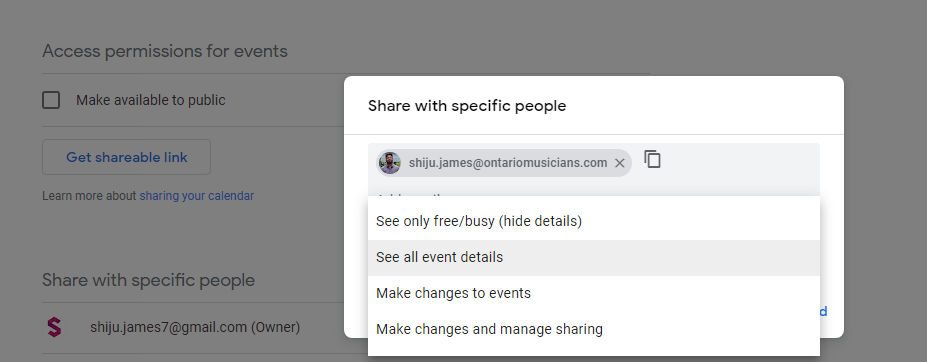
This is basically just sharing visibility from one account to another, so for example if you go to your personal account and share it explicitly with your work account, now your work account can now see the events on your personal accounts calendar
Or manage those events depending on what level of access was shared
Note this does not add the events from your personal account’s calendar to your work account’s calendar
This also means that other people who you may have shared your calendar with, will still only see / have access to the events added on YOUR calendar and not to other calendars that may have been shared with you
Sharing events / adding events from one account’s calendar to another account
The only way to copy events over from one account to another’s calendar is to Invite the other account to the events so they will have a copy of the event on their calendar
Could set up email forwarding rules so that both accounts receive the event invitation
Or export your entire calendar and then import it into whichever account you want them to show up in
https://support.google.com/calendar/answer/37111?hl=en