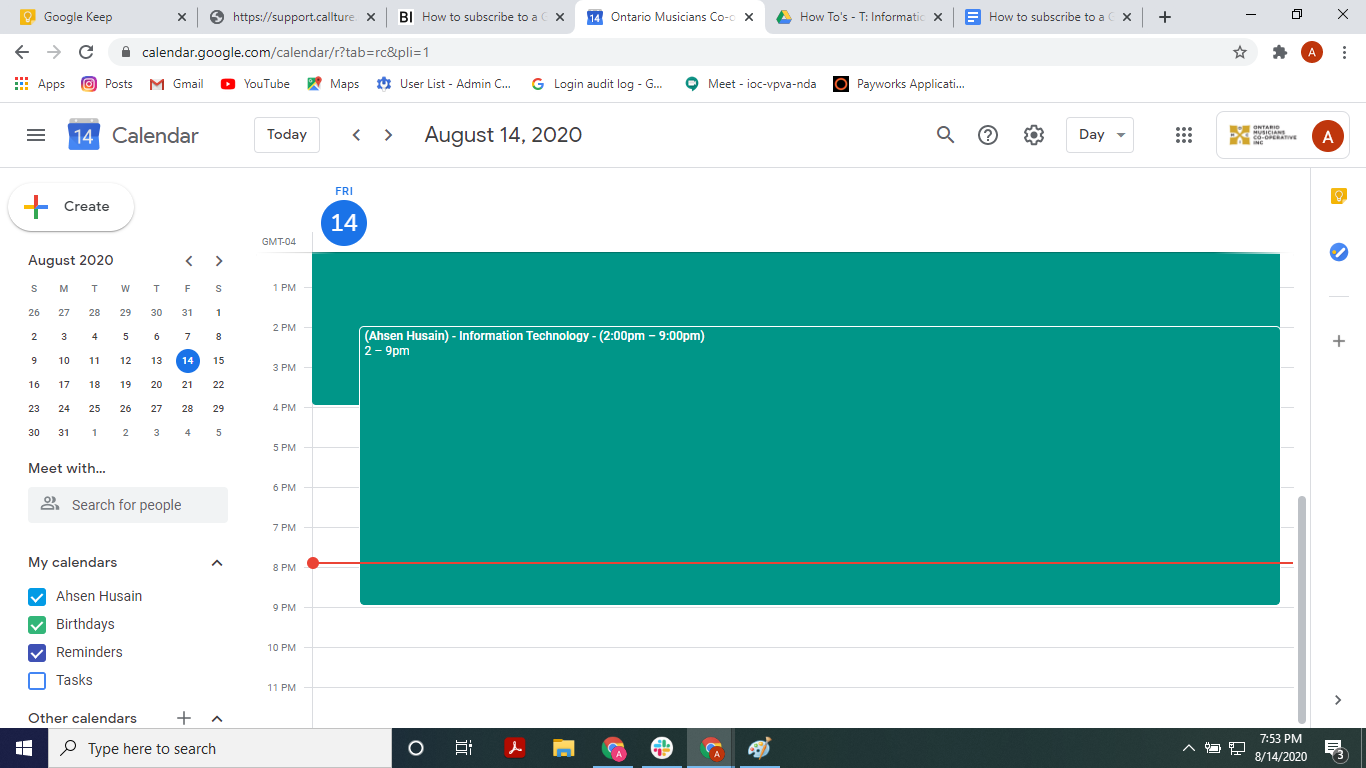
Frequently Asked Question
How to add Subscribe/Add to a Google Calendar?
Last Updated a year ago
How to subscribe to a Google Calendar
- Open the Google Chrome browser
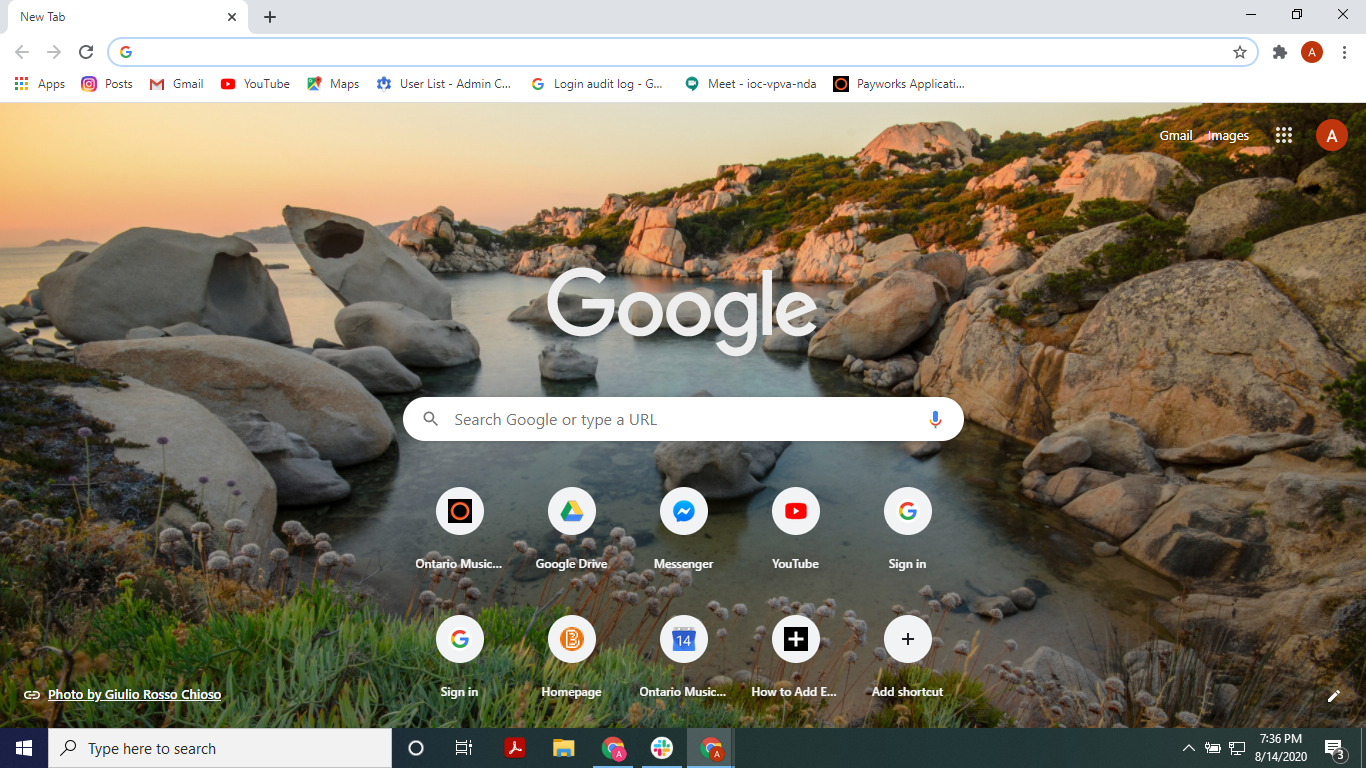
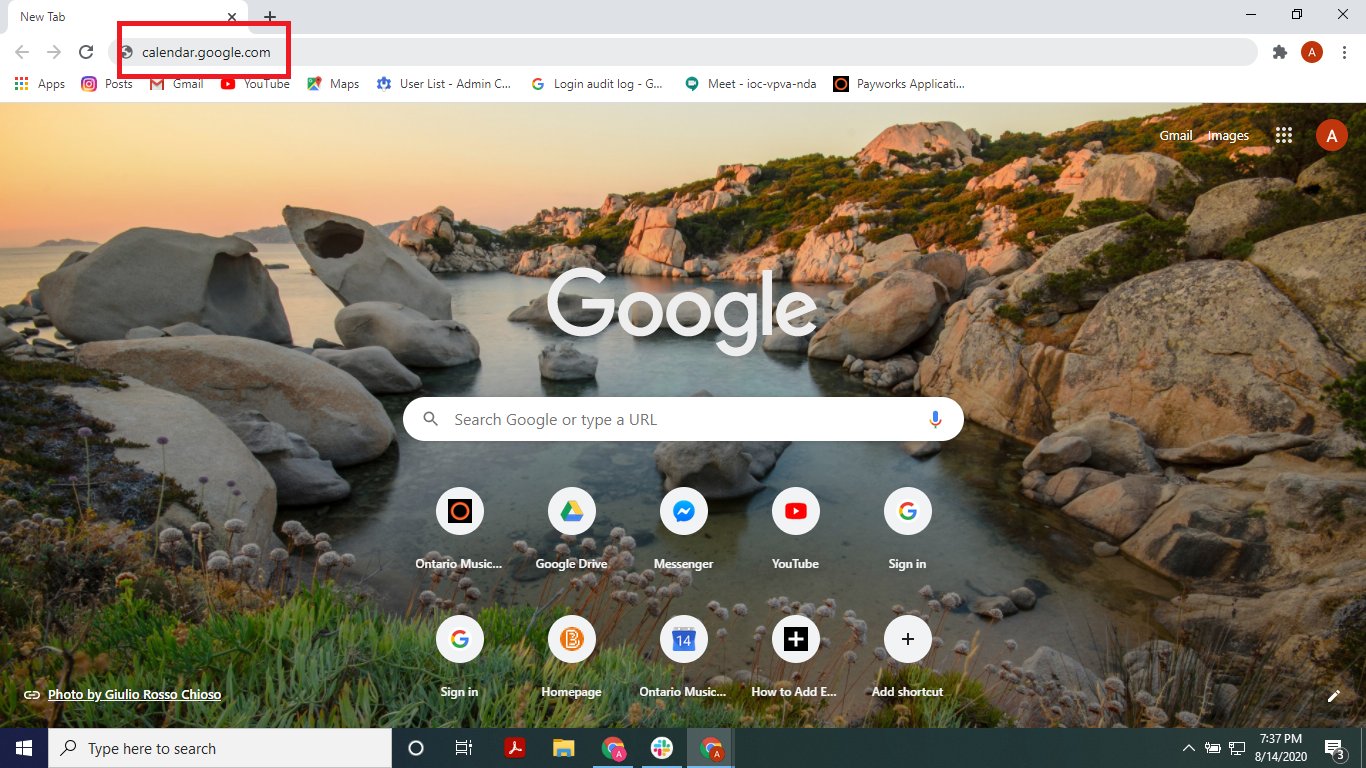
- Type “calendar.google.com” into the address bar then press the Enter key on the keyboard
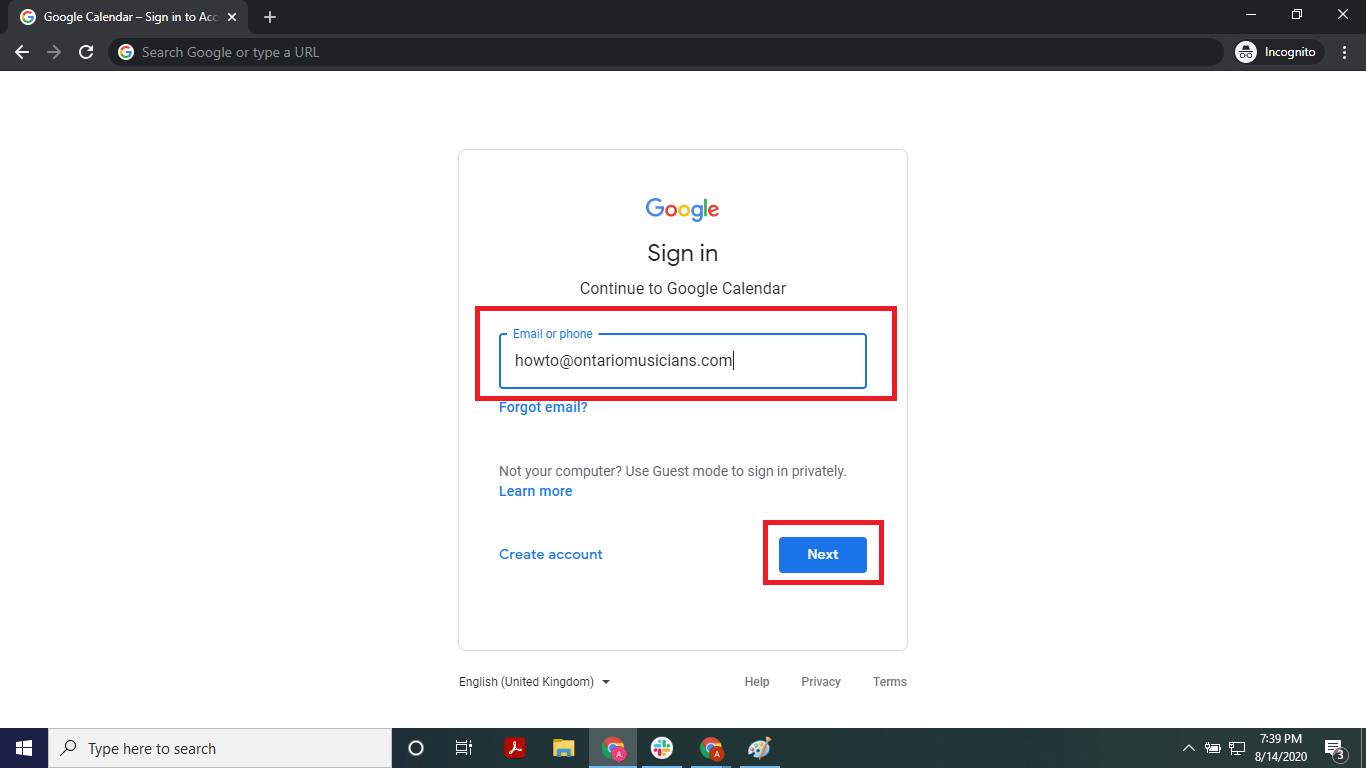
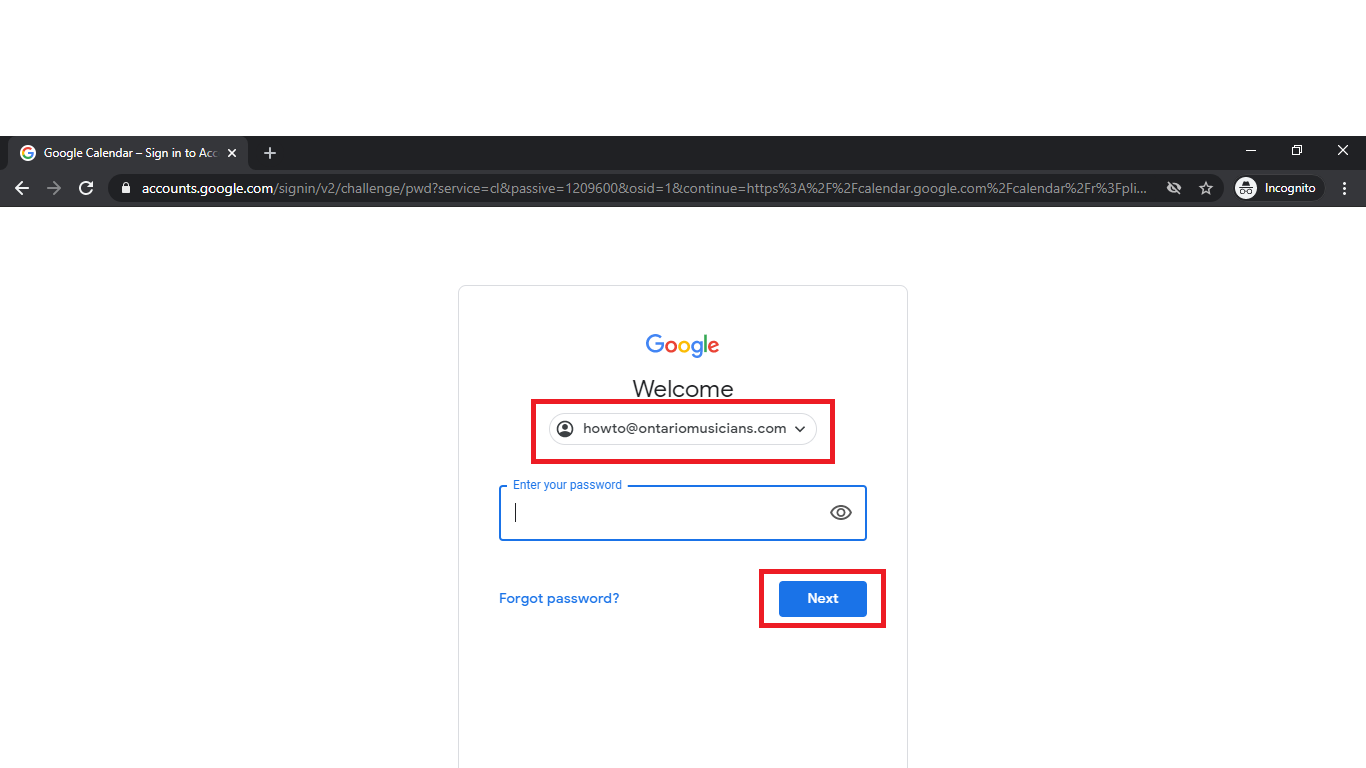
- Enter your OMCI email then click the “Next” button
- Enter your password then click the “Next” button
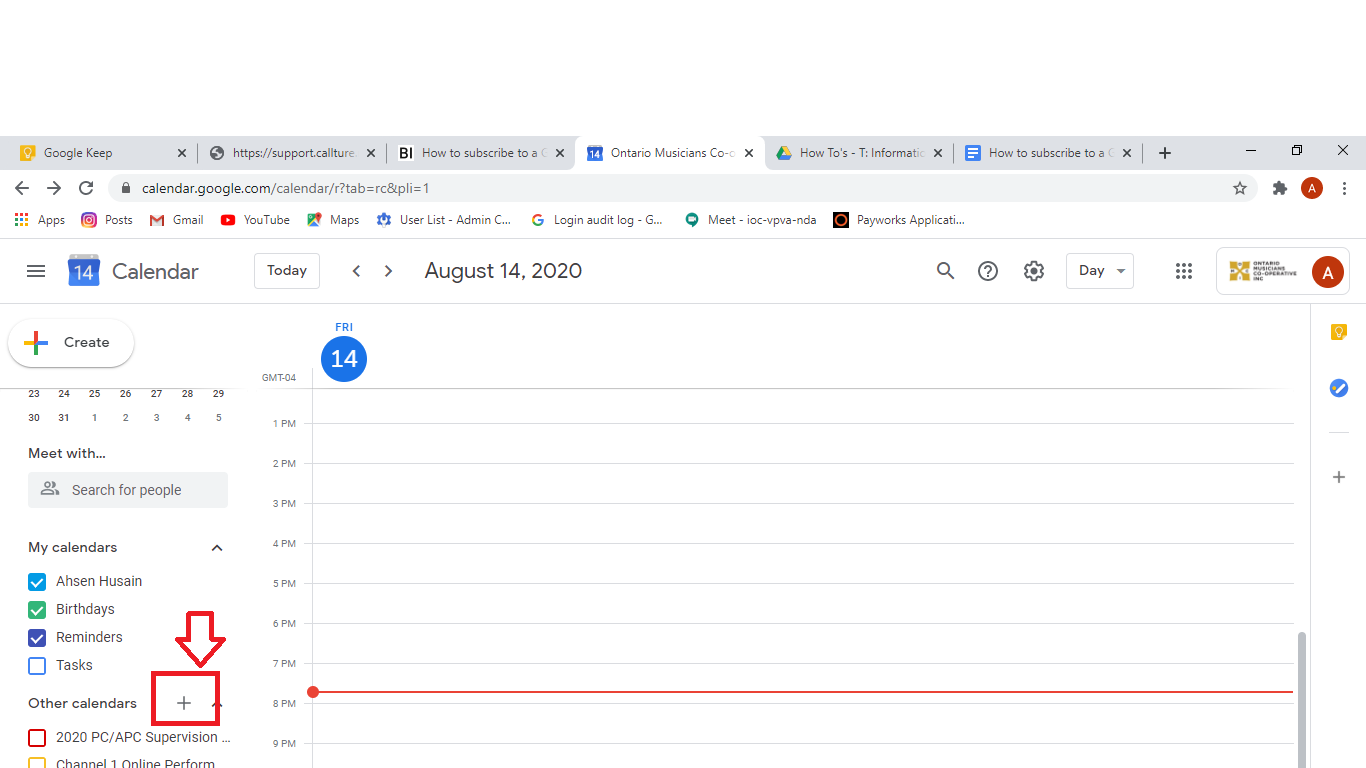
- Click the + button beside “Other calendars”
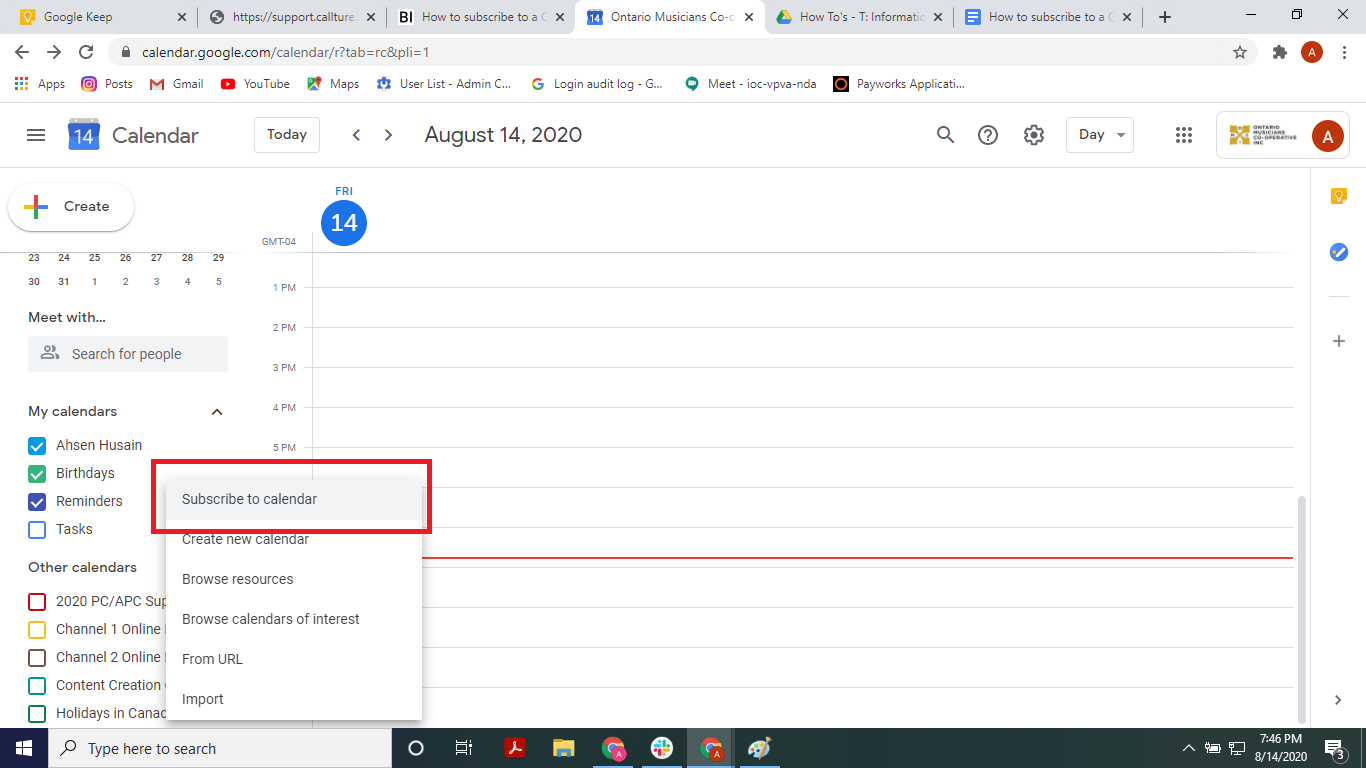
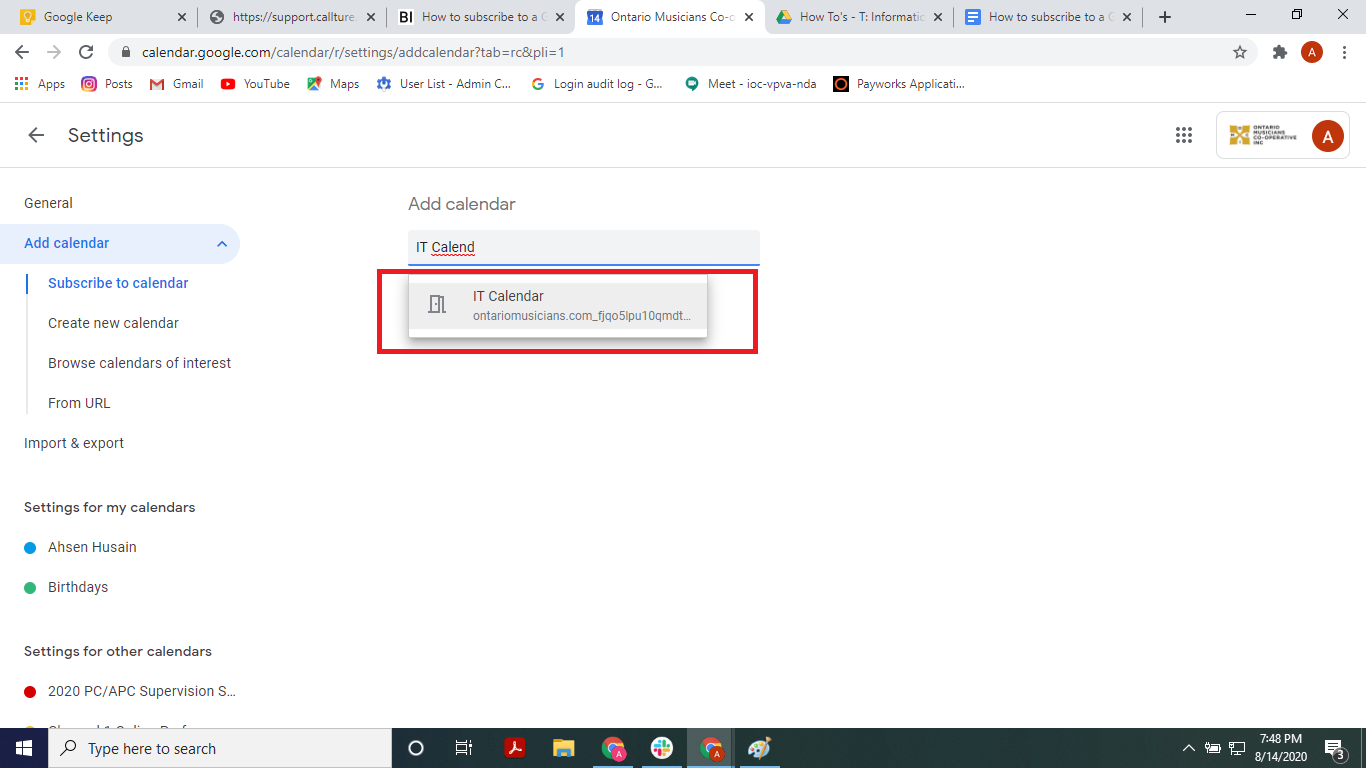
- Click the “Subscribe to calendar” option
- Search for the calendar you want to subscribe to by typing in the text box. For example you could search for the IT Calendar.
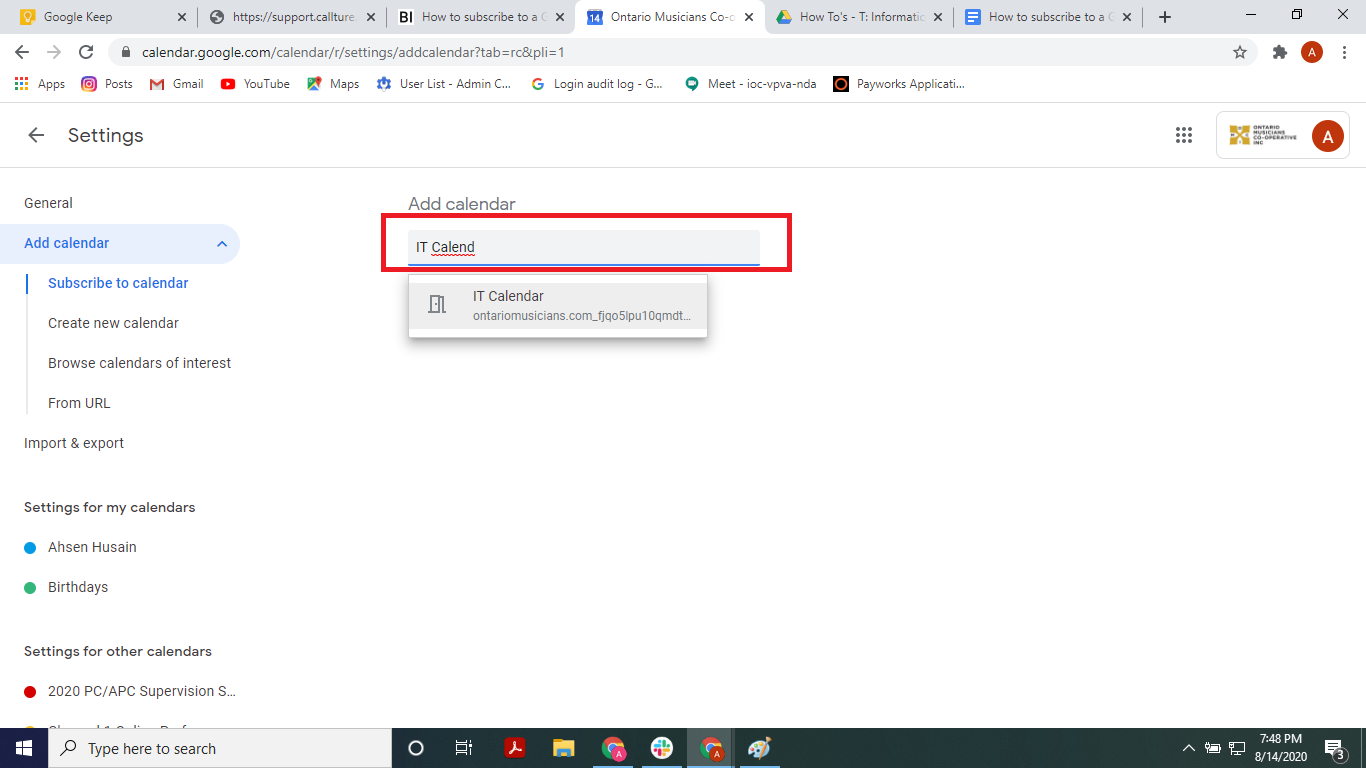
- Click on the calendar you want to subscribe to
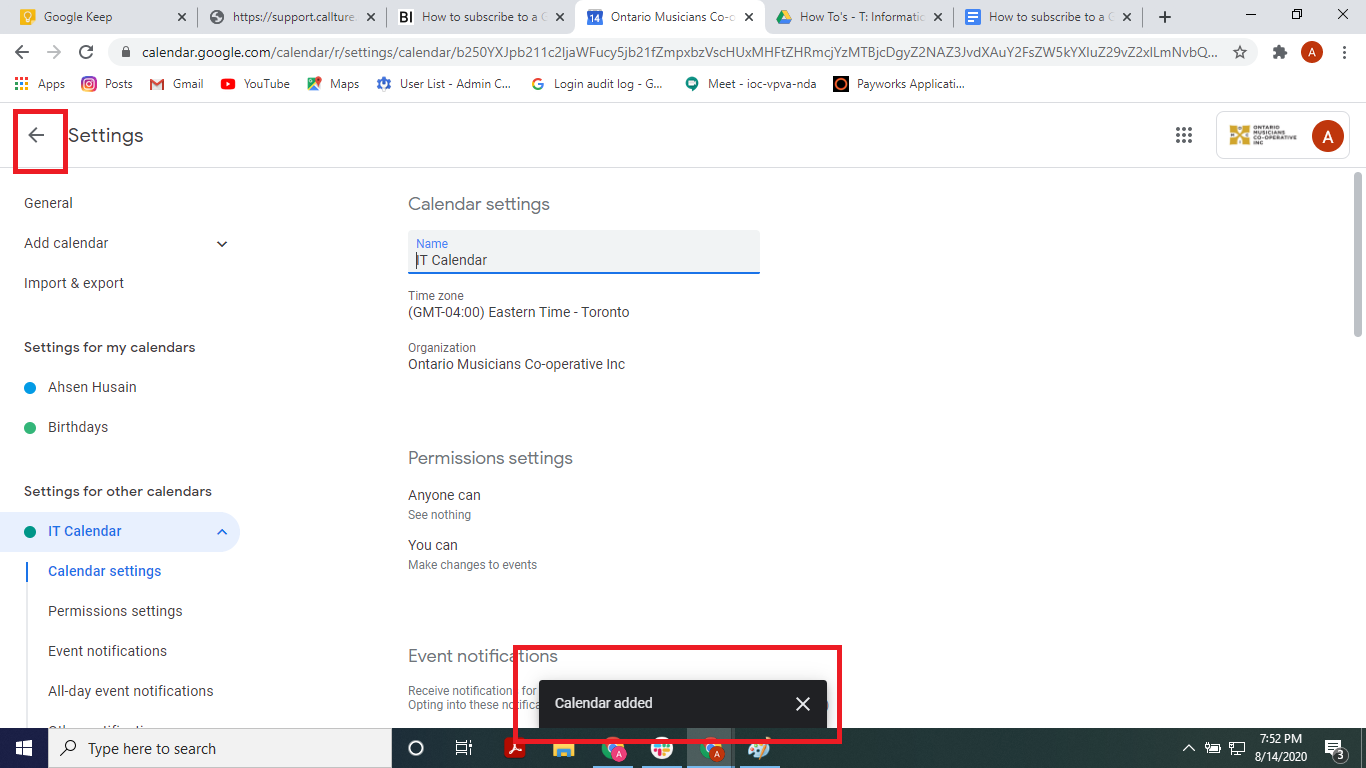
- The calendar is now added.Click the back button beside “Settings”. Note: If the calendar is private you will have to request access.
- Calendar events are now visible