
Frequently Asked Question
1. Create the excel file in the local system and to prevent others from accessing data in your Excel files, protect your Excel file with a password.
Note: This topic covers file-level protection only, and not workbook or worksheet protection. To learn the difference between protecting your Excel file, workbook, or a worksheet, see Protection and security in Excel.
- Select File > Info.
- Select the Protect Workbook box and choose Encrypt with Password.
- Enter a password in the Password box, and then select OK.
- Confirm the password in the Reenter Password box, and then select OK.
Warning:
- Microsoft cannot retrieve forgotten passwords, so be sure that your password is especially memorable.
- There are no restrictions on the passwords you use with regards to length, characters or numbers, but passwords are case-sensitive.
- It’s not always secure to distribute password-protected files that contain sensitive information such as credit card numbers.
- Be cautious when sharing files or passwords with other users. You still run the risk of passwords them falling into the hands of unintended users. Remember that locking a file with a password does not necessarily protect your file from malicious intent.
2. Upload the excel in the shared drive location.
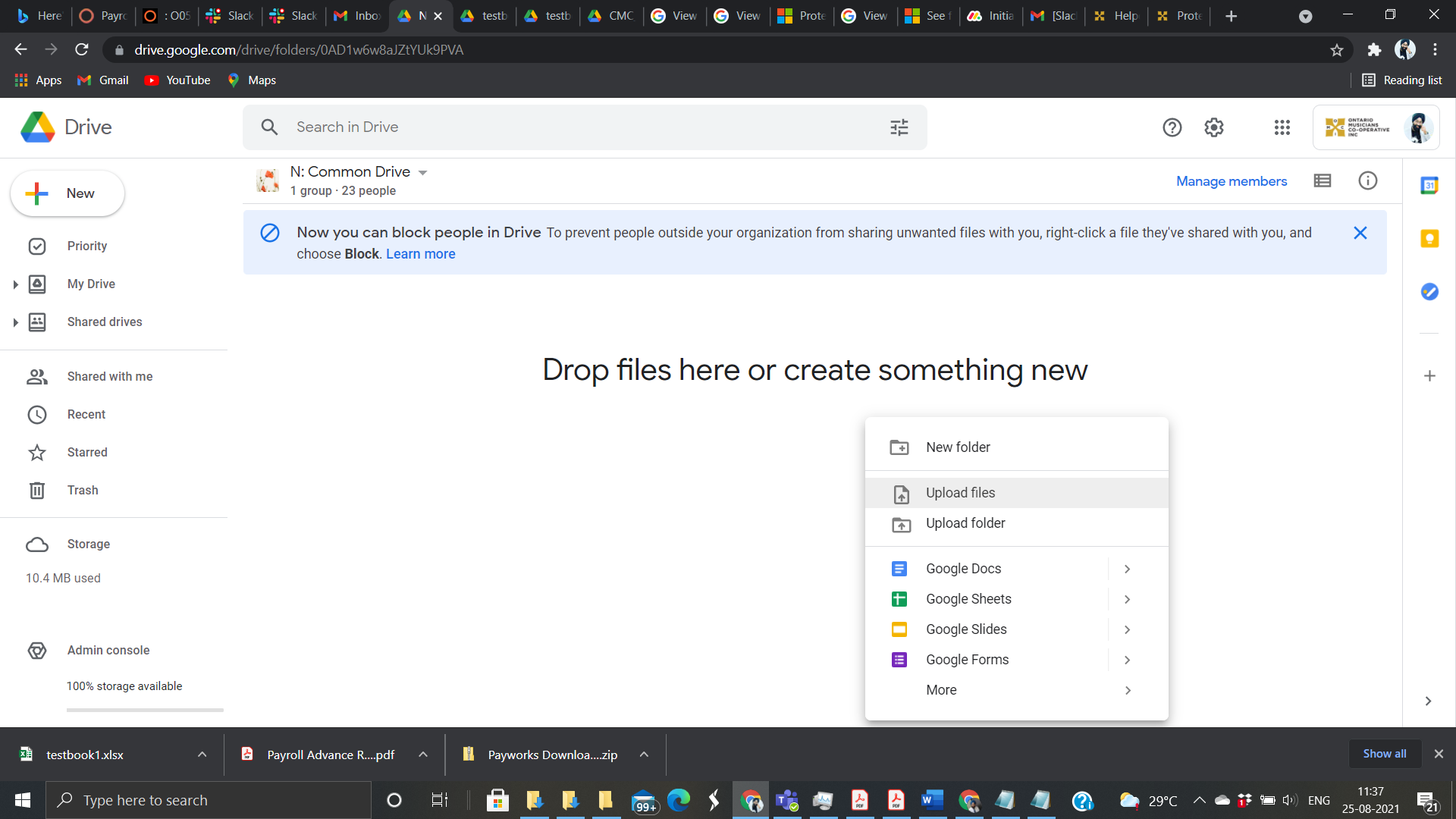
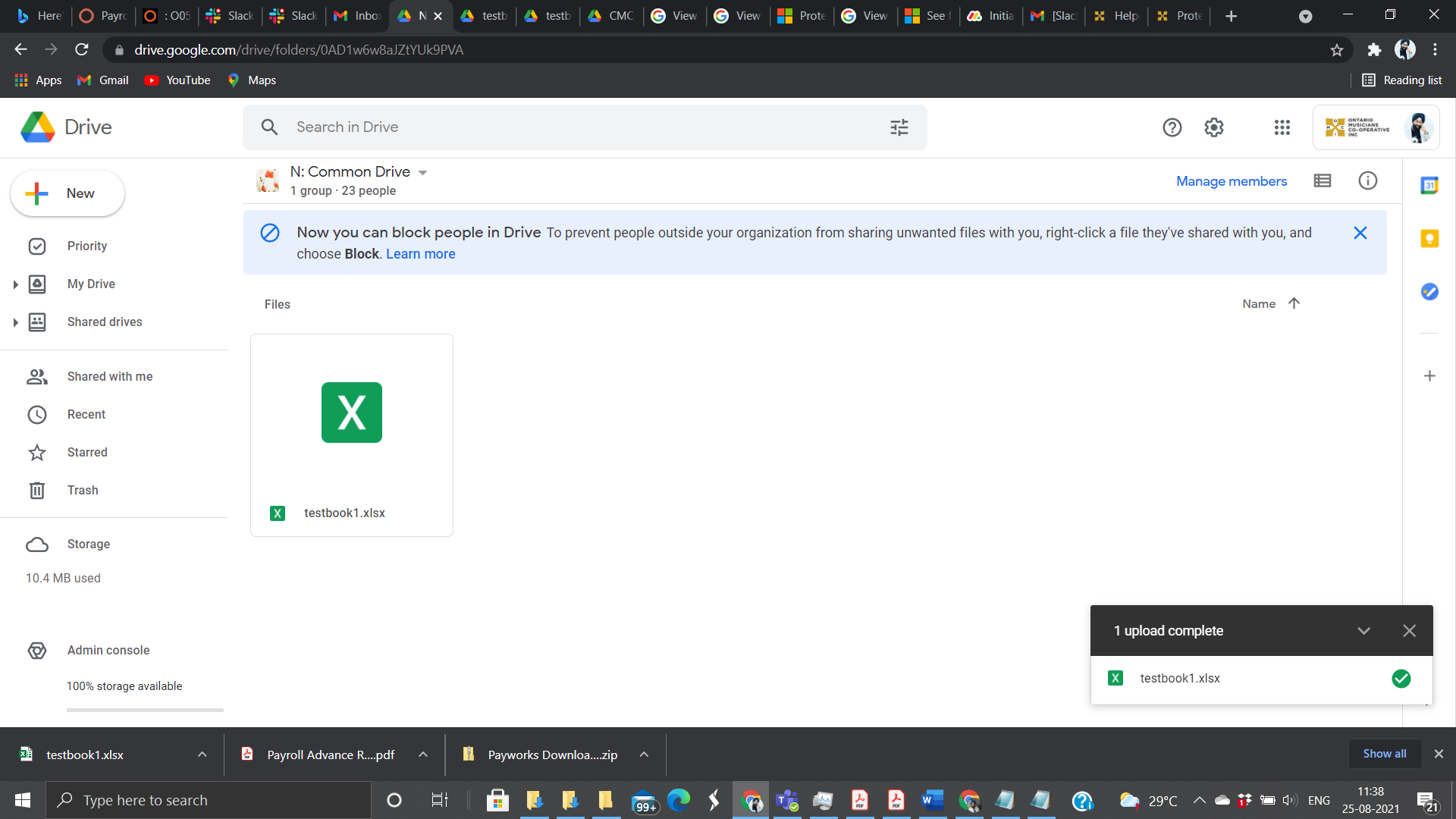
The file cannot be converted into any other format due to the encryption, it also cannot be converted into a Google Sheet document even though Google Drive will open this file if the correct password is entered.
3. To modify this file, you have to download it, and then open it with a compatible app (ideally MS Excel), make changes, and reupload to Google Drive without changing the file name or other settings
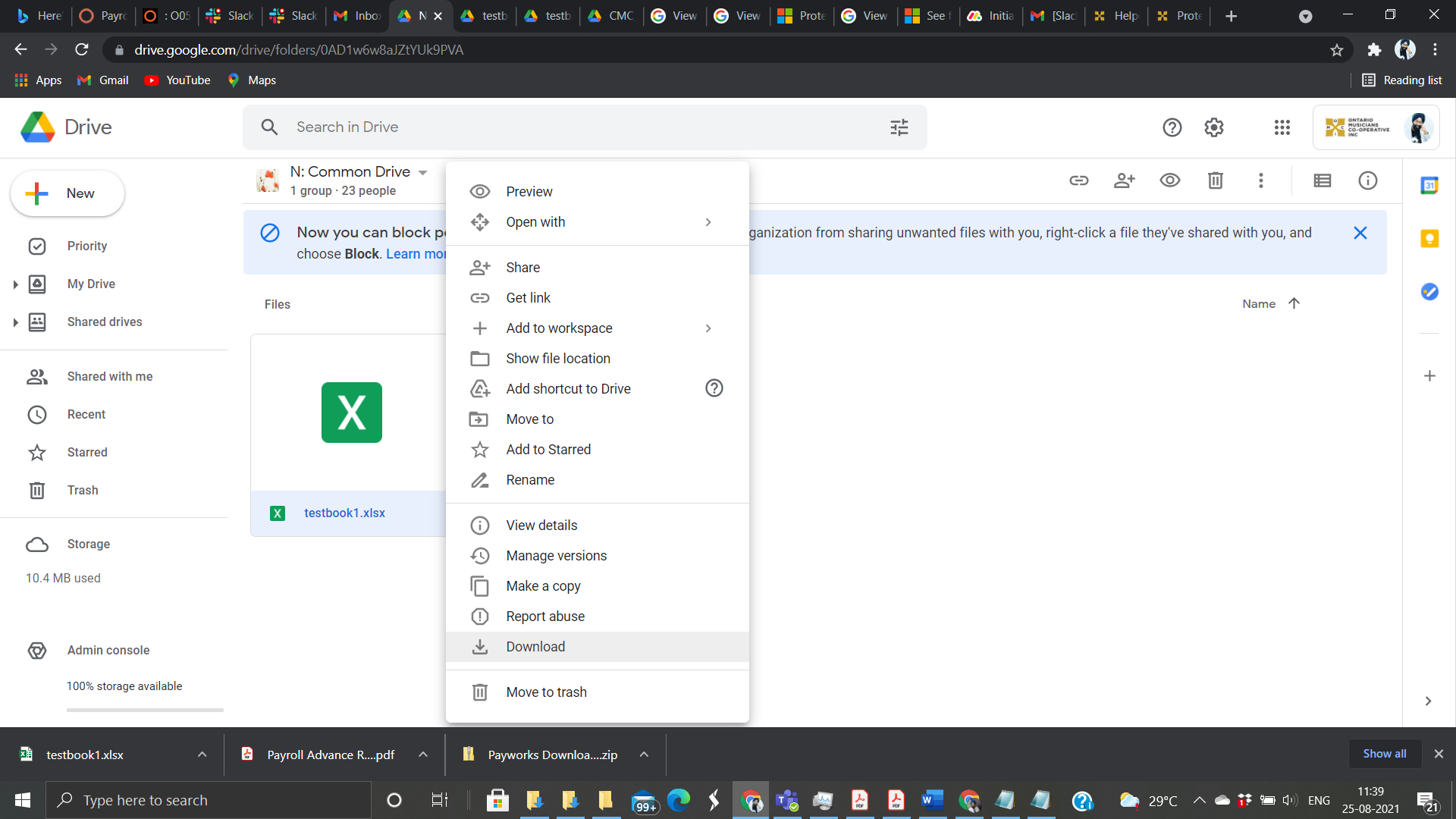
4. Google Drive will keep the record of past activity and a certain number of recent versions of this file if its uploaded with the same name
View past activity
- On your computer, go to drive.google.com.
- On the left click My Drive.
- In the upper right, click Info
 .
. - To see recent changes, click Activity.
- To see the activity of a specific file or folder, click the file or folder.
- To see older changes, scroll down on the right side.
Save and restore recent versions
Only the most recent versions of past documents will be saved, unless you click Keep forever.
Download recent versions
You can download and keep old copies of PDF files, images, and other files stored in Google Drive.
- On your computer, go to drive.google.com.
- Click on the file you want to download.
- At the top right, click More
 .
. - Click Manage versions.
- Next to the version you want to download, click More
 .
. - To save a copy to your computer, click Download.
Upload a new version
- On your computer, go to drive.google.com.
- Click on the file you want to replace.
- At the top right, click More
 .
. - Click Manage versions.
- Click Upload new version.
Note: If you upload a new version of a file owned by someone else, the original owner will stay the same.
Delete an older version
- On your computer, go to drive.google.com.
- Click on the file you want to replace.
- At the top right, click More
 .
. - Click Manage versions.
- Next to the version you want to delete, click More

 Delete.
5. Copies of this file should not be kept on personal devices ideally, keeping it on Google Drive ensures multiple layers of security and recoverability