Frequently Asked Question
Navigating through Google Drive
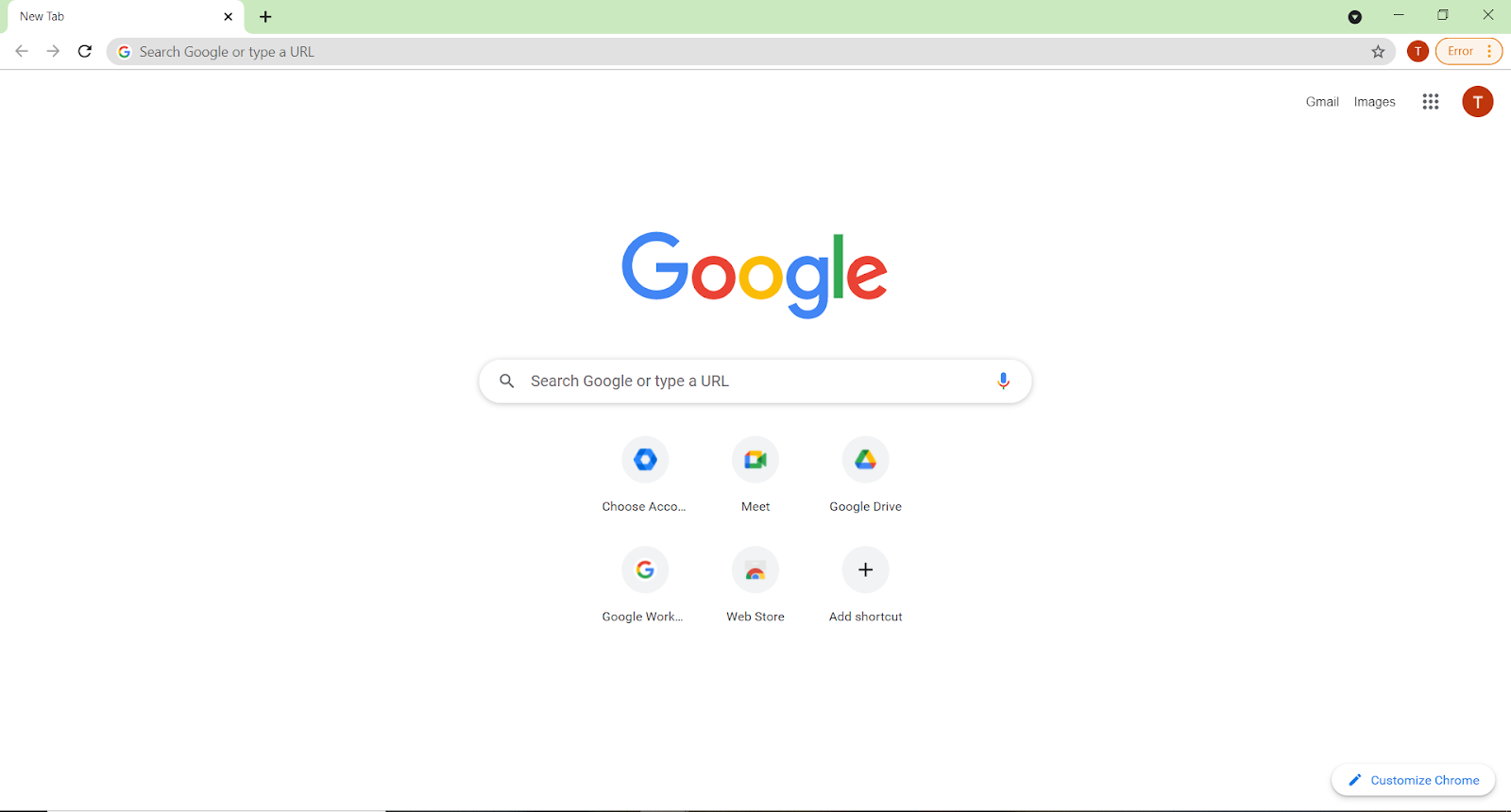
- Open the Google Chrome browser
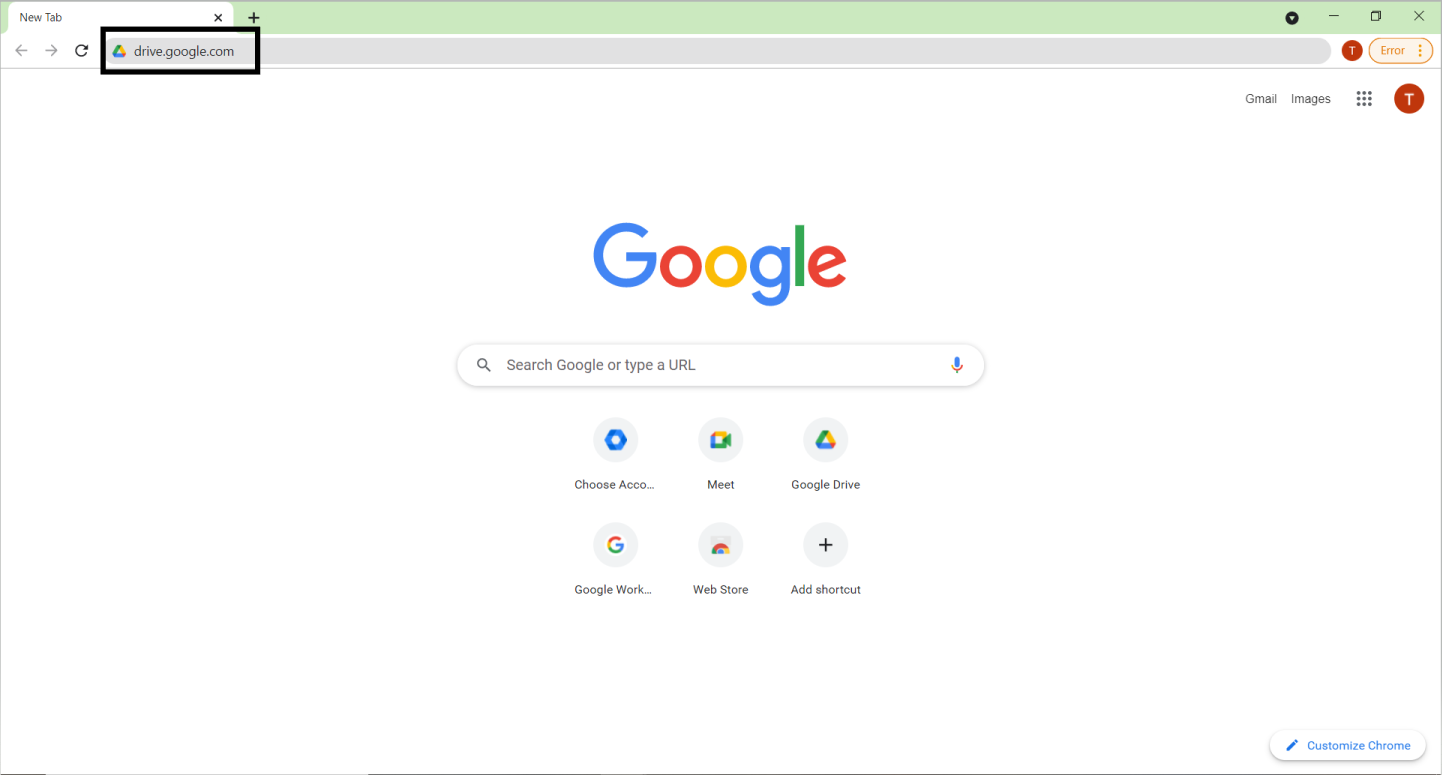
- Type “drive.google.com” into the address bar then press the Enter key on the keyboard
3. (Assuming you are already logged into your CMC account)You will get to this screen:
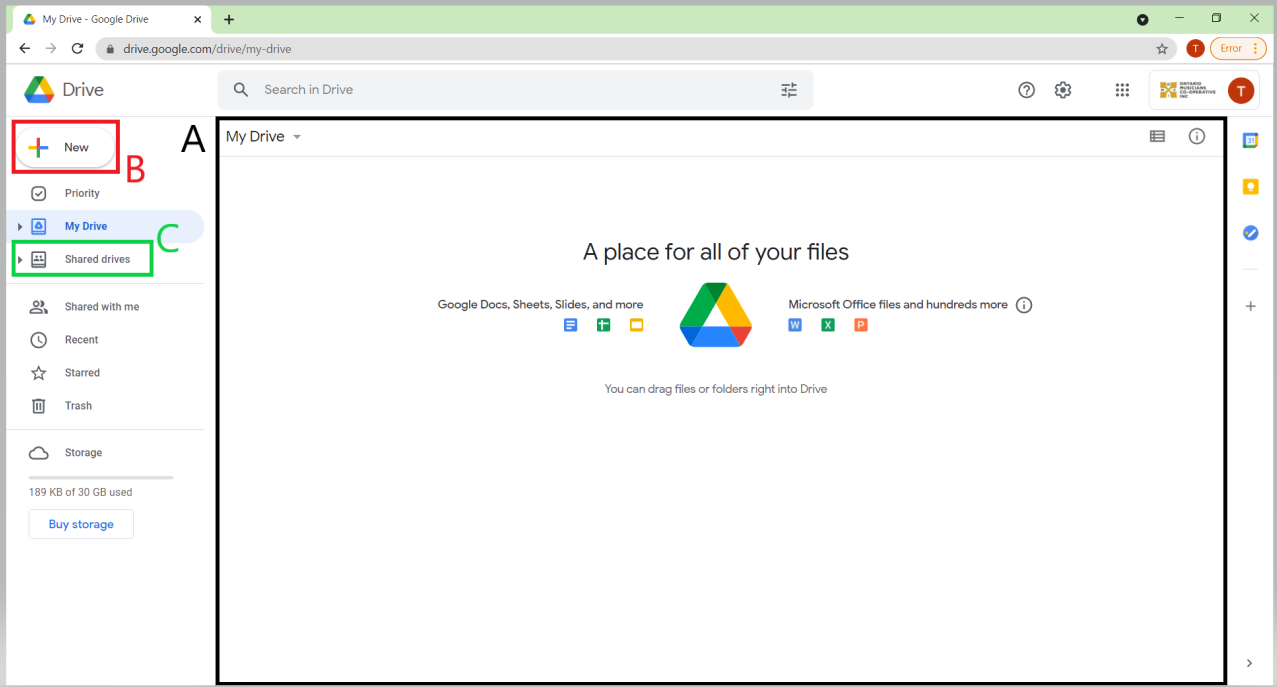
This is your personal CMC drive. You can create, add, and store files here.
To add files, you can drag files from your file explorer to the main area(A) of the drive.To create files, you can press on New(B), and select the type of file you want to create.
Click on “Shared Drives”(C) to access Shared Drives
4. You will get to this screen:
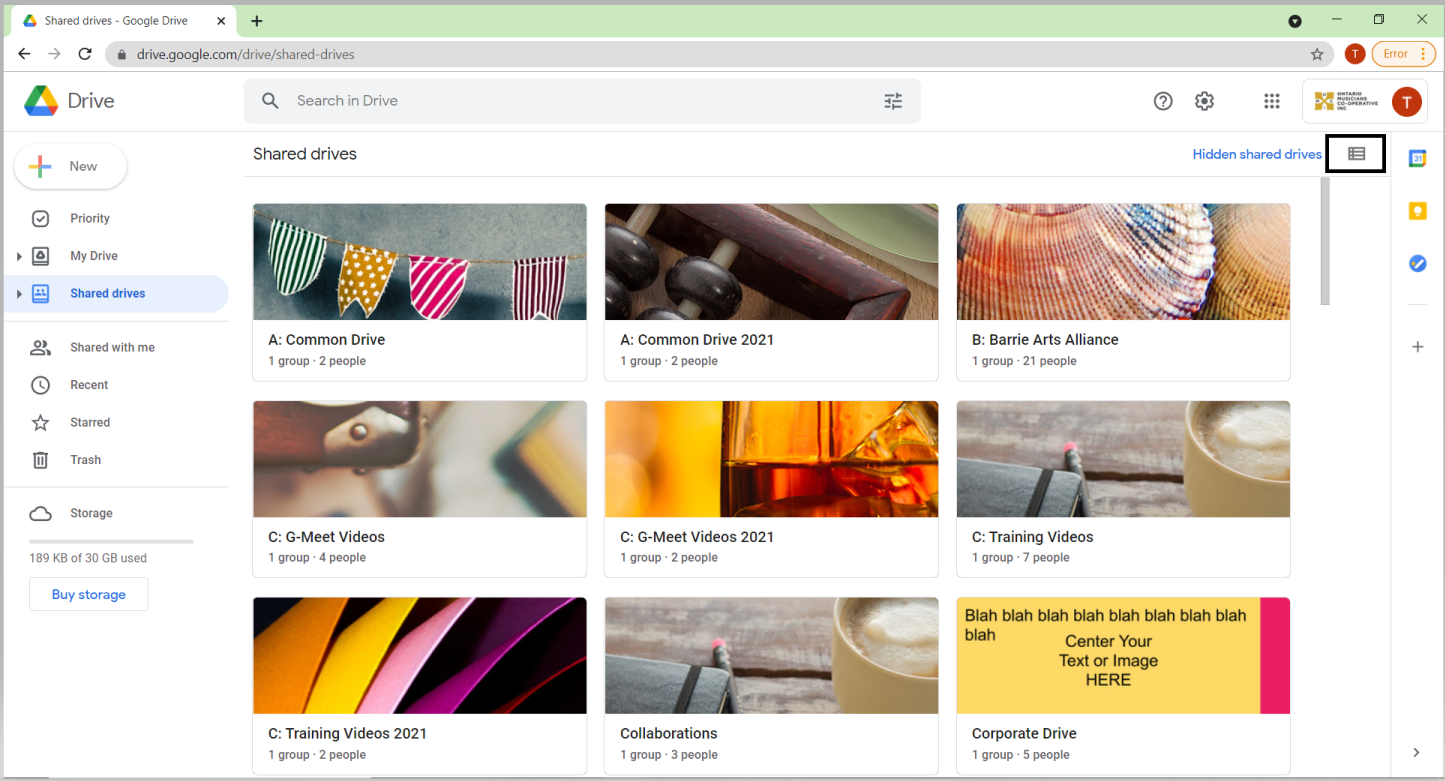
This is the shared drive, where you can collaborate with teammates on different projects.
To switch between file and grid view, click on the top right button
5. The screen should now look like this:
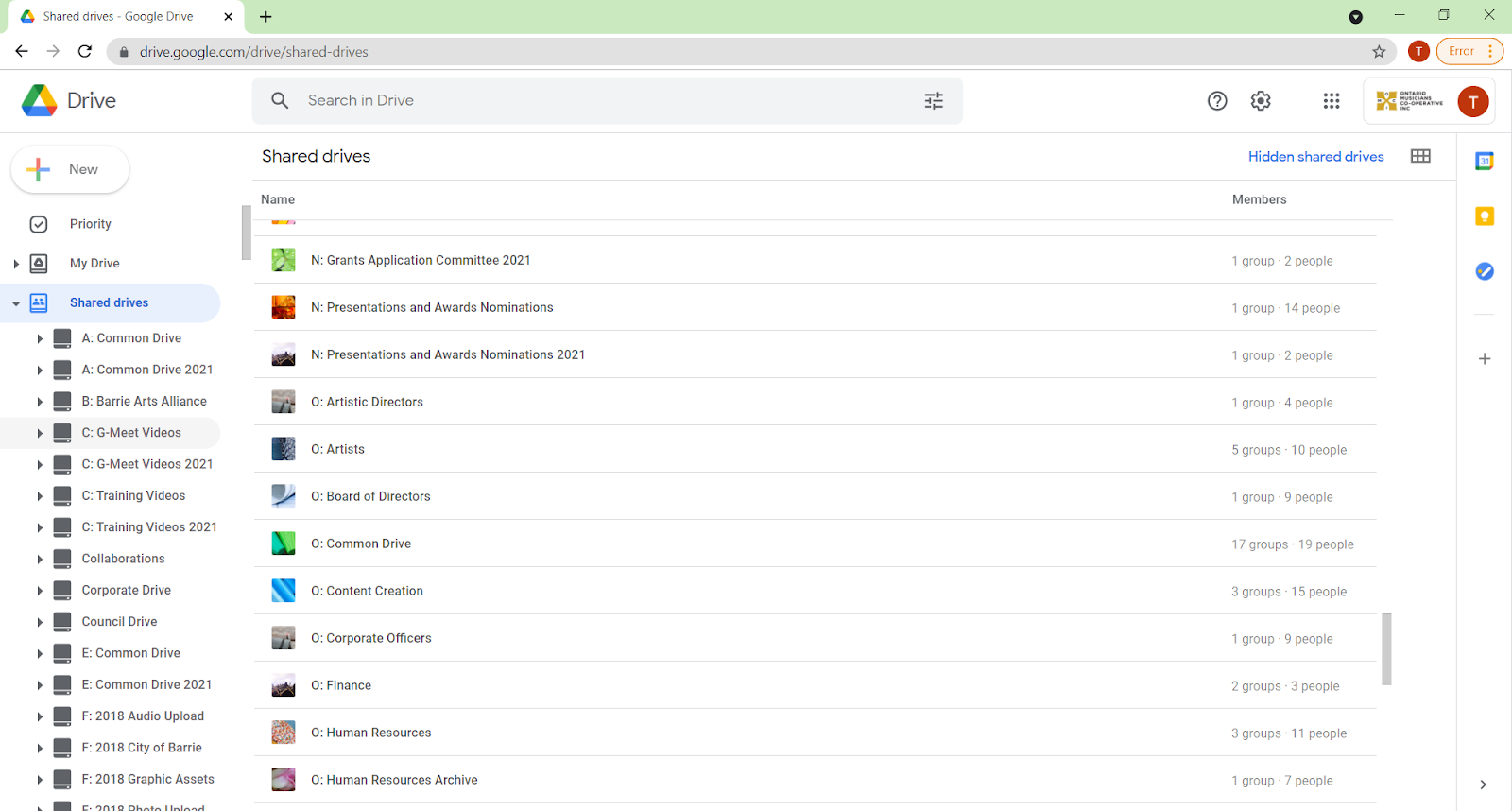
The Shared drives are sorted by letter identifier. To learn more about what each identifier means and who has access to what, you can read this pdf
For the sake of this “How to” document, we will go into the “O: Artists” drive
6. Within this drive are a number of folders which are available to anybody who is an artist.
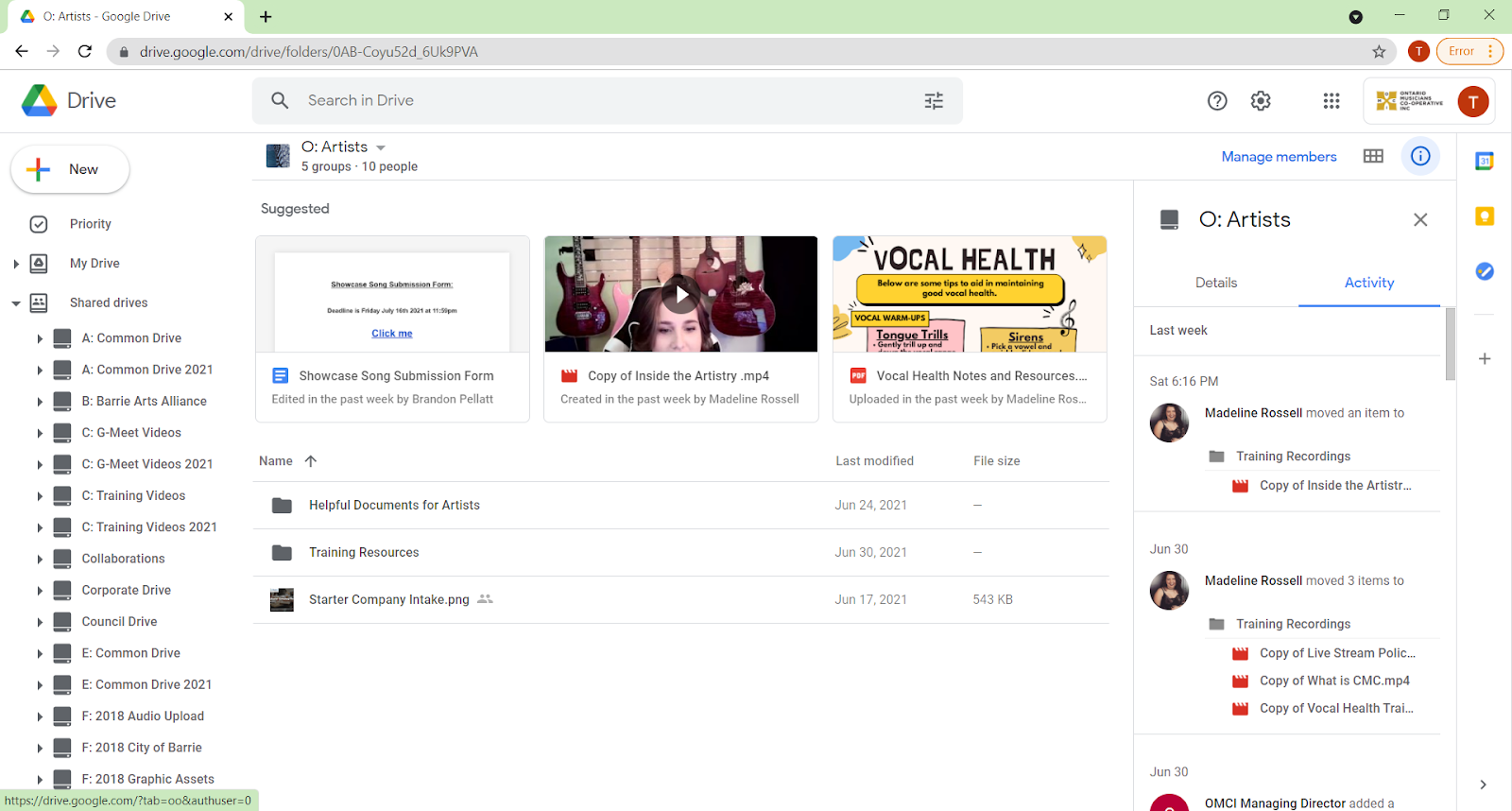
In this case, the drive is used to hold training resources and documents which are useful to any artist. The shared drive may be used to add files which you are working on with team members
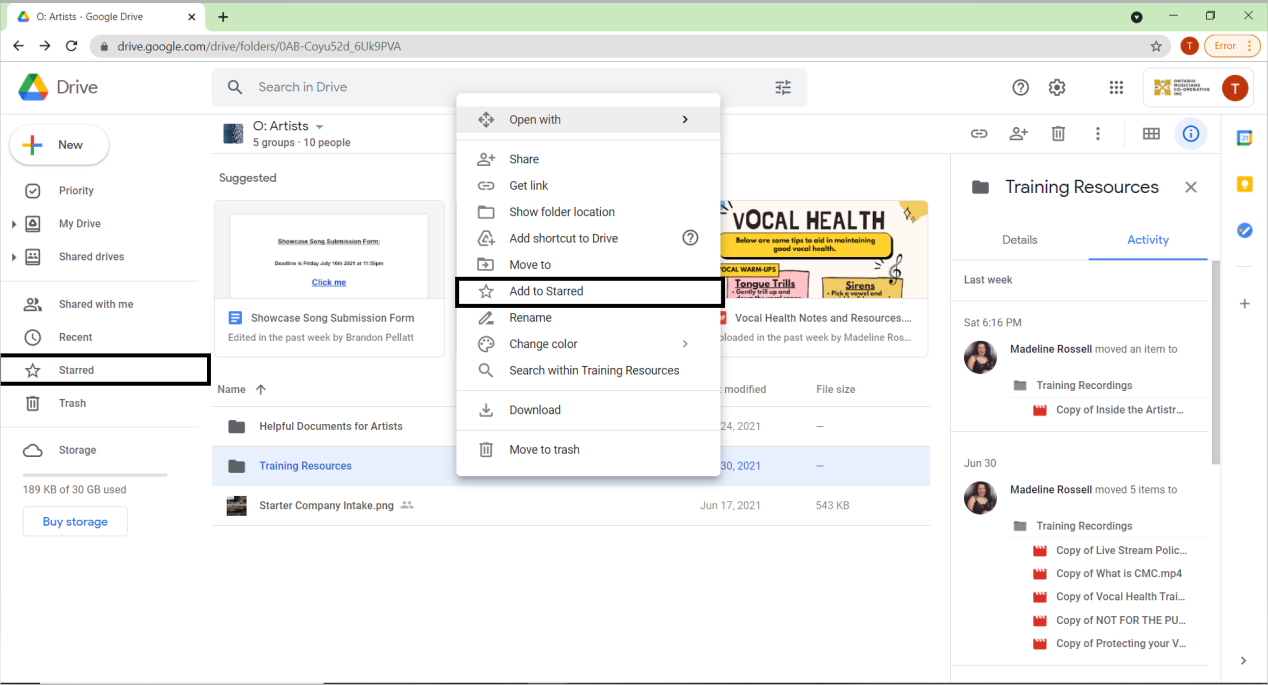
7. If you right click on any folder/file, you can also star/favorite a file. This allows you to save the file to the “Starred” section (you can find it in the bar on the left-hand side).