
Frequently Asked Question
Prerequisites:
A registered Callture Phone Extension
A Windows Desktop
A Working Internet Connection
Confirm with the IT Department that you have an existing Extension registered under the CMC Callture
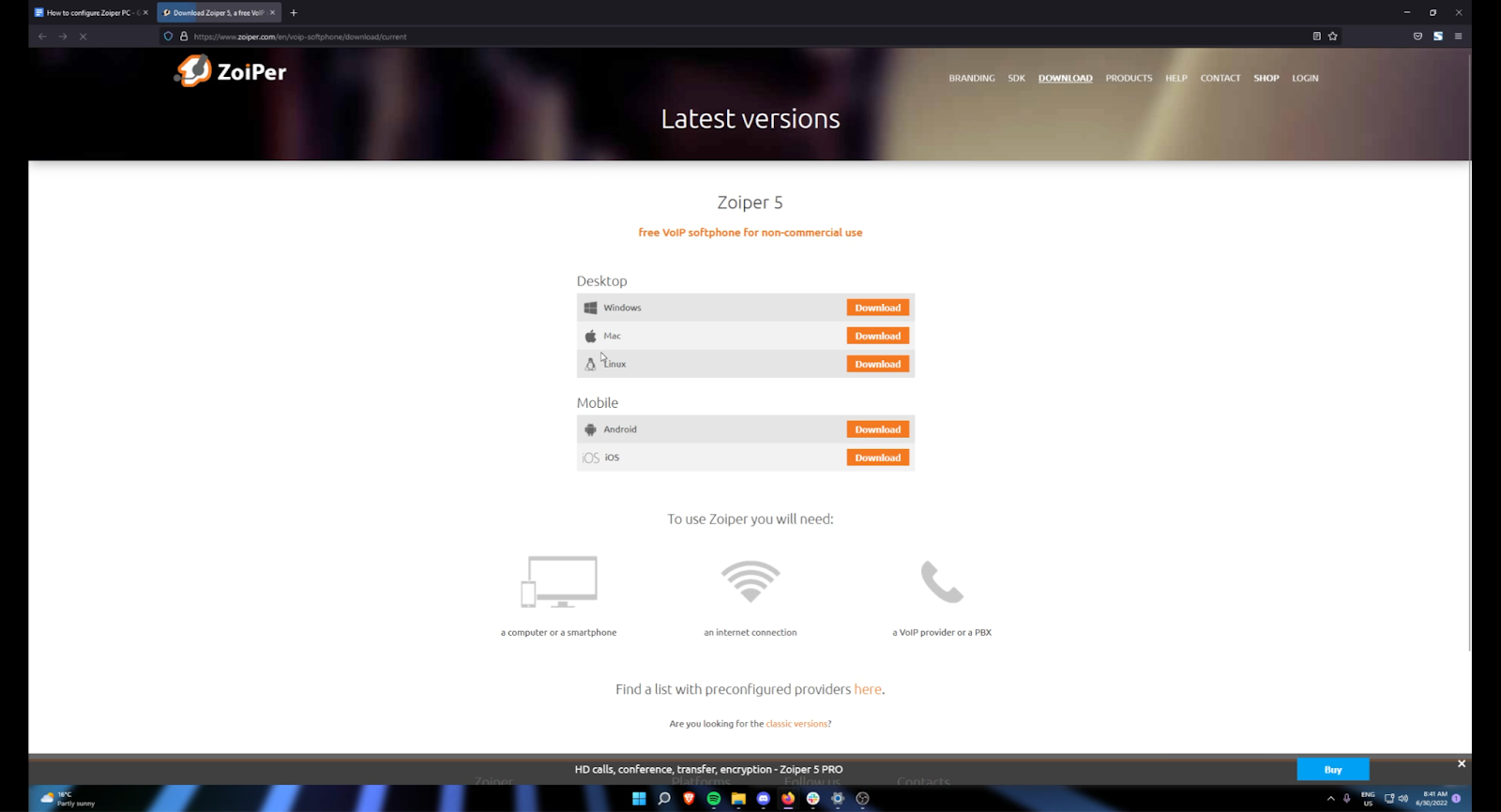
On your desktop computer, access Zoiper’s Desktop Application download page through this link.
Select the corresponding Zoiper version to your Desktop OS (Windows, Mac, Linux).
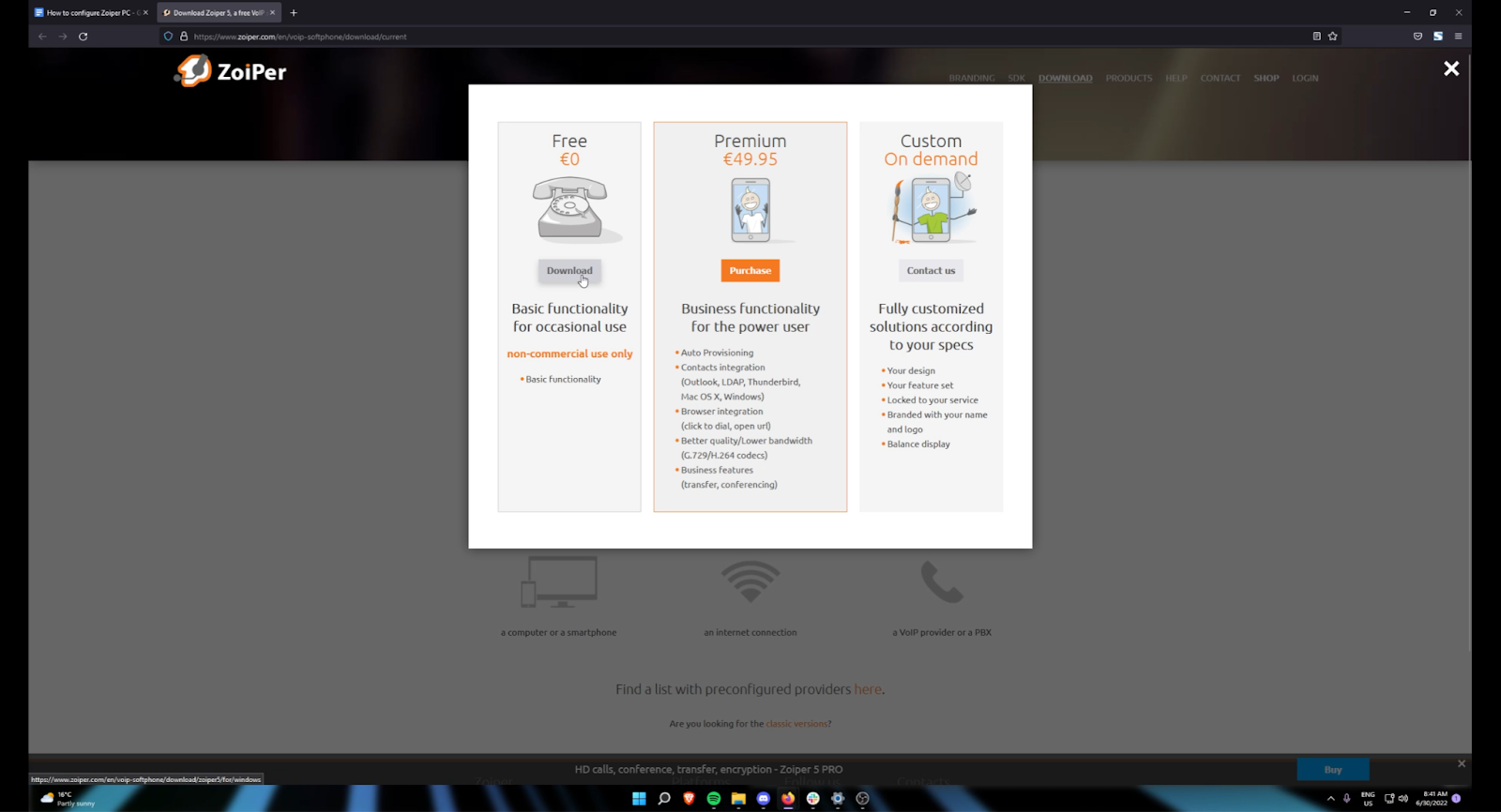
We will be using the Free Version of Zoiper
Once the application setup has finished downloading, find the executable file in your corresponding downloads folder.
Double click on the downloaded file and this should launch the initial setup for Zoiper.
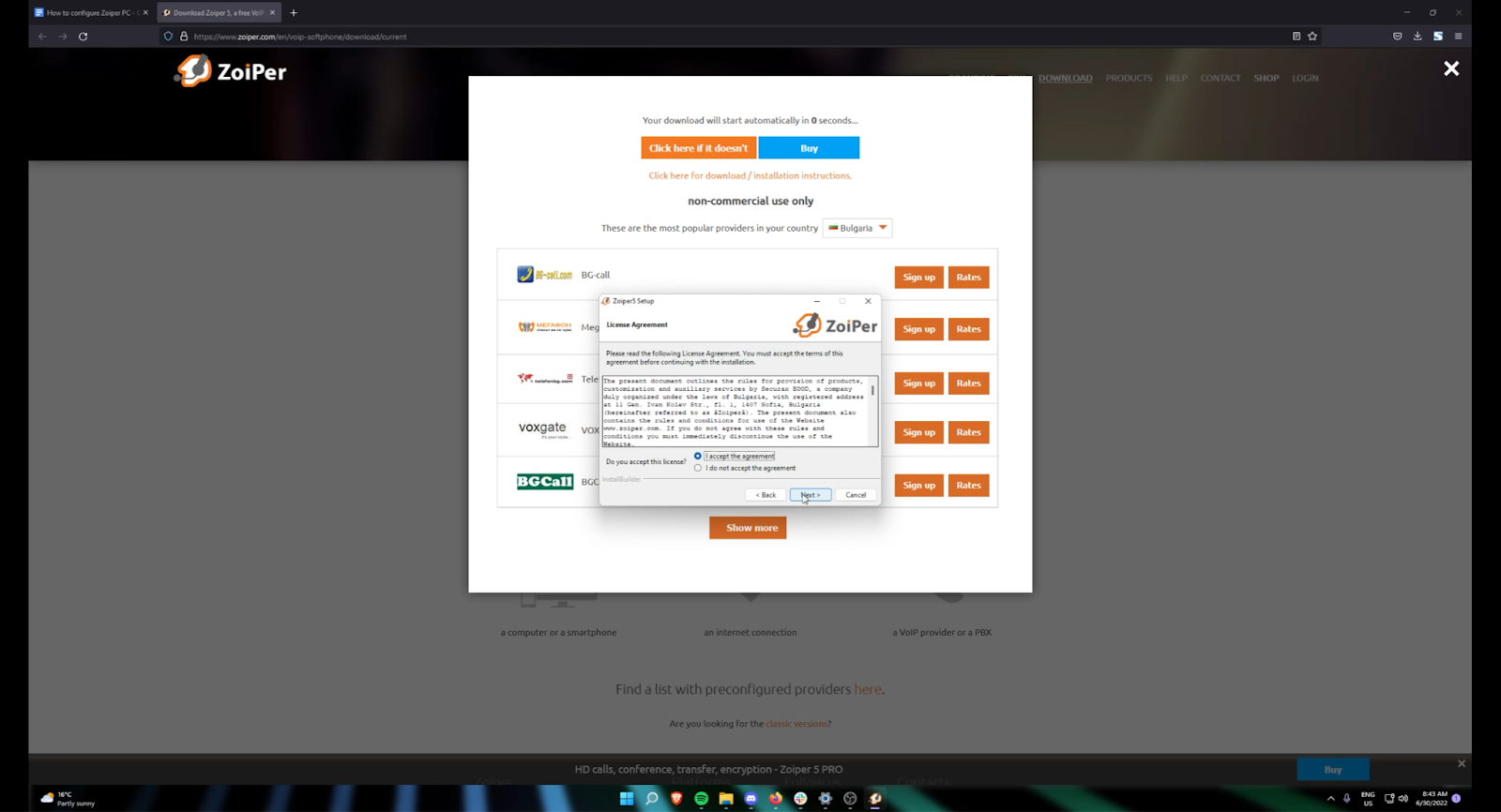
Accept the Zoiper License Agreement
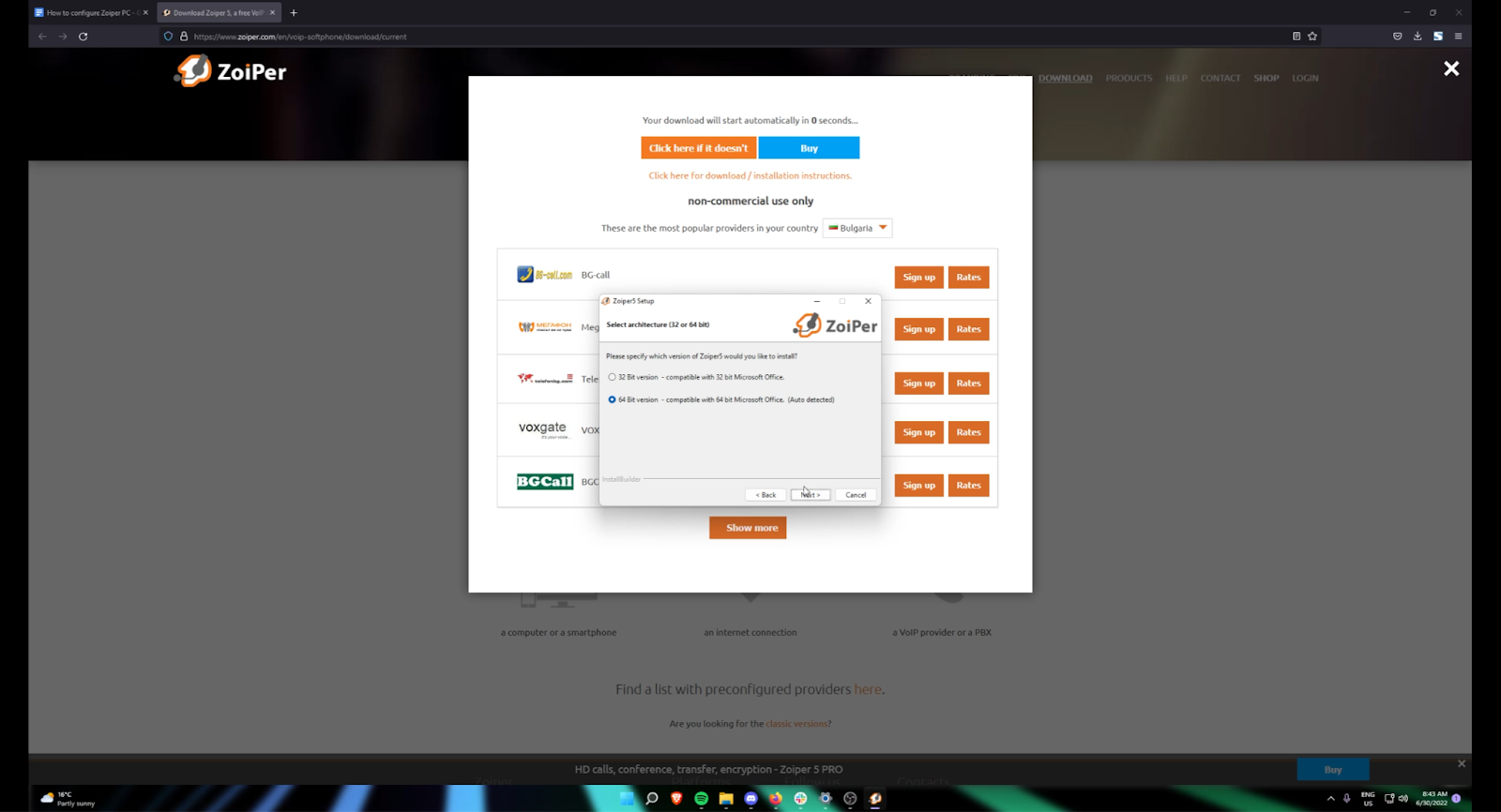
Specify which version of Zoiper to install (Should be autoselected)
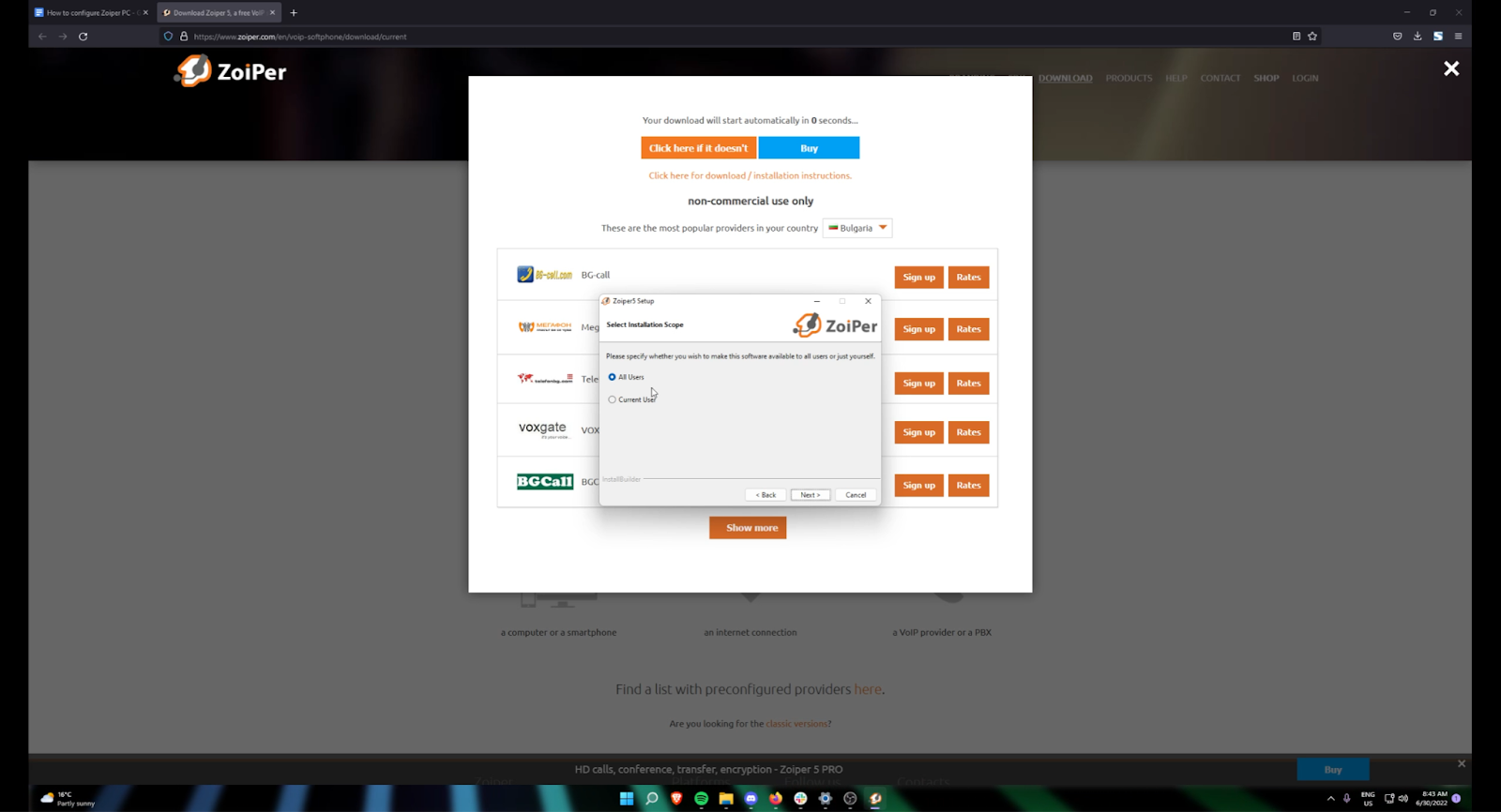
Specify whether you would want to install Zoiper to all Users or just the Current Logged In User
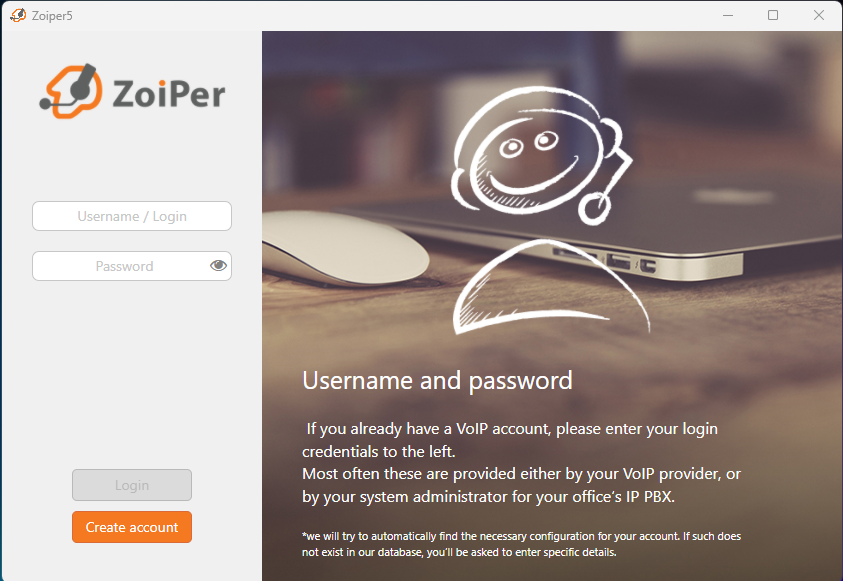
After going through the installation process, you will need to login to your VOIP account by using the credentials provided by the IT team.
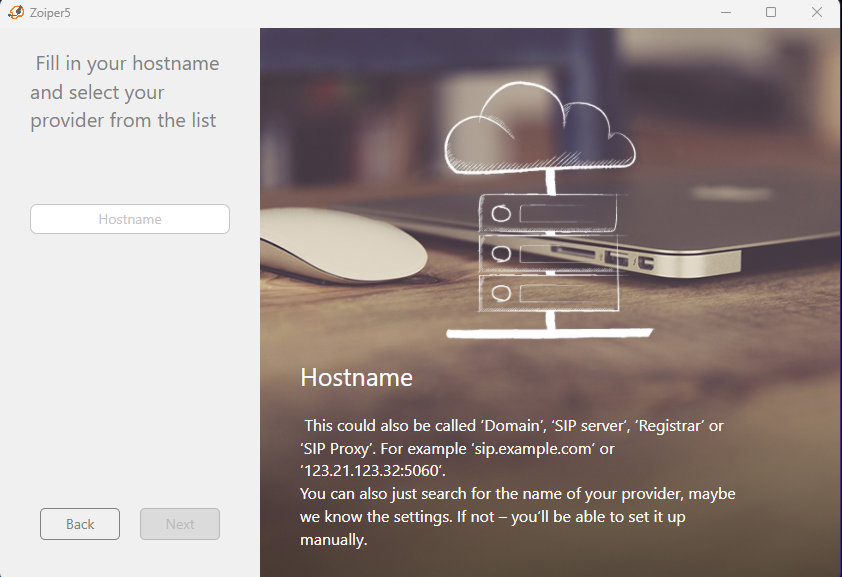
Zoiper will prompt the user to enter the VOIP hostname, the user should enter the "domain:" that was provided.
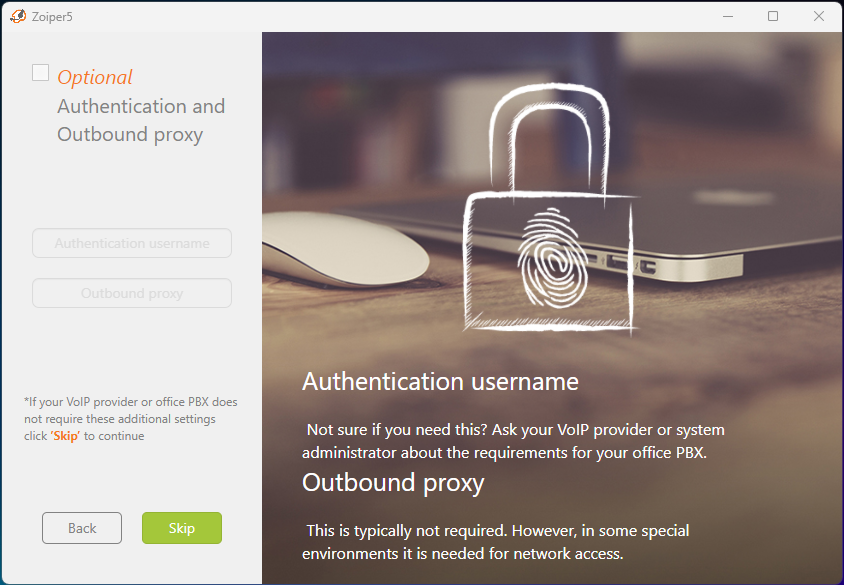
If you are configuring a proxy here is where you can input that information. Otherwise click "Skip"
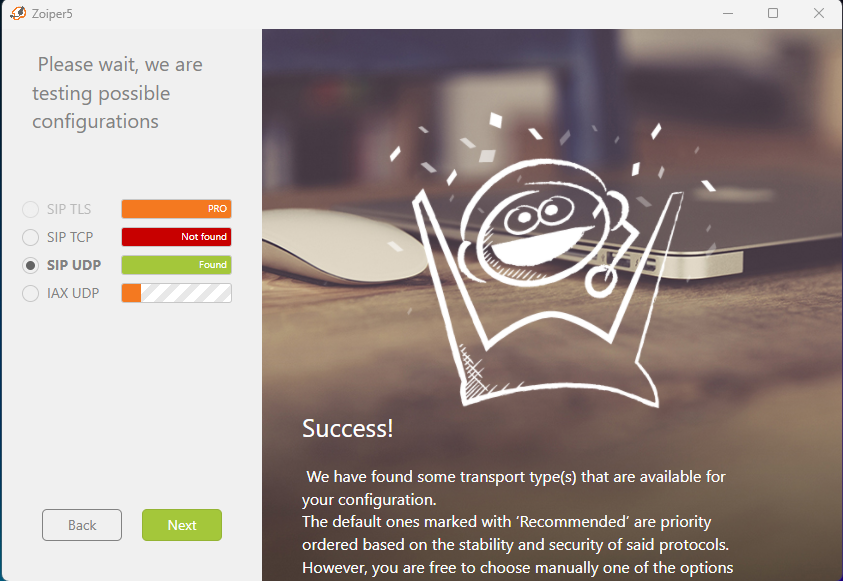
System will test to find the possible VOIP configuration. In our case, we will select “SIP UDP”
Zoiper on your desktop is now ready to be used.