Frequently Asked Question
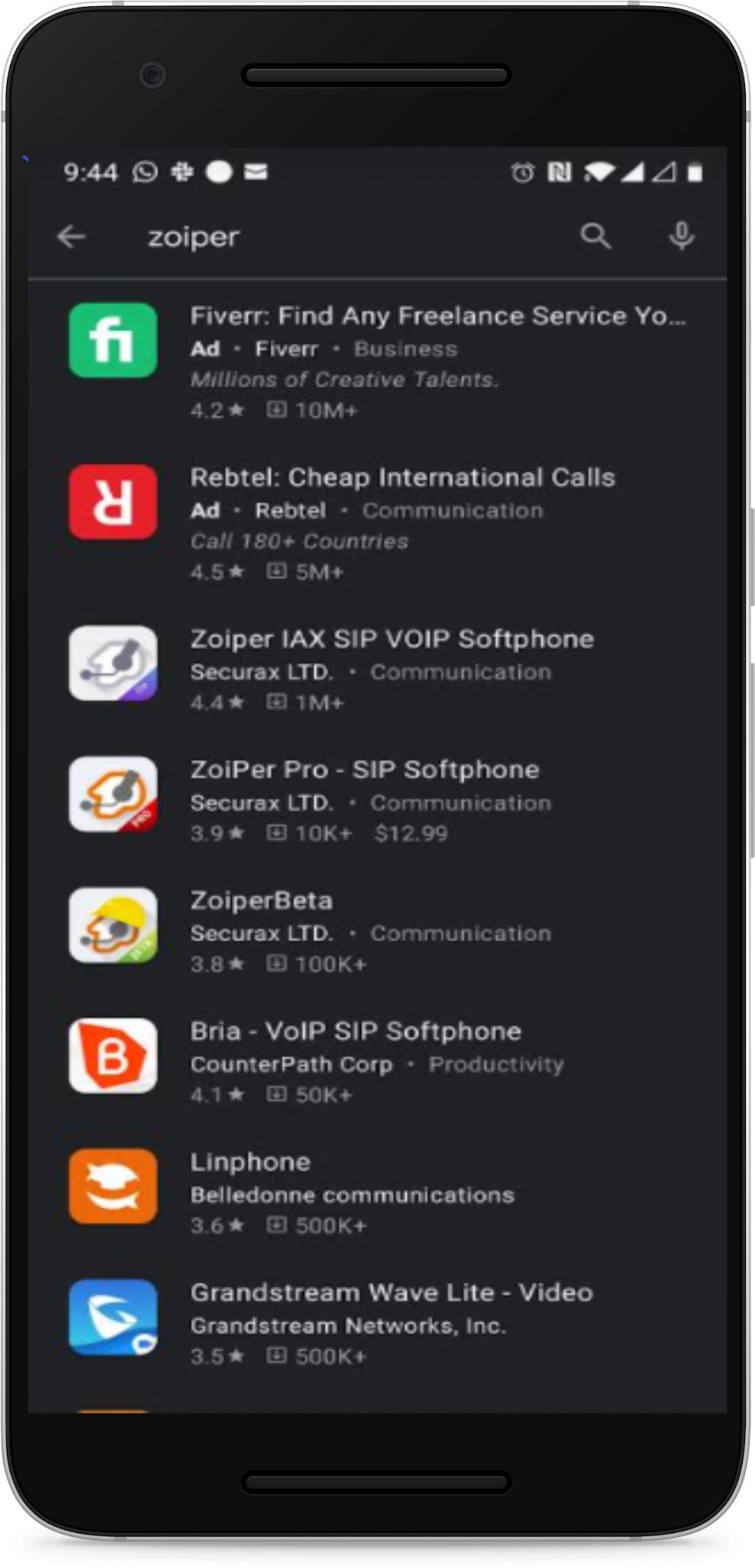
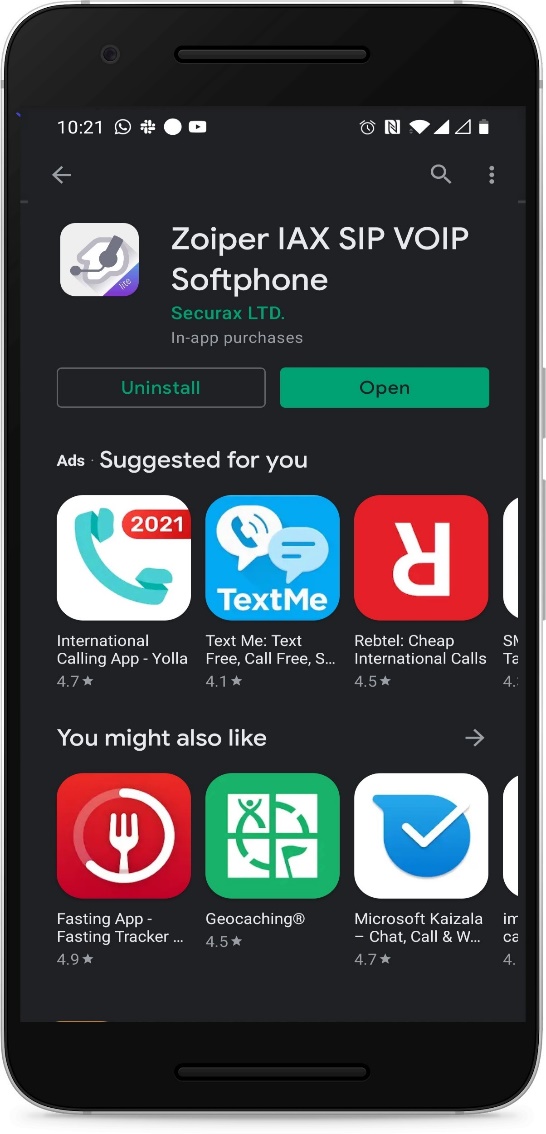
1. Open your app store/play store, Type Zoiper in your search bar, and install Zoiper IAX SIP VOIP Softphone
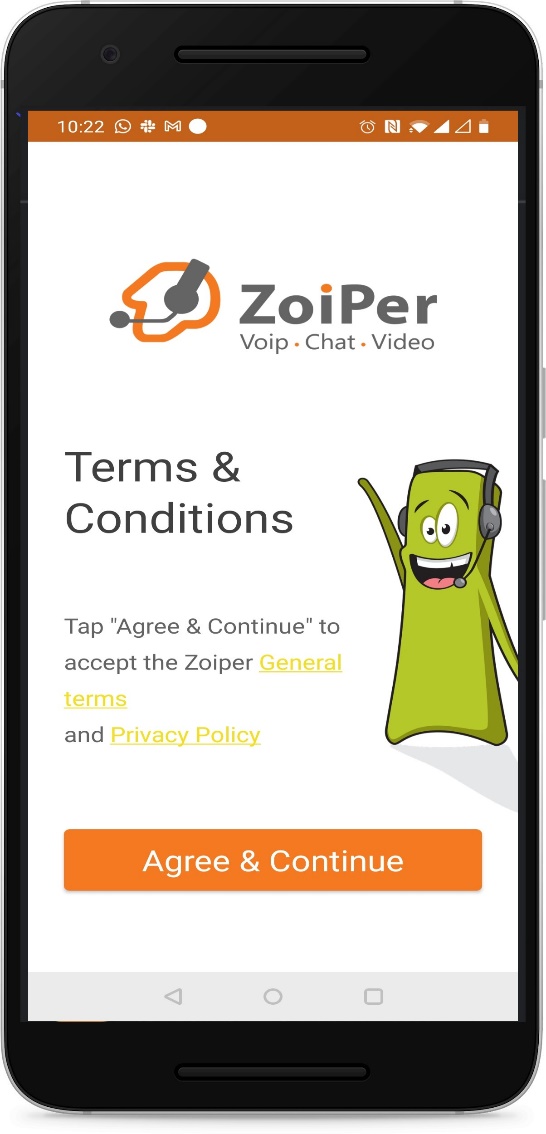
2. Once Installed, Open the app and agree the terms and conditions.
3. We will be using the free limited version so click ‘Yes’
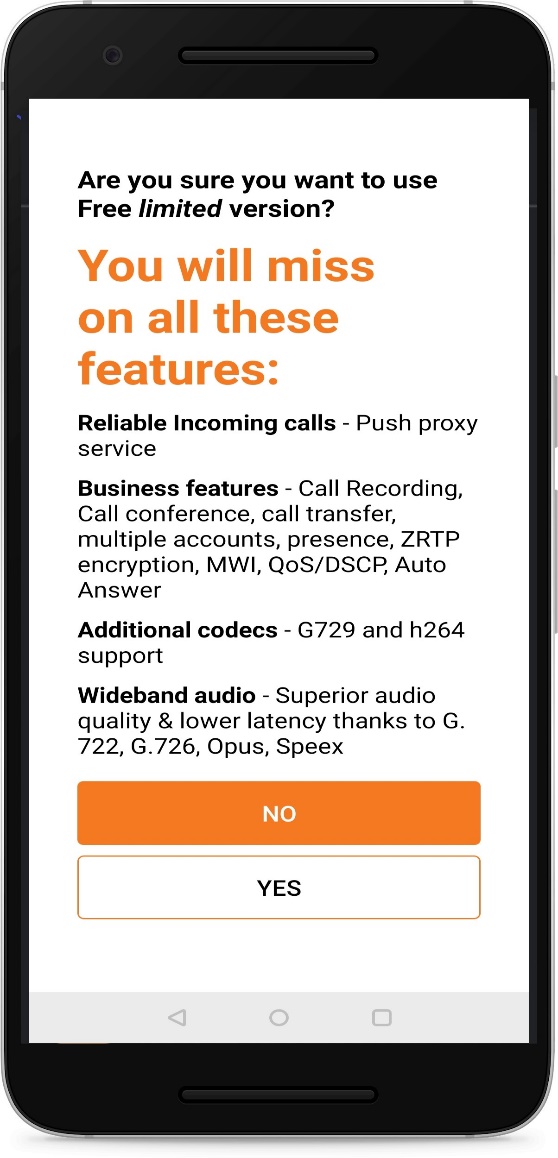
4. By Clicking Yes, we will navigate to Account Creation Page. Fill in the provided username and password and click on create the account.
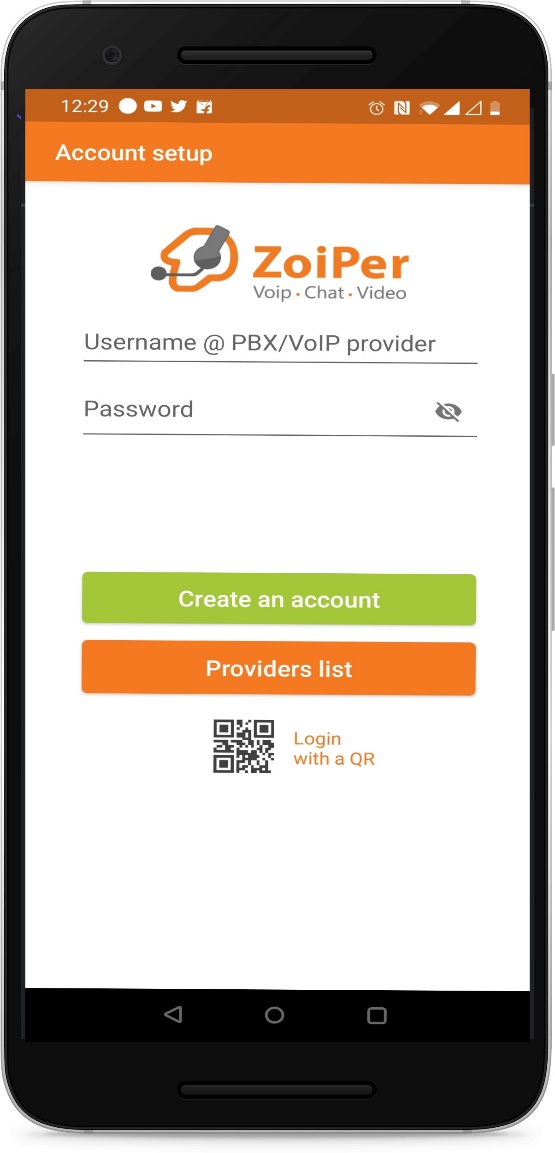
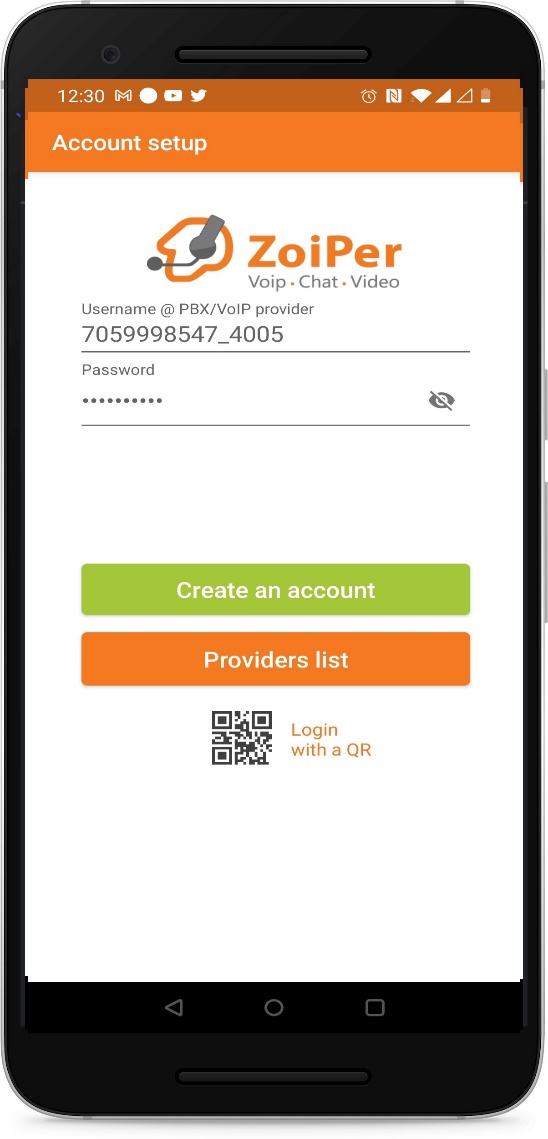
5. Fill the provided hostname and click ‘Next’ and Skip the Authentication Setup
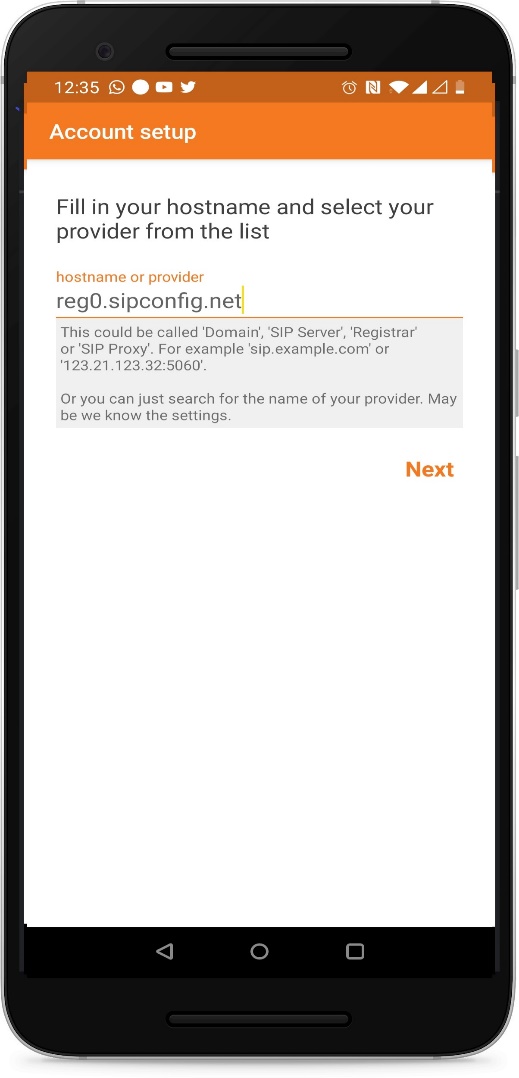
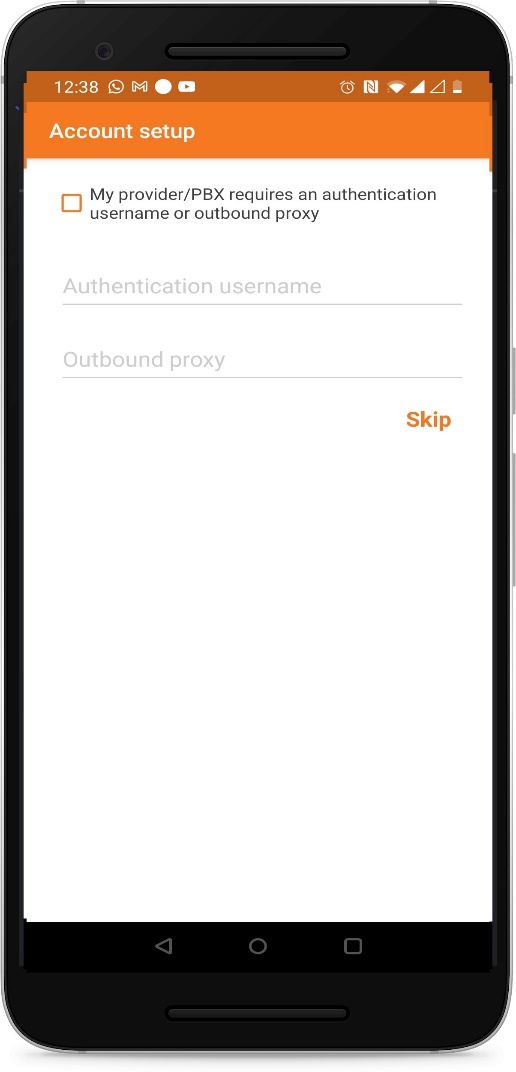
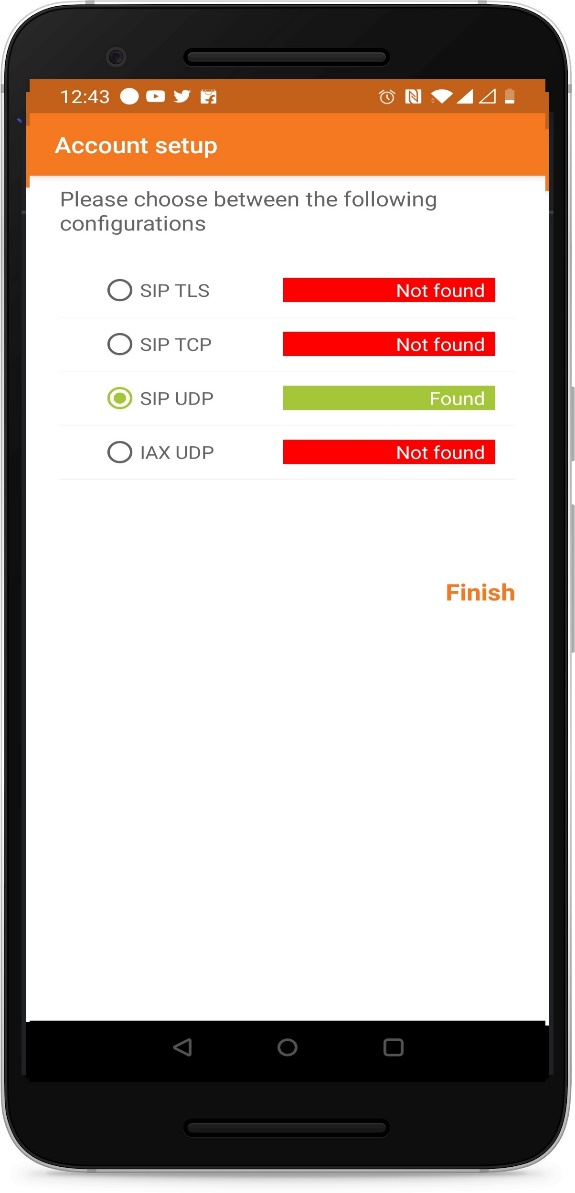
6. System will test to find the possible configuration Once found, Click ‘Finish’ to complete the setup.
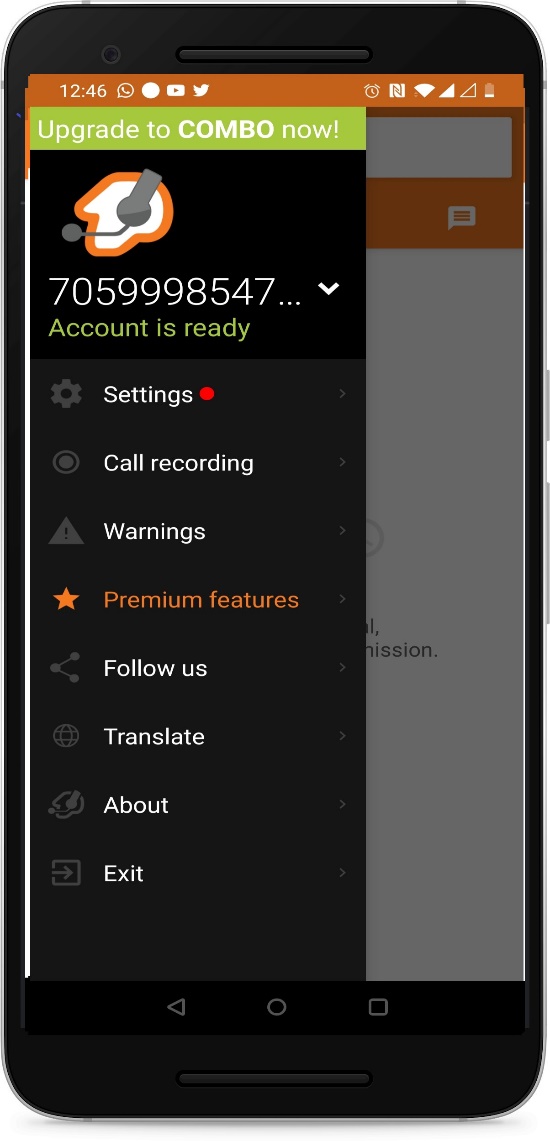
7. The Zoiper App is not Ready to make and receive calls.
Similarly, we can configure and setup Zoiper in IOS devices.
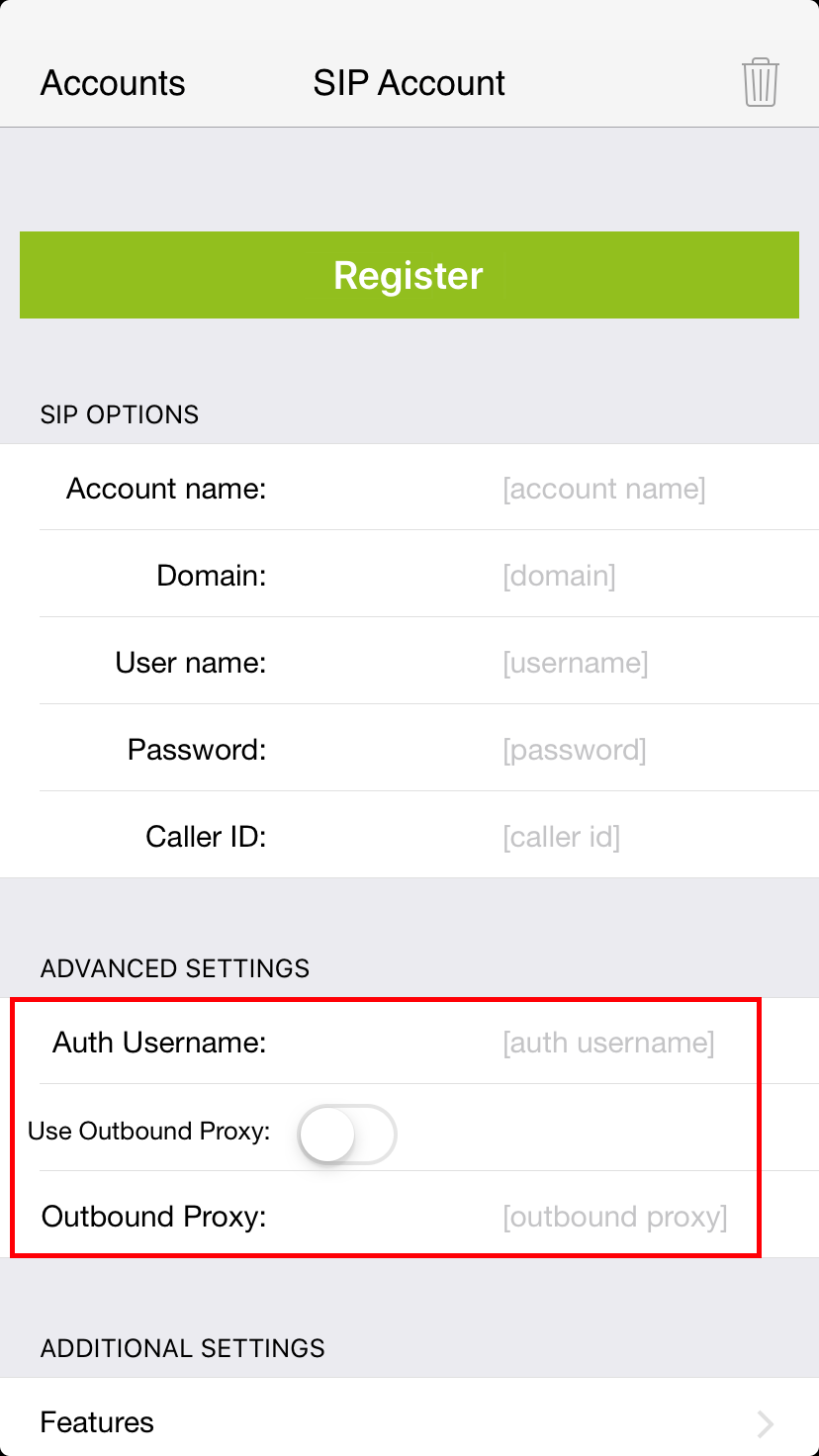
1.In order to configure your account in Zoiper, go to "Settings"->"Accounts" and select Add account.
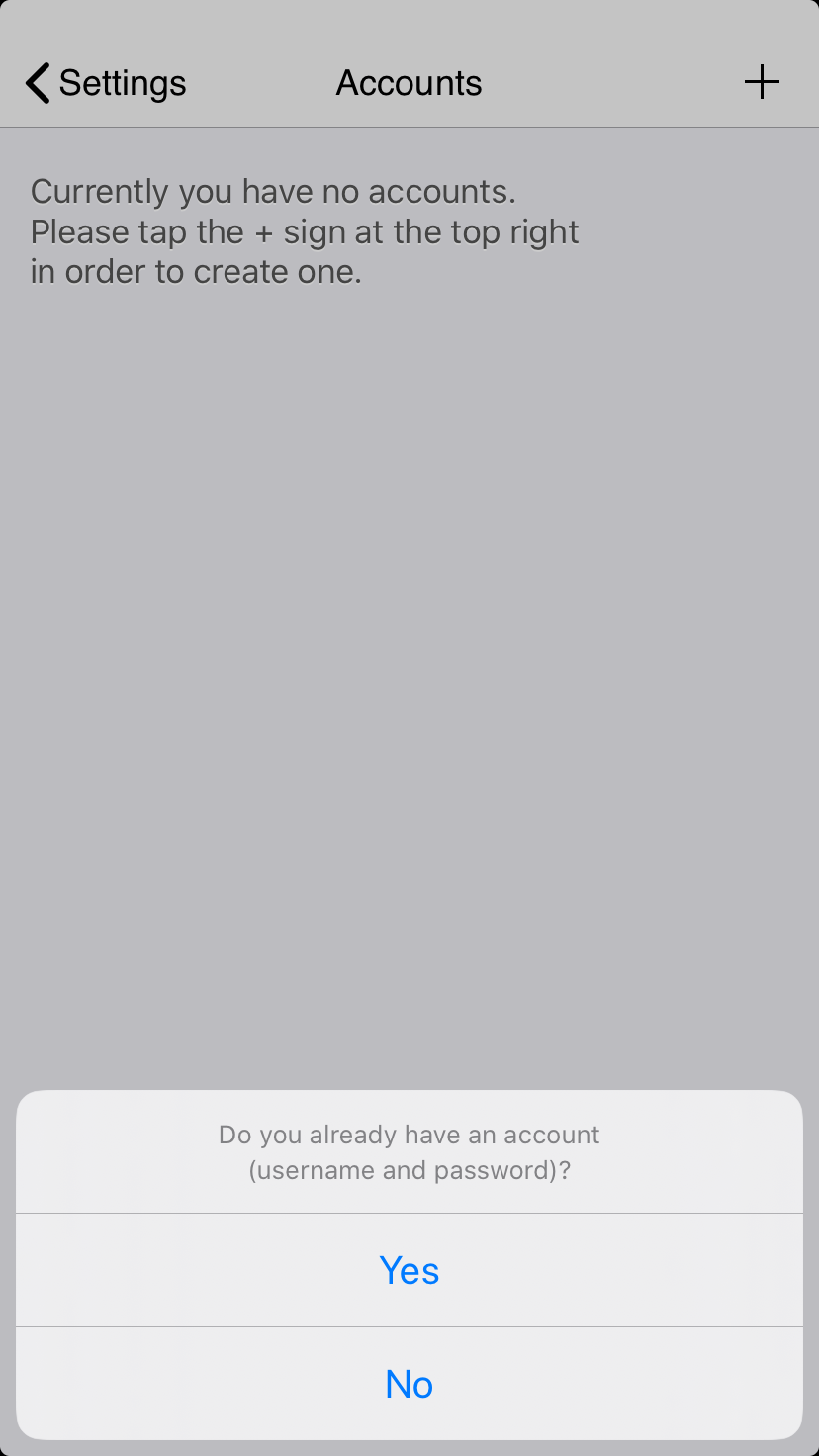
2. After that select "Yes"(if you already have account) - "Manual configuration". If you select "Select a provider" and your VoIP provider is listed you will just need to enter username and password.
3. After selecting "Manual Configuration" and choosing the account type (SIP/IAX) you need to fill in the following fields:
- Account name - choose a name for your account. This is not related to your VoIP account details.
- Host - domain/IP of the VoIP server. Provided by your VoIP provider.
- Username - your VoIP account username. Provided by your VoIP provider.
- Password - your VoIP account password. Provided by your VoIP provider.
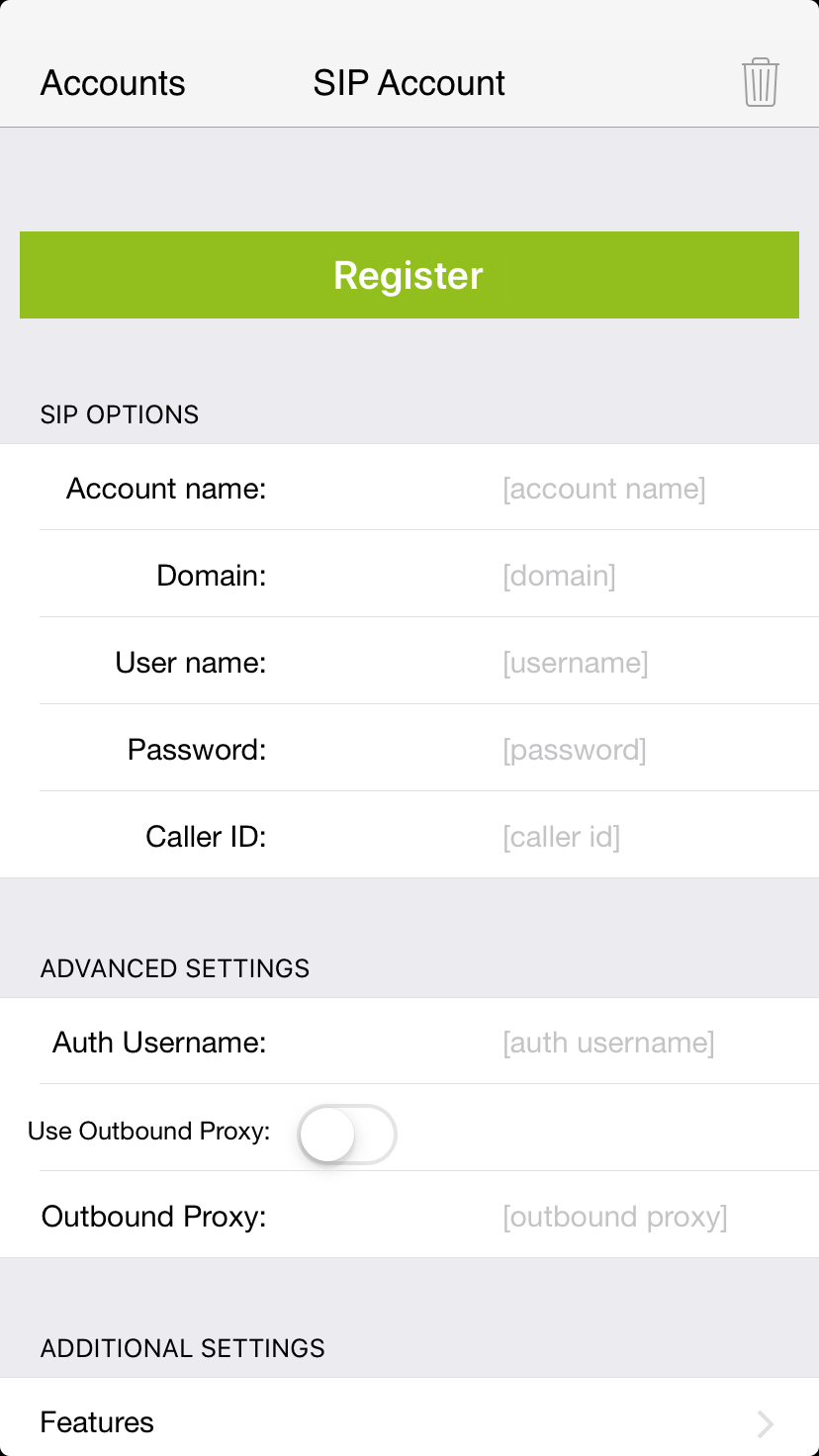
These should be sufficient. If your VoIP provider requires "Authentication username" or "Outbound proxy" you can fill them in.