
Frequently Asked Question
How to log into and setup Slack?
Last Updated a year ago
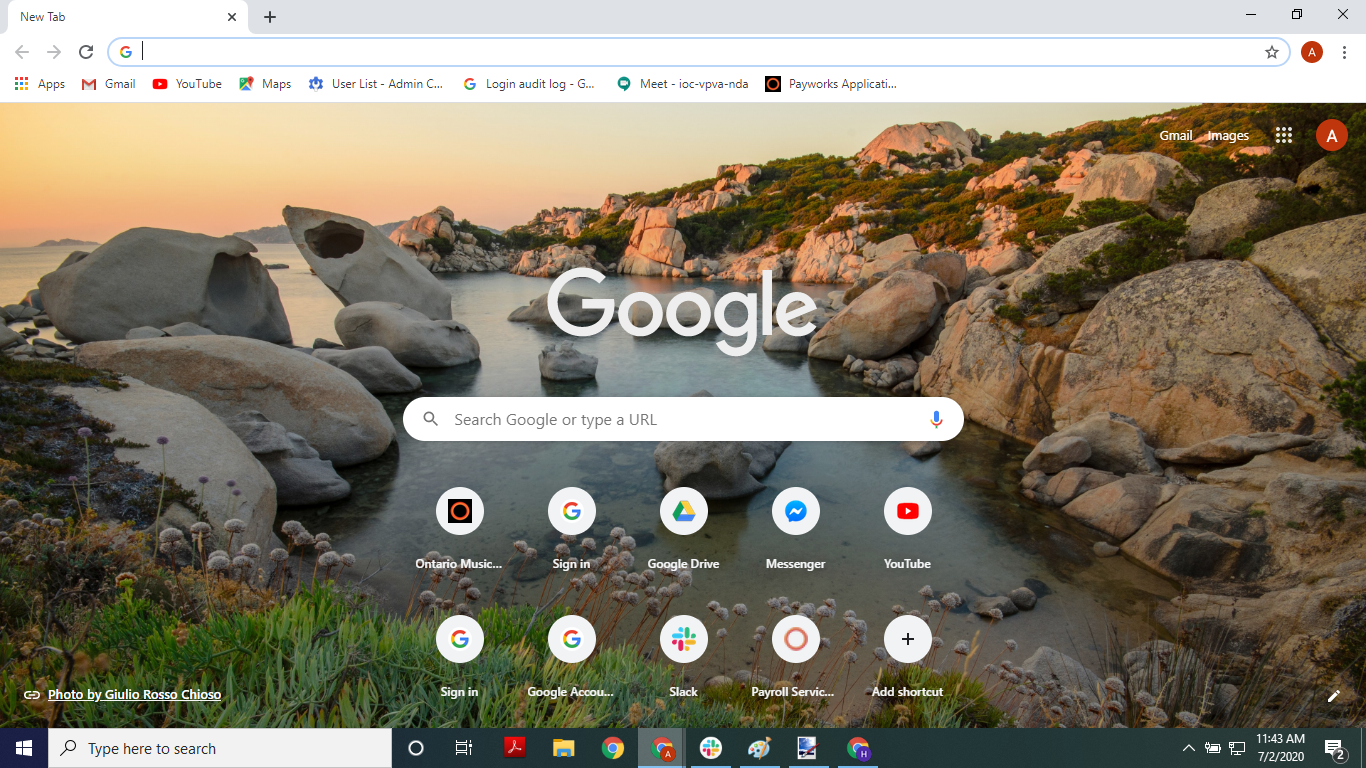
- Open your browser
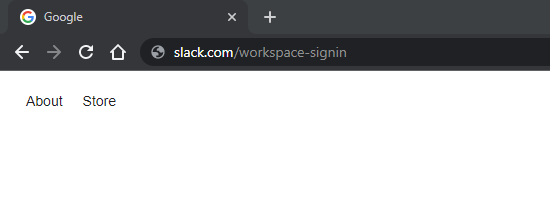
- Type “slack.com/workspace-signin” into the address bar then hit the enter key on your keyboard
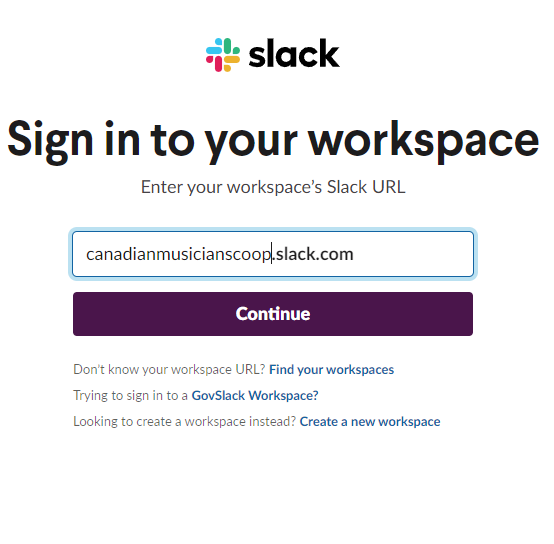
- Type "canadianmusicianscoop" before the ".slack.com" already present in the bar and select "Continue"
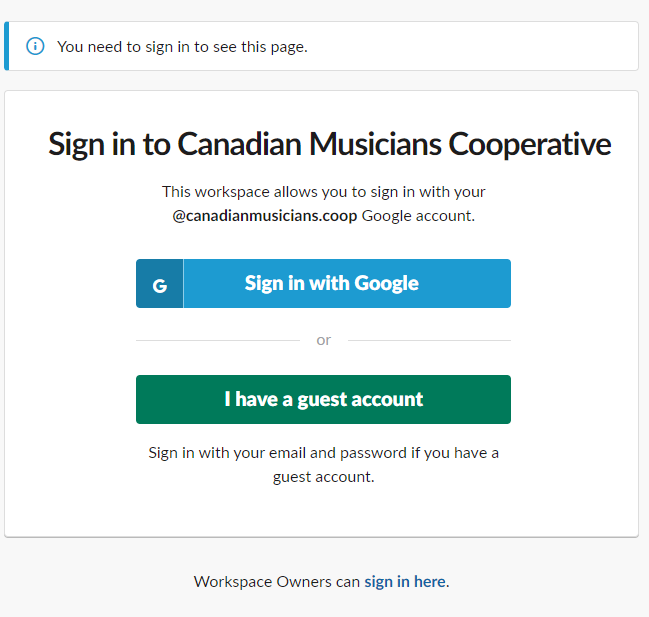
- Click the "Sign in with Google" option
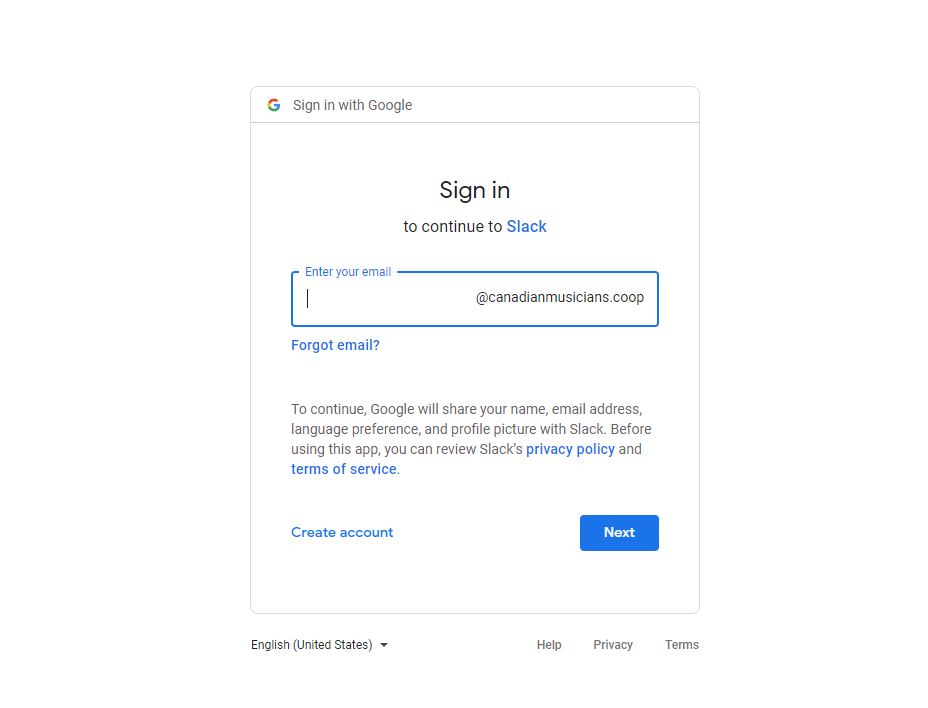
- Type your CMC email into the email box then click the “Next”
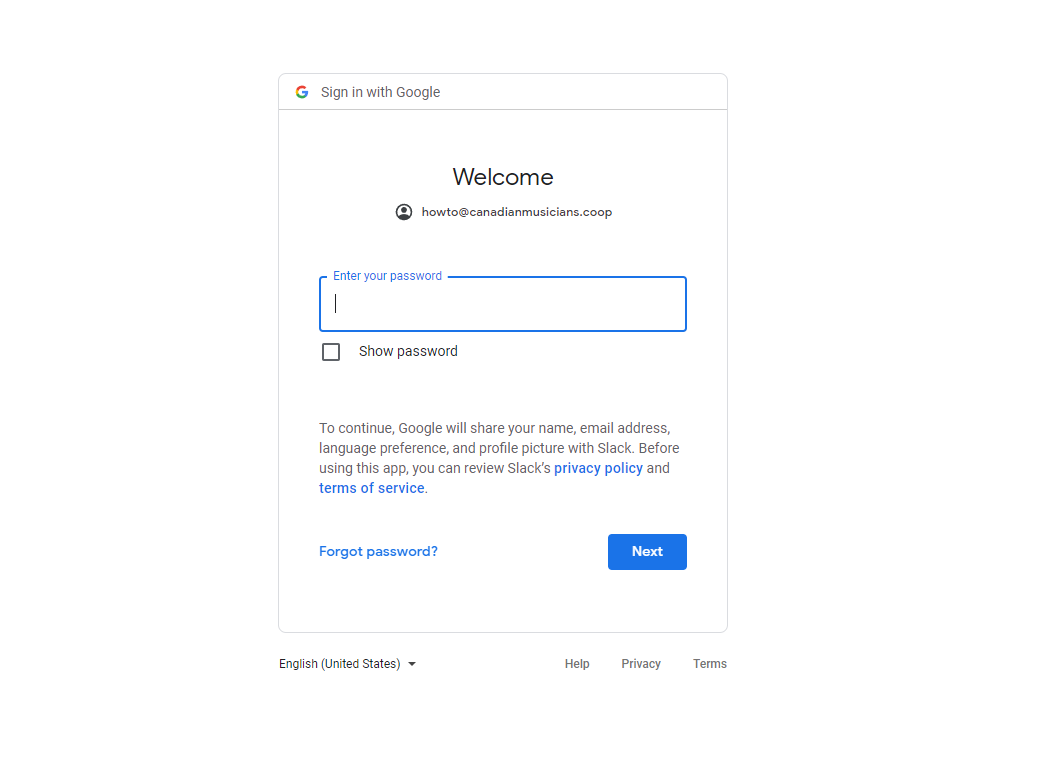
- Type your password into the password box then click the “Next” button
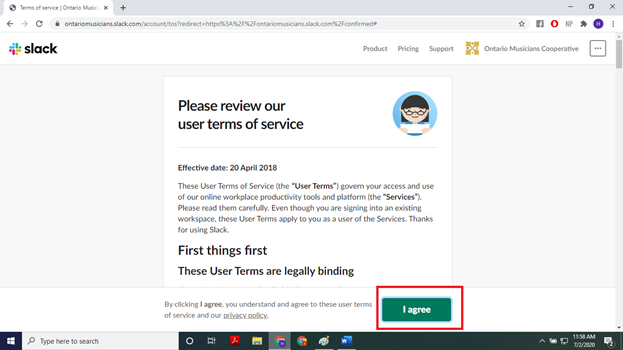
- If signing in for the first time, read the “Terms of Agreement” then click the “I Agree” button
If Slack does not open automatically, find and select the Canadian Musicians Cooperative workspace

You are now signed in to the The Co-op slack workspace!
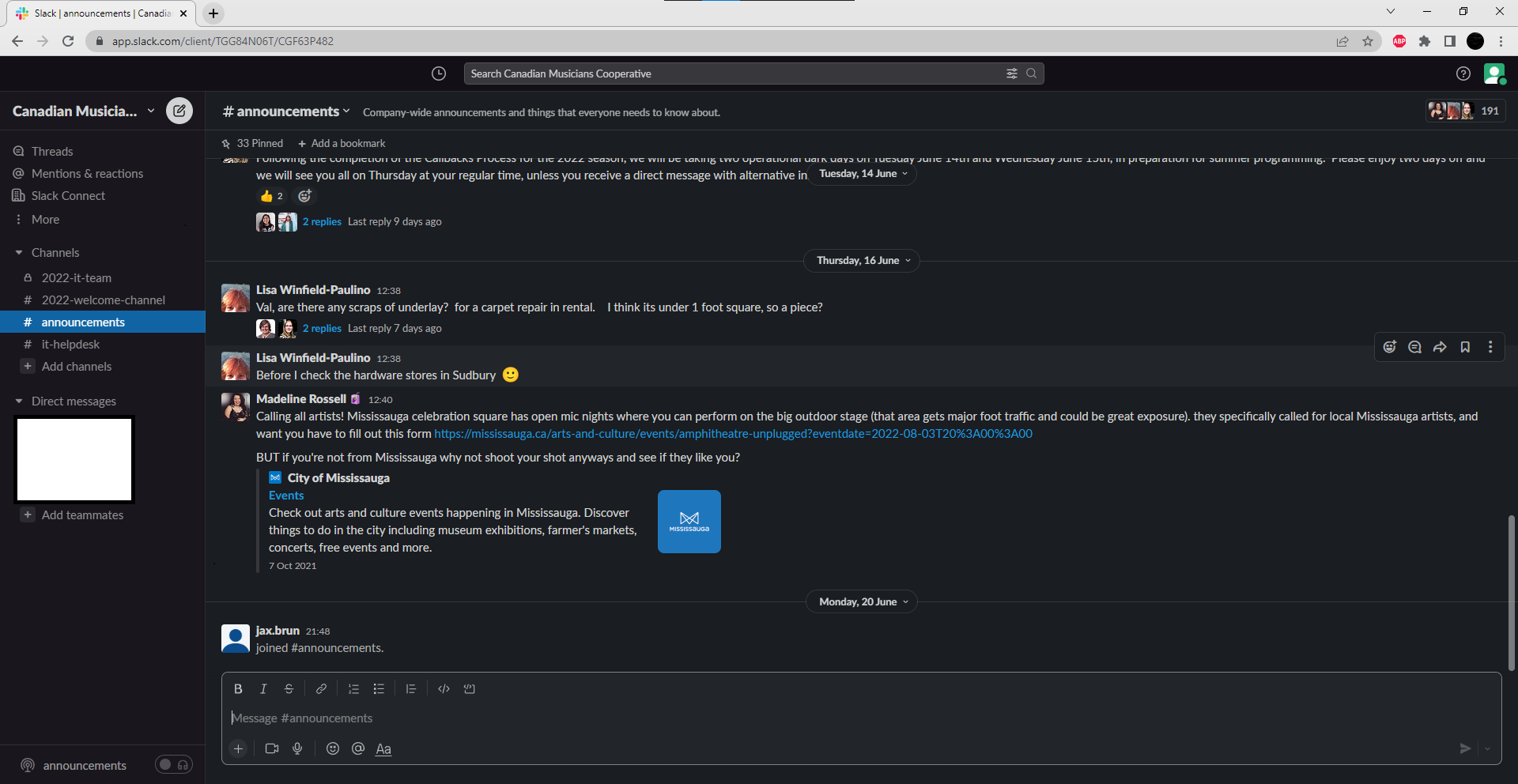
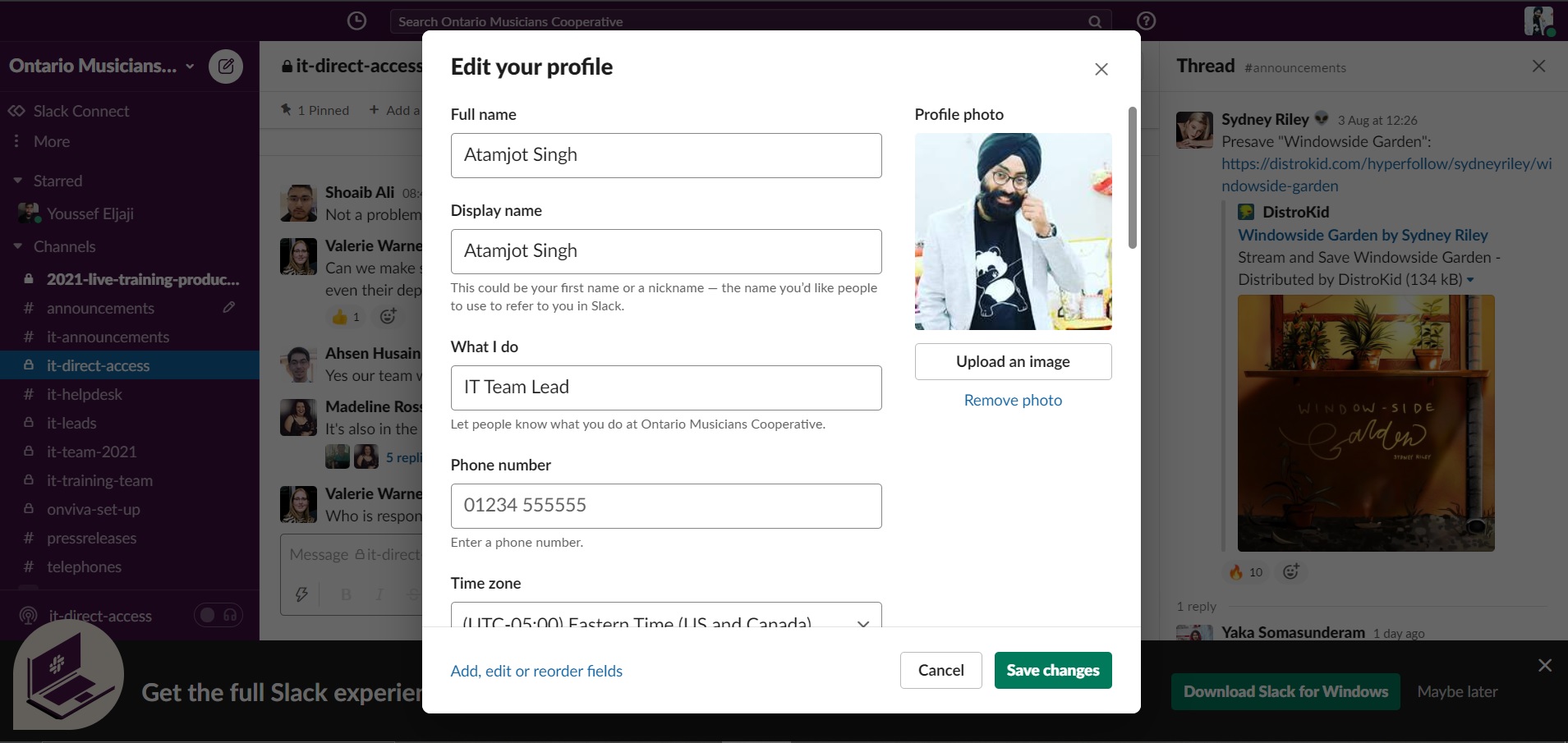
Note: Once you sign up to slack it is MANDATORY to setup and complete your slack profile with your FirstName, Lastname, Display Name (in correct format -Firstname Lastname), your role/position in the organization or what department you belong to, profile picture, CMC Extension and Constituency etc.
How to log in to Slack on a Mobile
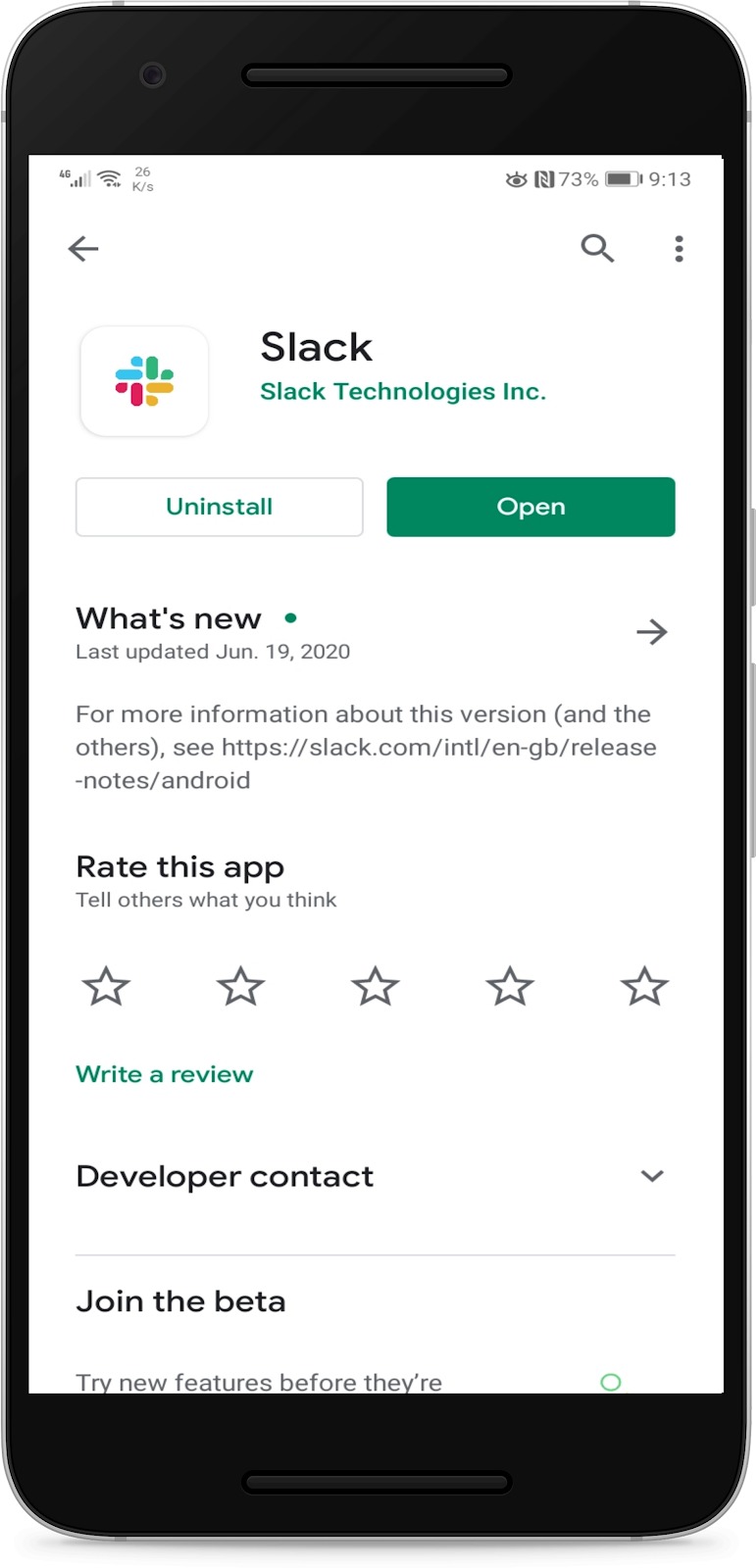
- On your app store, type slack into your search bar and download the Slack app
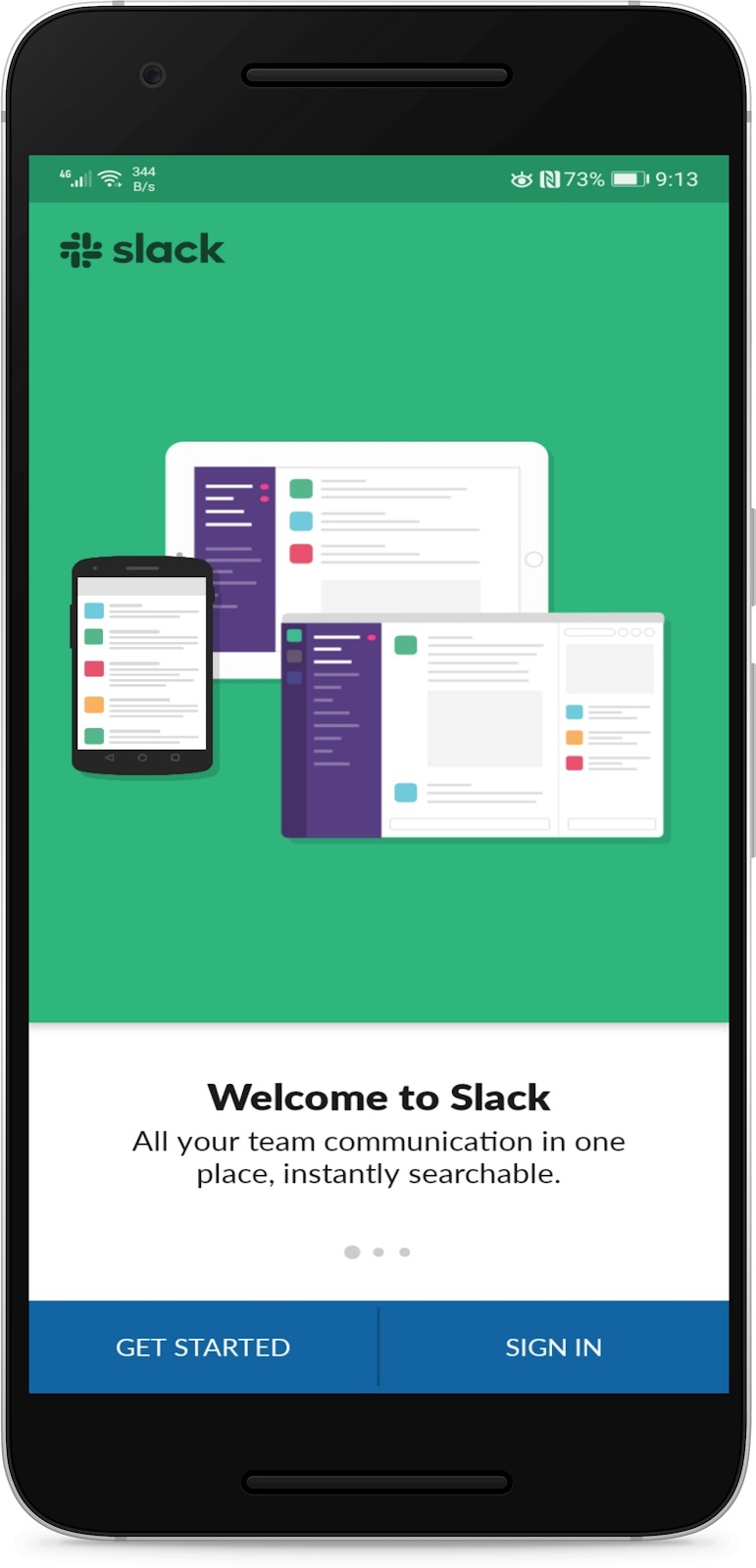
- Open your slack app to get to this screen, Click the “Sign In” button
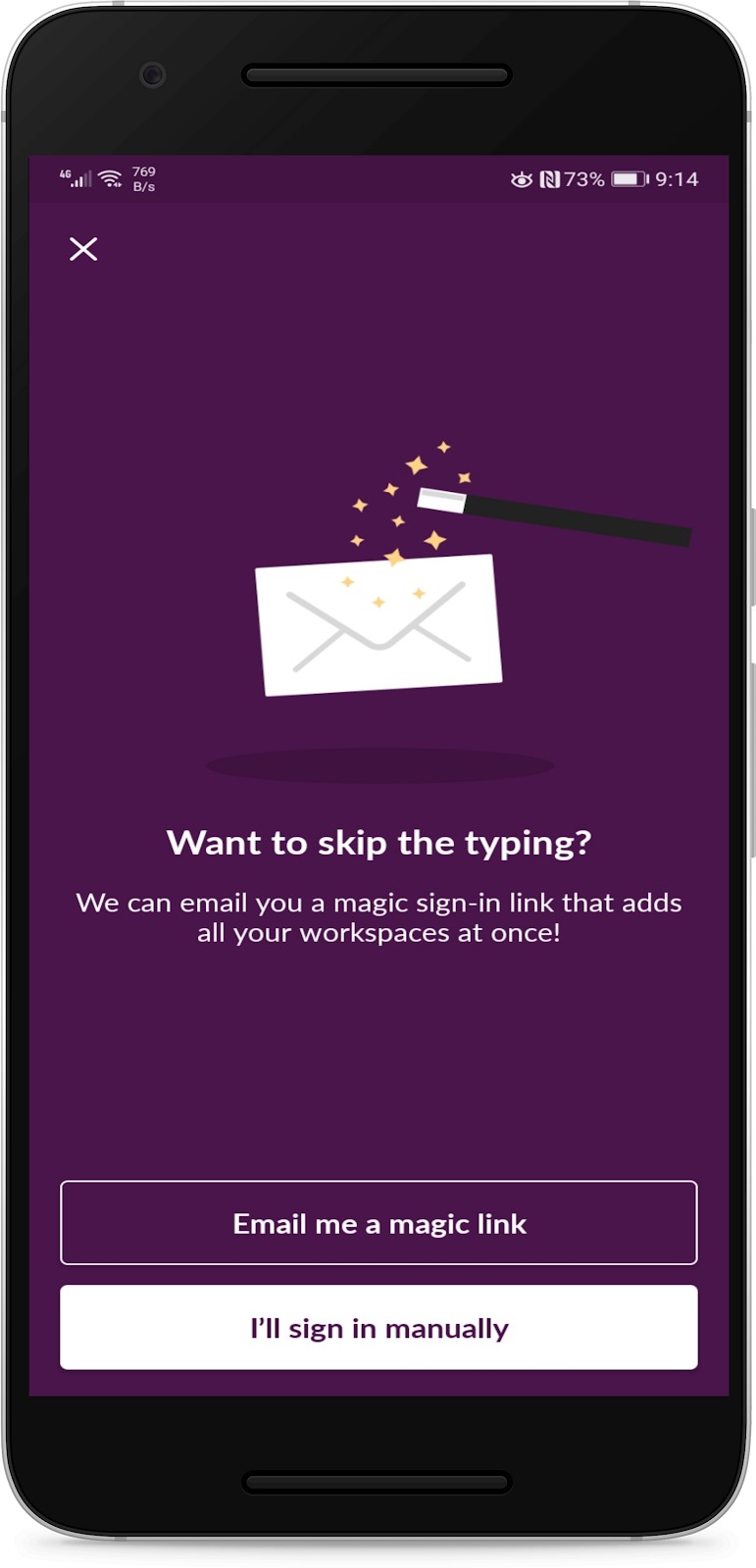
- Click on “Email me a magic link”.
Continue with your The Co-op email
(A email with “firstname.lastname@canadianmusicians.coop”)
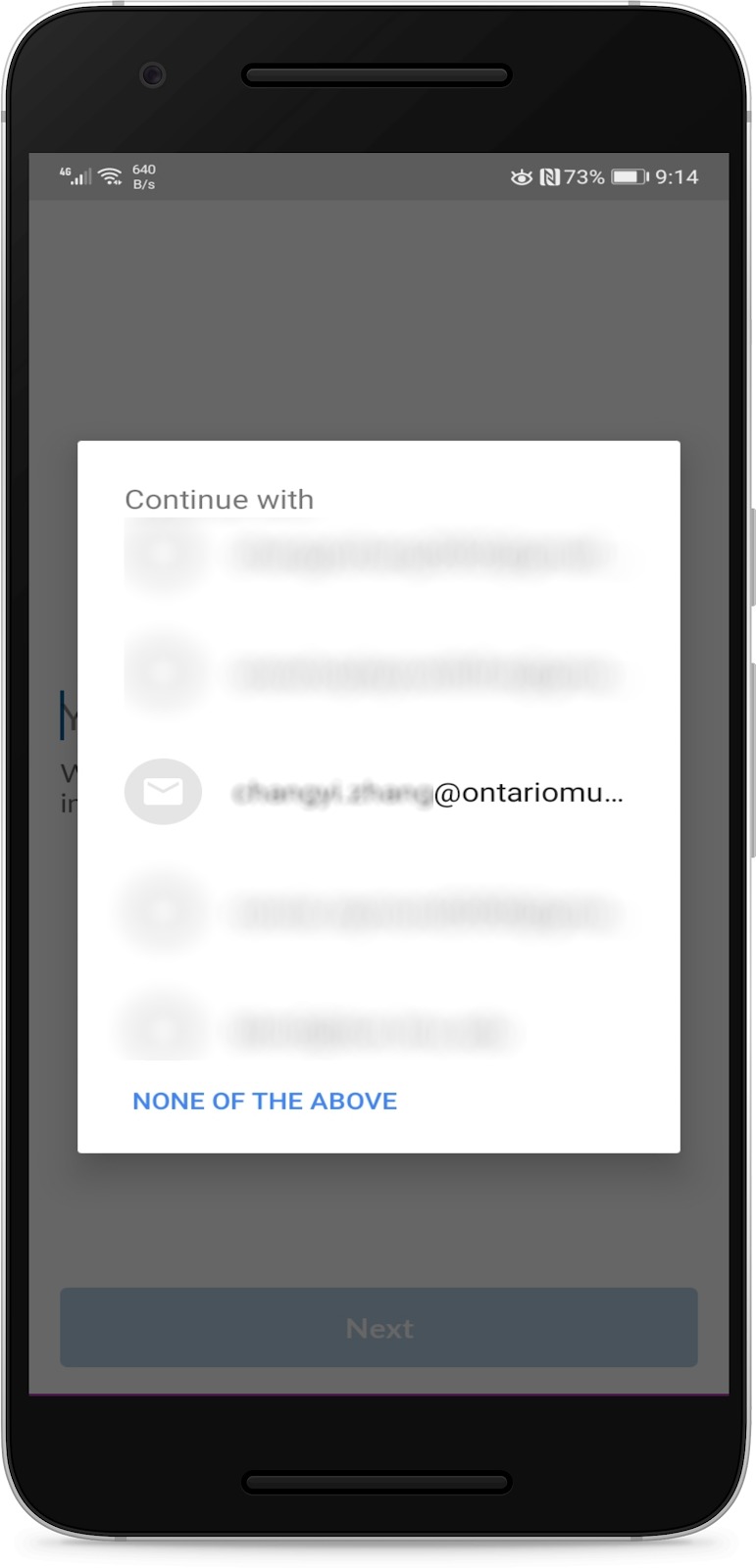
- It should automatically bring you to this page, simply click “Sign in with Google”
and if you have correctly logged into your The Co-op account before on your phone, it should automatically log you into slack
6. Welcome to Slack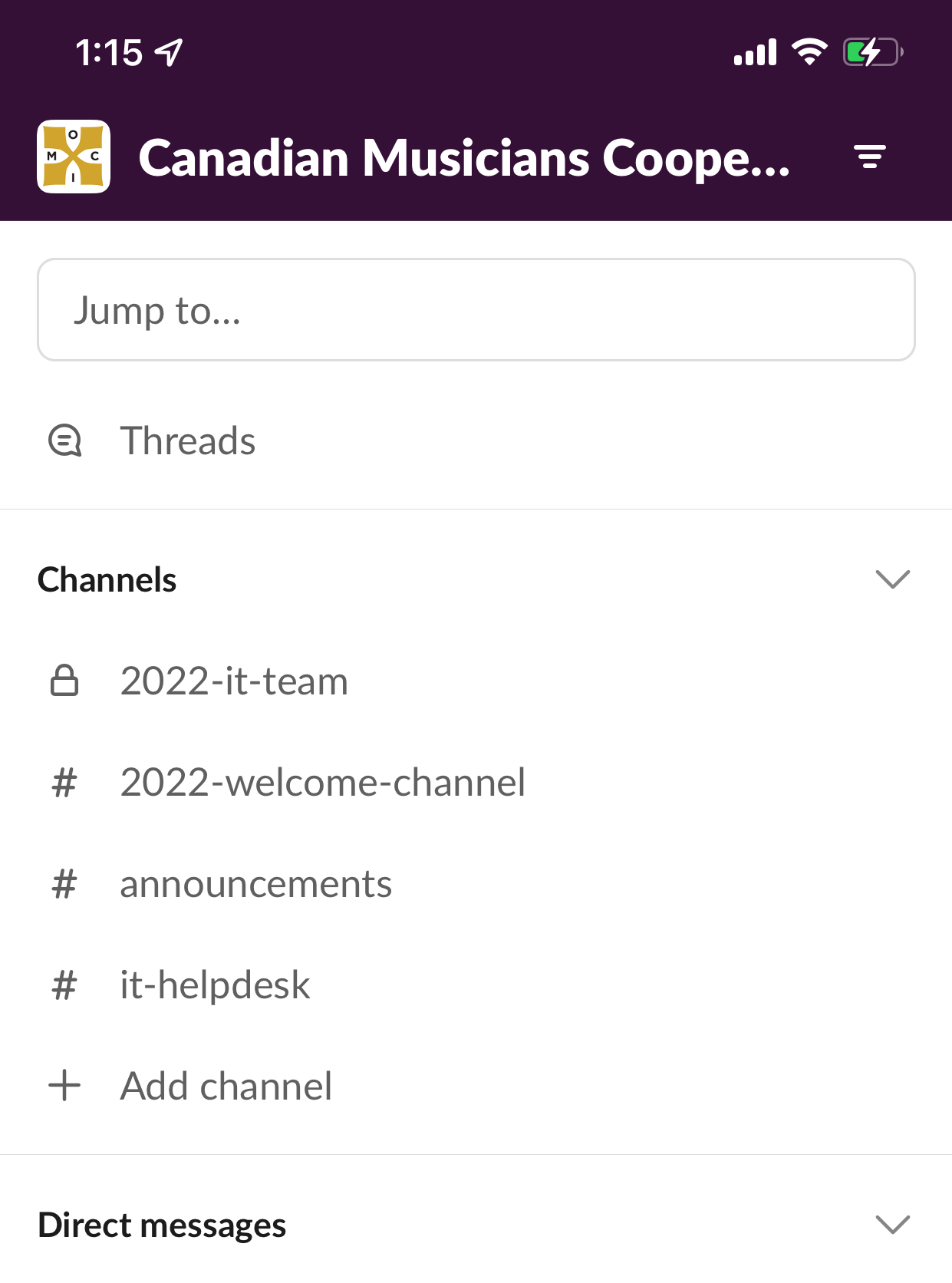 **If you come into any problems with logging in, try to log into your The Co-op account through gmail first to link your account to your phone.